Detailed Guide
Recording Not Given
Scenario
How to document a dose of medication as not given in the Drug Chart.
Instructions
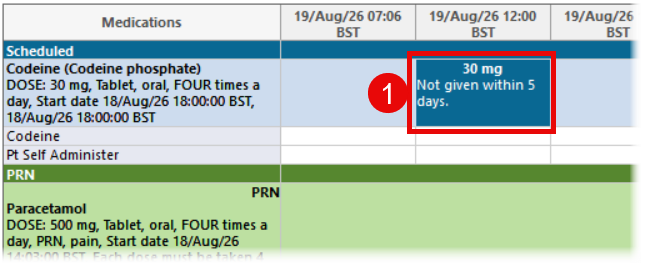
- From the Drug Chart, click on the dose administration box for the dose you want to record as Not Given.
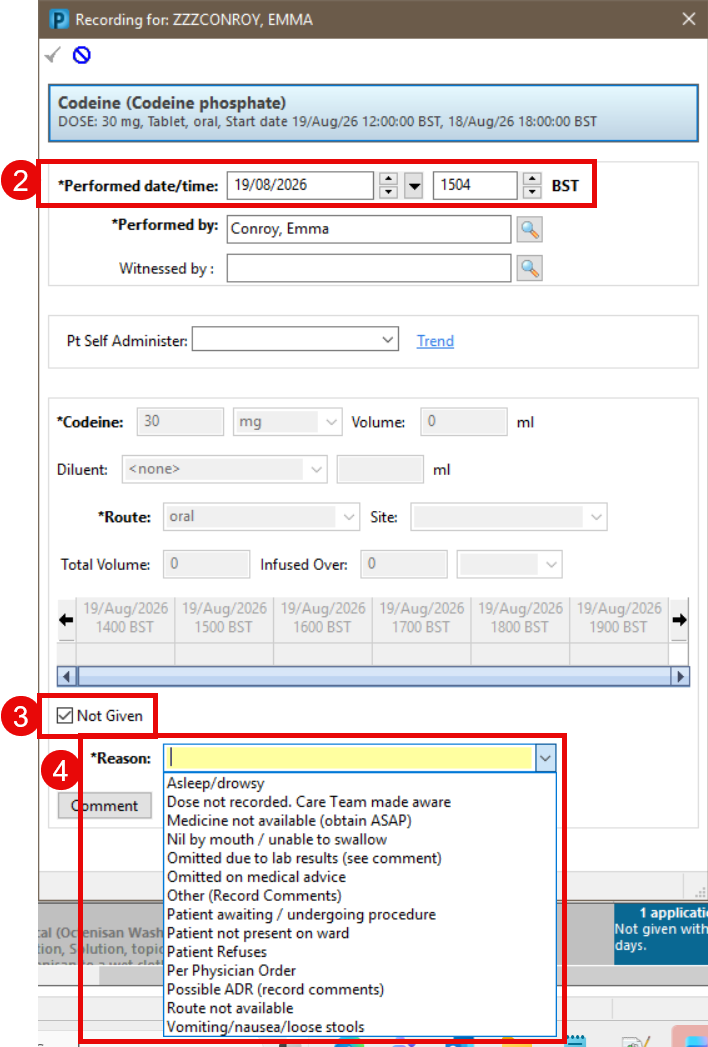
- The Recording pane will open. If you are retrospectively documenting a medication that was Not Given earlier, change the Performed date/time to the correct time this was attempted.
- Tick the Not Given tick box at the bottom of the window .
- In the Reason mandatory field, select the appropriate reason from the drop down.
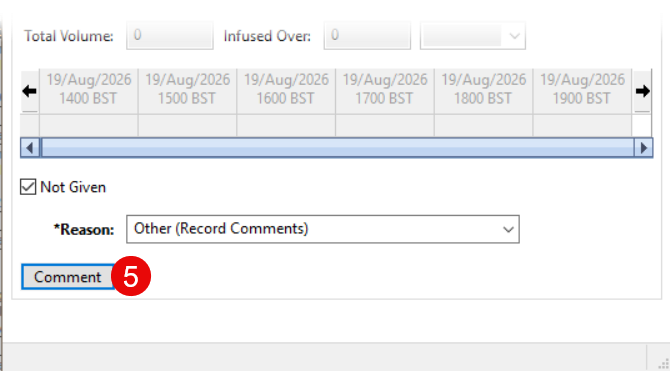
- If the appropriate reason is not listed, select Other (Record Comments), and click the Comments button.
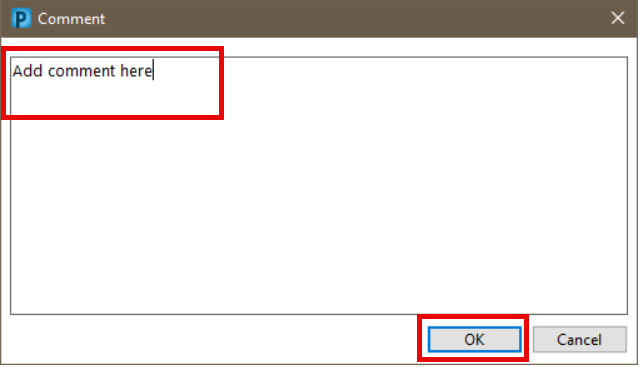
- Type a comment and click OK.
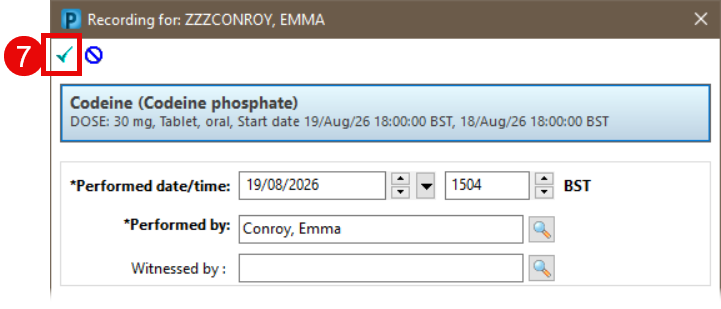
- Sign the documentation using the green tick in the top left hand corner of the window
 .
.
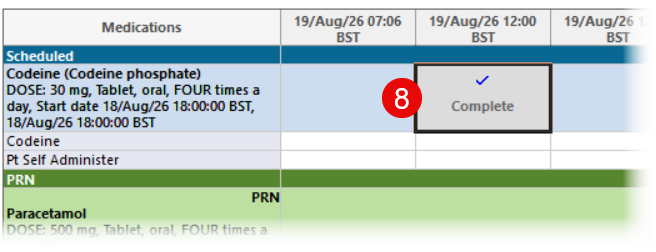
- The dose administration box will now display Complete.
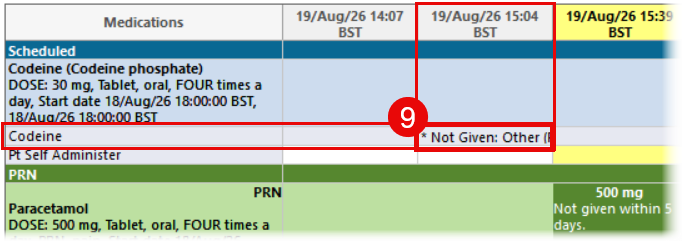
- Refresh the drug chart. Not Given and the reason will now display in line with the drug name at the time entered.
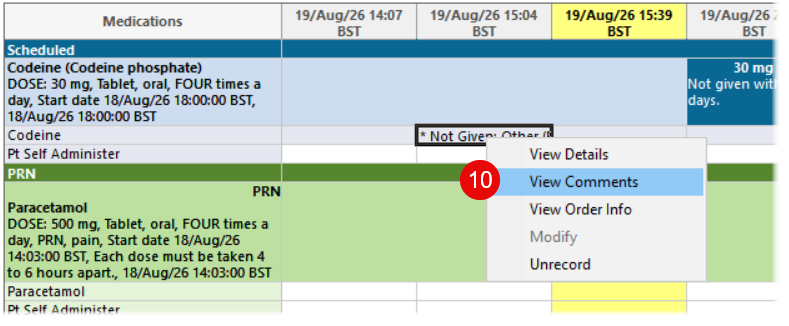
- To view comments, right click on Not Given and select View Comments.
Updated: 28 September 2026