Documenting an administered dose
Scenario
How to document the administration of a dose of medications in the Drug Chart. This applies to scheduled, un-scheduled or PRN.
Instructions
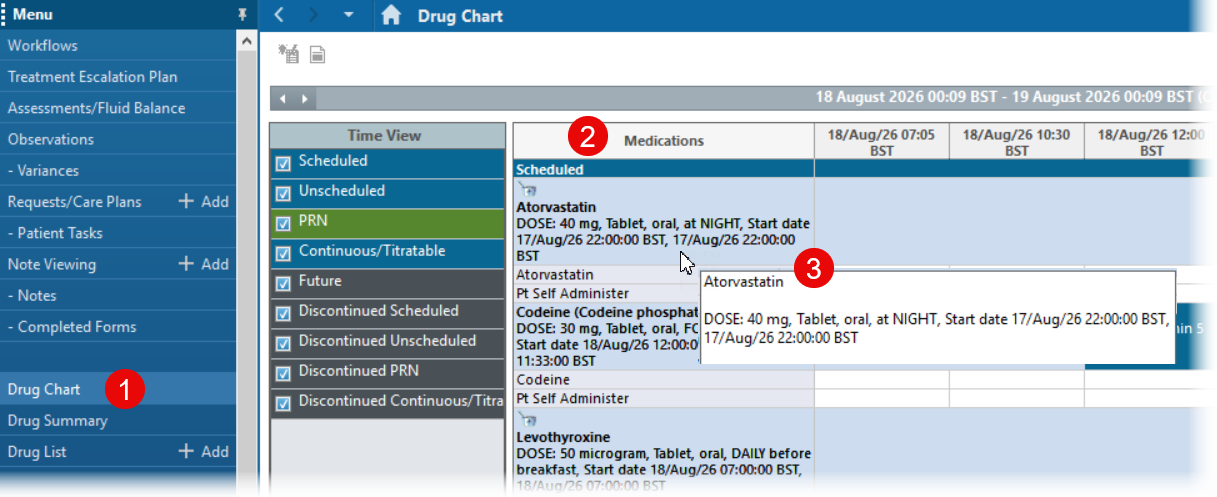
- Click on Drug Chart in the left hand menu.
- The Medications column shows the name of the drug, the dose, the frequency and other information from the prescription such as start date, stop date, special instructions.
- Hover over the medication name to see the prescription information in a larger box.
It is essential to read the full instructions.
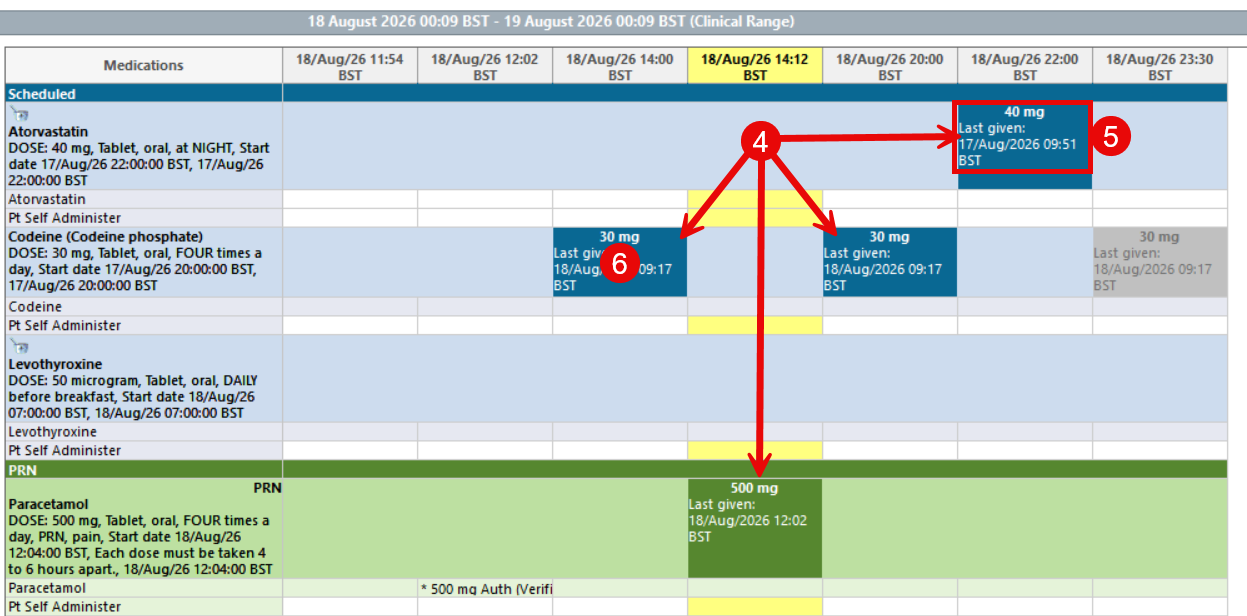
- A dose administration box displays at the time each dose is scheduled.
- Dose amount and the time the drug was last given displays in this box.
- To record an administration, click the box.
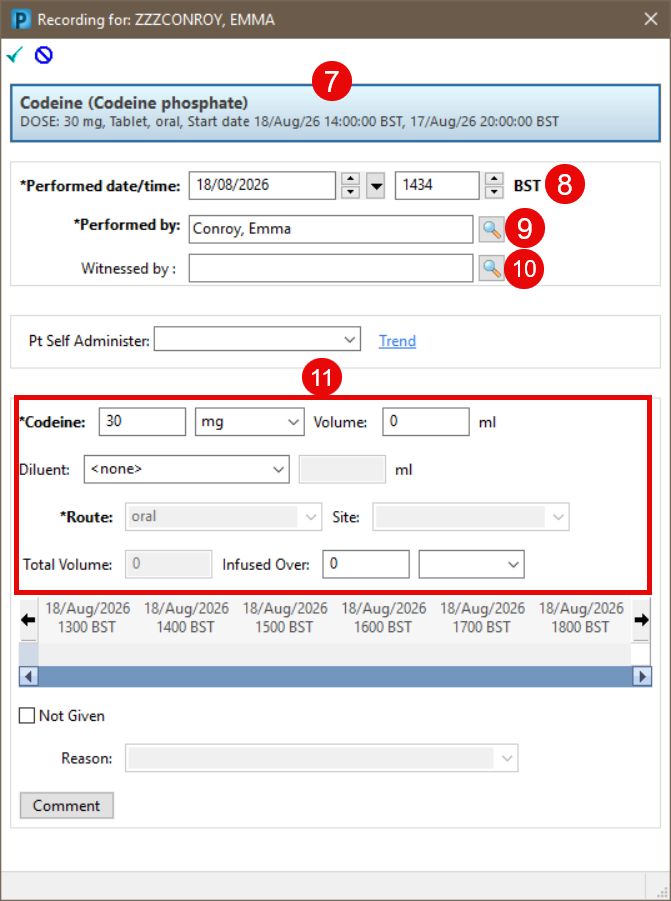
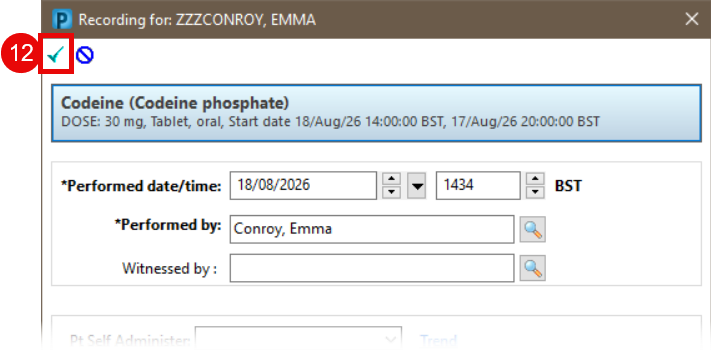
- The Recording pane will open. The prescription details displays at the top.
- The Performed date/time is displayed as the current date/time.
If you are retrospectively documenting a medication that was given earlier, change the time to the correct administration time.
- The Performed by field will automatically populate with the logged in user.
- If a witness is required, add their name into the witness field.
- The dosage information displays below.
- Sign the documentation using the green tick in the top left hand corner of the window
 . If the witnessed field is populated, the system will prompt the witness to enter their password.
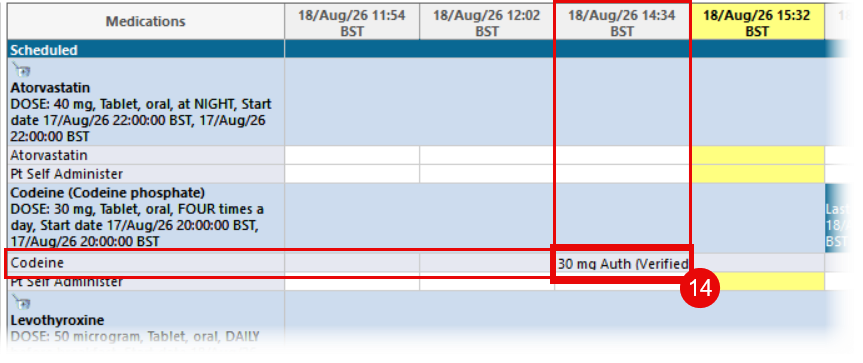
- The dose administration box will now display Complete.
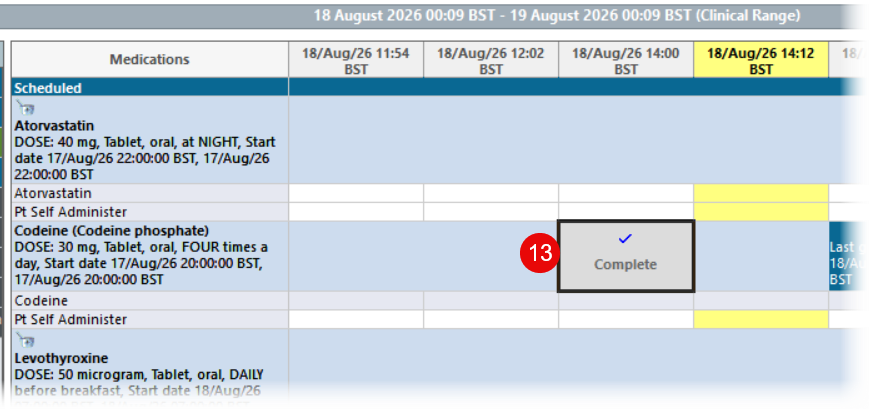
- Refresh the drug chart. The dose given will now display in line with the drug name at the time it was given.