How to Undo Check In
Scenario
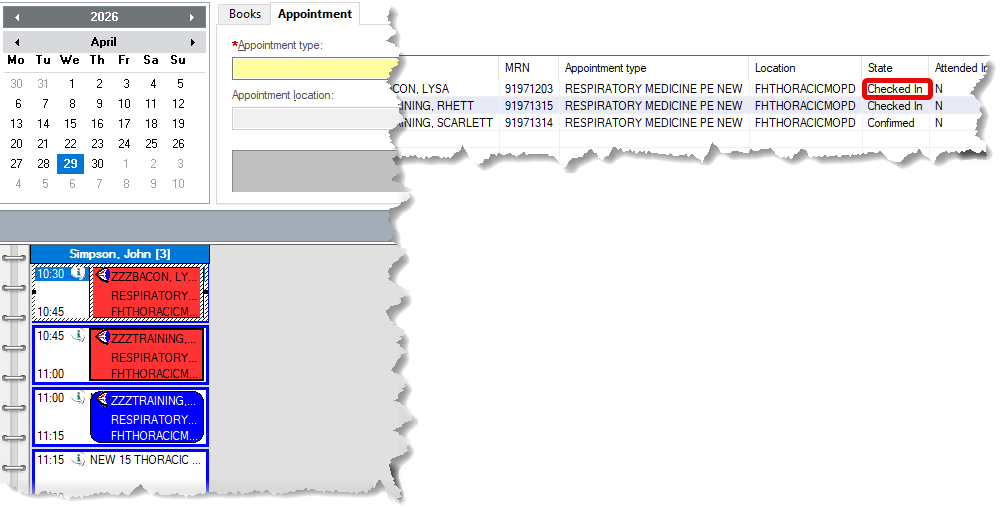
With your clinic guide in focus, the patient has previously been checked in for their appointment. The Clinic Book displays the appointment as Red representing the patient has been checked in for their appointment. But in this example, the patient has not yet arrived for their appointment, the wrong patient has been checked in. There is a two step process required to undo this checked in appointment.
Instructions
You must first Modify Encounter and then Undo Check In. Failure to carry out both steps in this process will mean that you are unable to check the patient in for this appointment when they do arrive! You must undertake both steps.
Step One
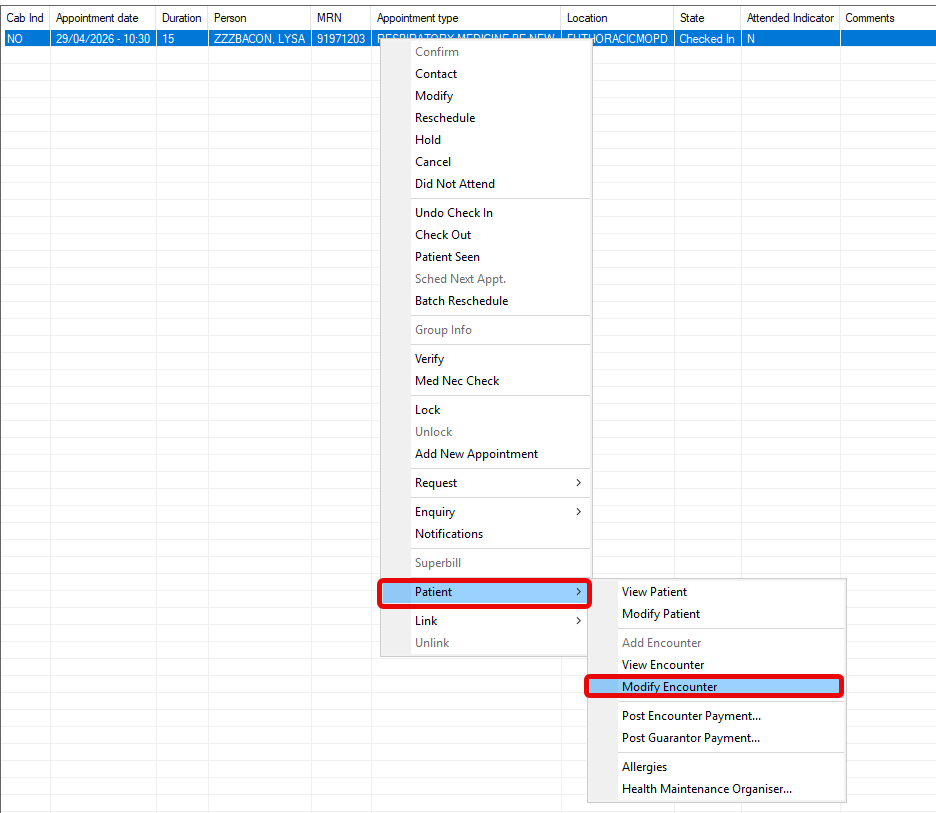
- Right click the appointment, select Patient, then select Modify Encounter from the sub-menu.
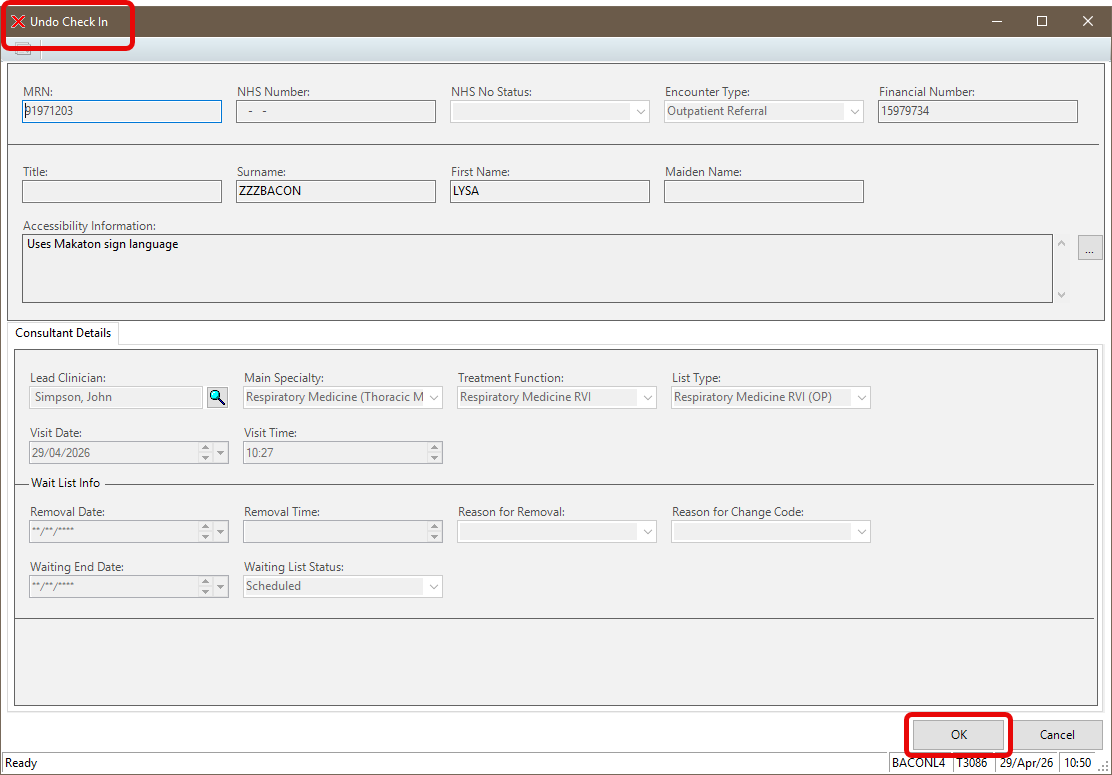
- The Undo Check In Conversation will launch but all fields will be greyed out; click OK.
Step Two
- Right click the appointment a second time and select Undo Check In.
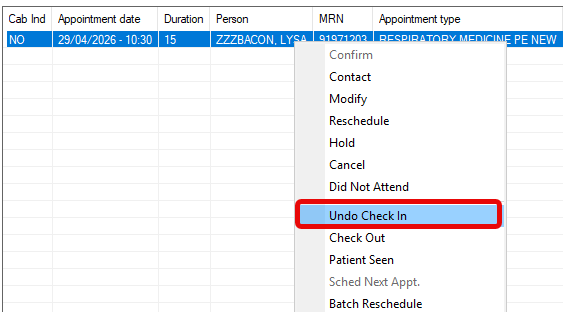
- The patient now has returned to a Confirmed state on the clinic list.