Select a resource
Scenario
This guide show how to set up clinic lists in Ambulatory Organiser.

List Tab
From within Ambulatory Organiser:
- From the List tab, click on the drop down arrow to the right of ‘Patients for:’.
- Type Surname or Clinic Name in the search field to find the resource.
- Tick box next to the Resource then click Apply.
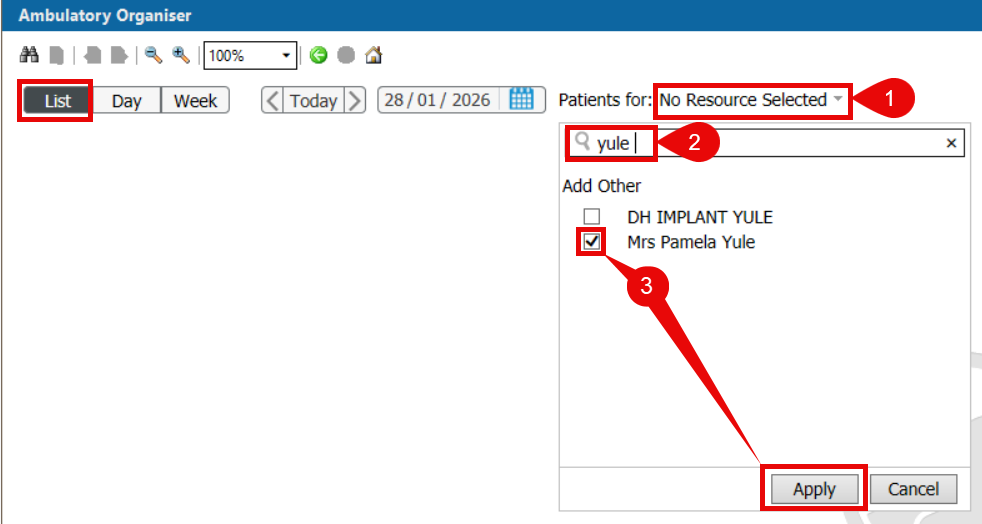
- Your Resource will now be saved and you won’t need to continuously search for the resource in the future.
- If more than one resource is required repeat the steps to search, tick and apply.
- If more than one resource is selected, patients from both lists will be mixed together and the name of the clinic will display under the appointment time.
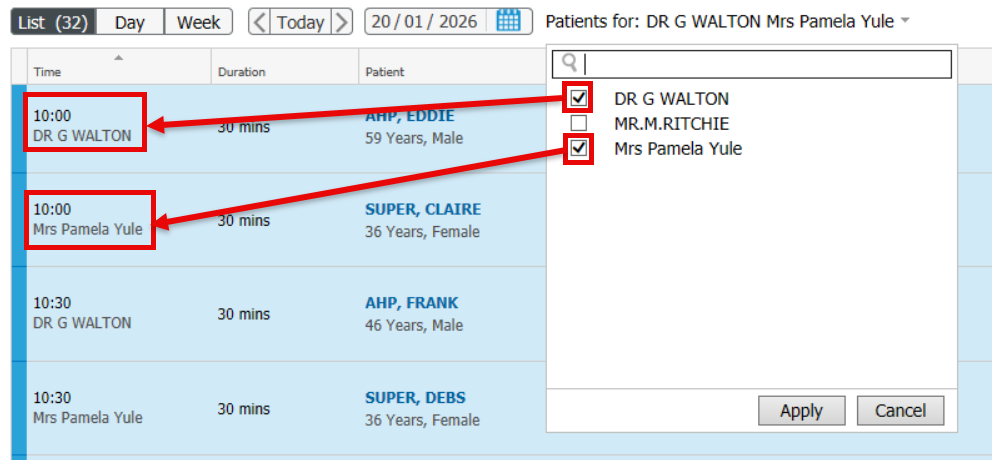
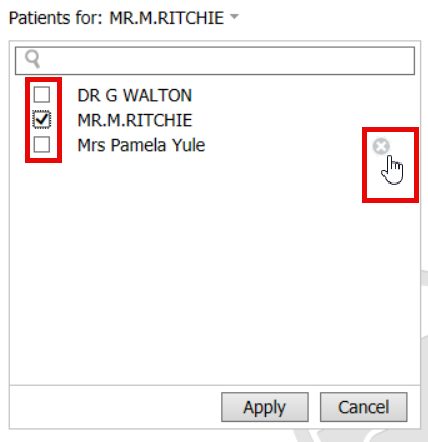
- To switch between lists remove the tick from the selected resource and add the tick to the required one.
- To remove a previously selected resource hover the mouse over it and click the X.
Day Tab
- From within the Day tab, repeat the steps above to select resource(s).
- Each selected resource will be shown as a separate column:

Week Tab
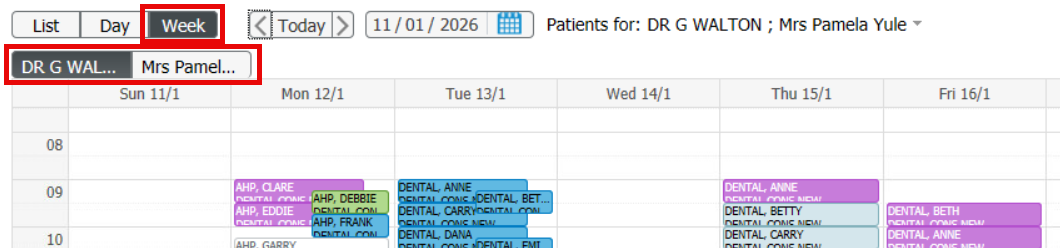
- From within the Week tab, repeat the steps above to select resource(s).
- Each selected resource shows as a separate tab: