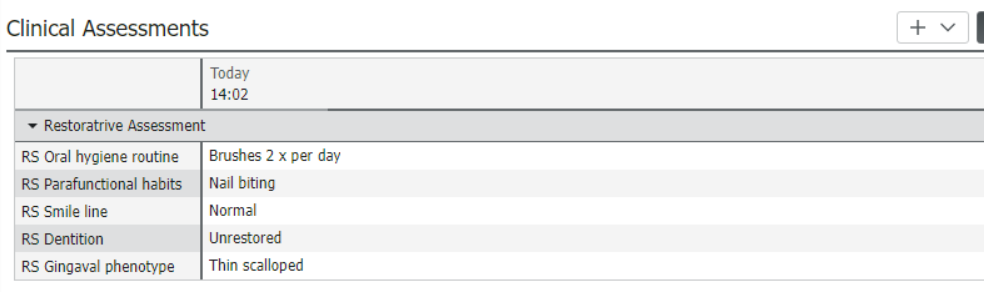
Dental Assessment Forms
This guide shows how to access, save and sign assessment forms in the Dental Workflow.
Accessing new forms
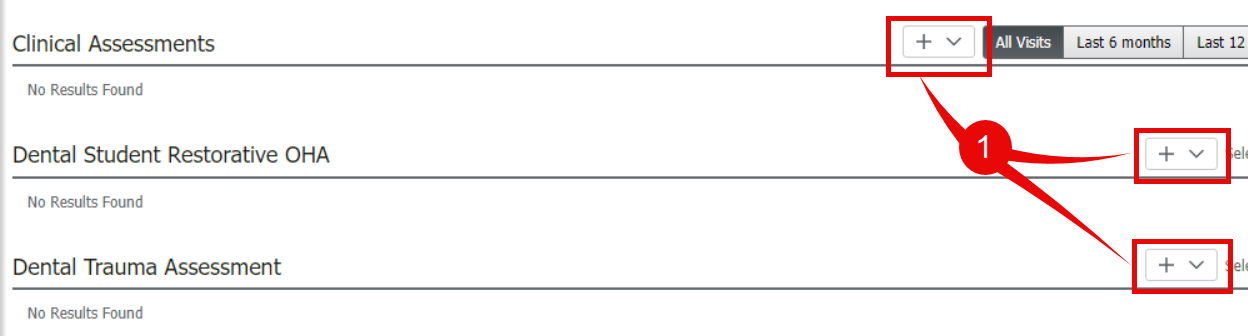
- Locate the relevant section and click the +v button
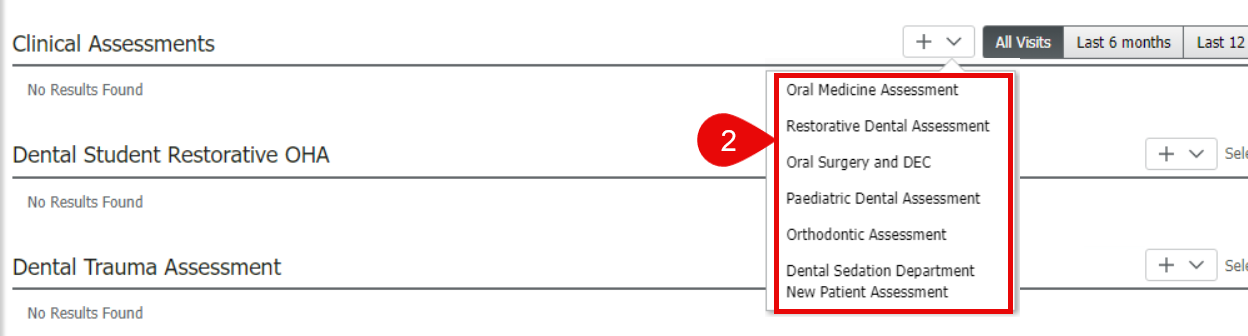
- Select the form from the dropdown
- The blank form will open and can be completed.
Saving forms
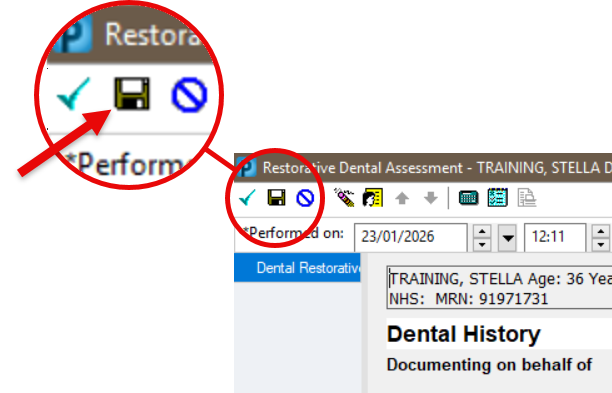
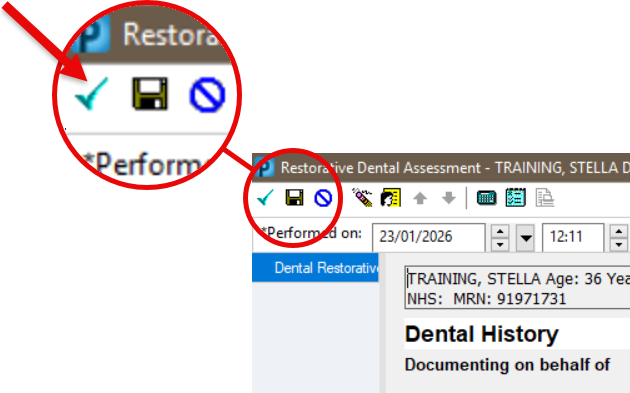
- Complete the form and then select save (disk icon) in the top right corner. This will save the completed data and the form will have a status of In Progress.
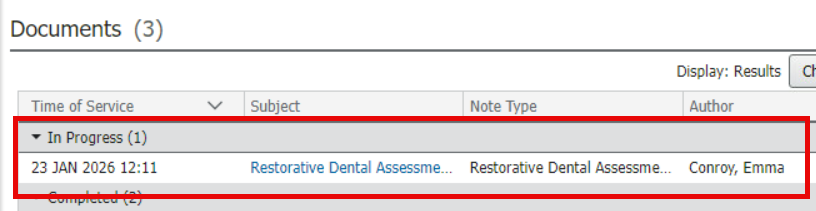
- Once saved the form will display in the Documents section under the In Progress heading.
Modify In Progress forms
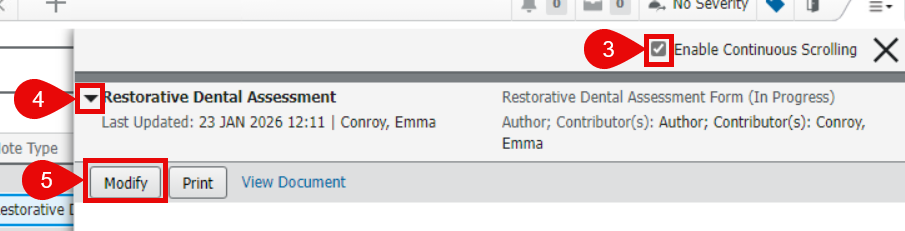
- Locate the form in the Documents section and click it. Please note, do not click on the blue link text.
- A panel will pop out from the side.
- Ensure the tick box for Enable continuous scrolling is ticked
- Click the arrow next to the form you need to modify
- Click Modify
Signing forms
- Complete the form and then select sign (green tick icon) in the top right corner.
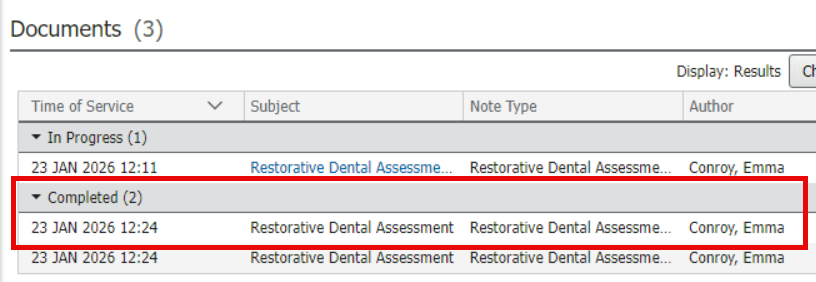
- Signed forms will display in the Documents section under the Completed heading.
- Once signed, some information from the form will populate the relevant section: