The following example illustrates how to reschedule a patient’s appointment for a later date.
Instructions
To reschedule an appointment, you will need to locate the patient appointment using the Eye Enquiry within SchApptBook.
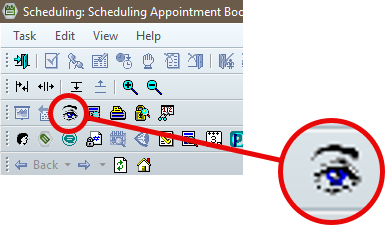
Open SchApptBook and select the Appointment Enquiry (blue eye icon).
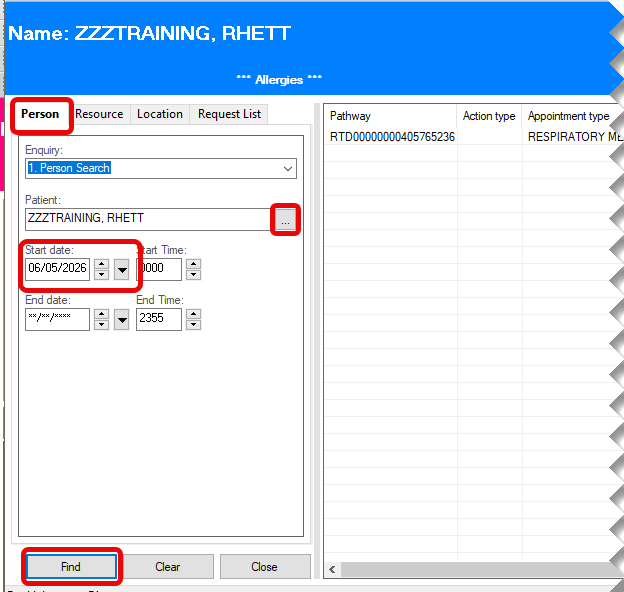
Using the Person tab, locate the patient and appointment that you wish to view. You will need to adjust the Start Date to a date in the past.
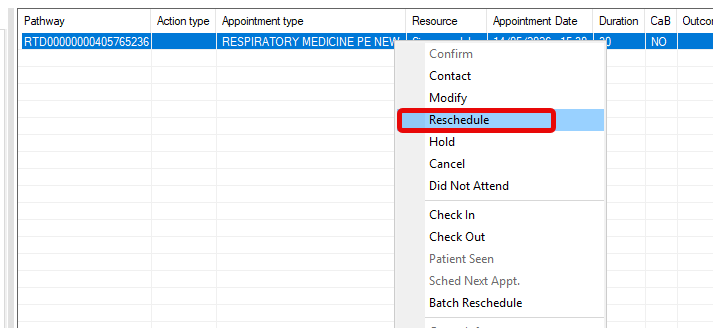
Right click on appointment to be rescheduled and select Reschedule from the menu.
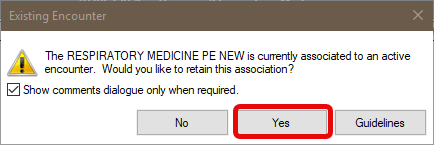
Retain the Encounter Association and note any appointment guidelines eg. An interpreter has been booked etc before you close this window.
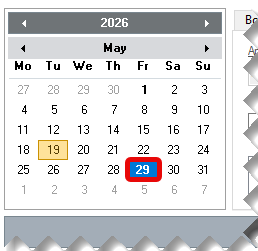
Locate the date for the appointment using the calendar.
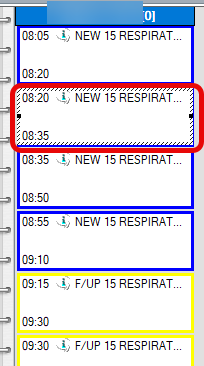
Select the Start Time for the correct Resource.
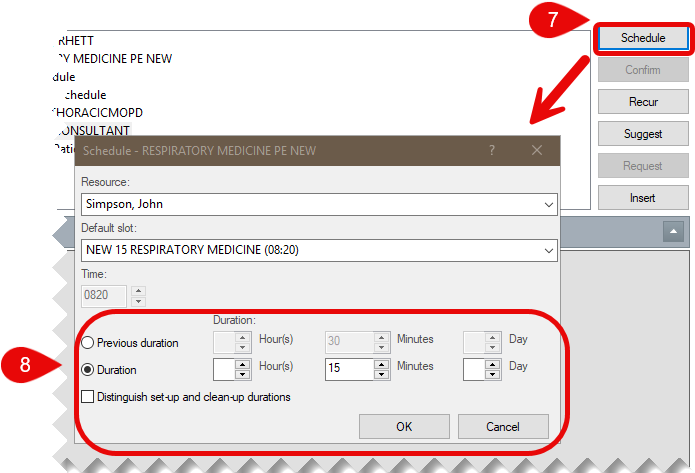
Selecting the Schedule button will display the clinic details.
The previous appointment duration is displayed to assist you in selecting the duration. Click OK.
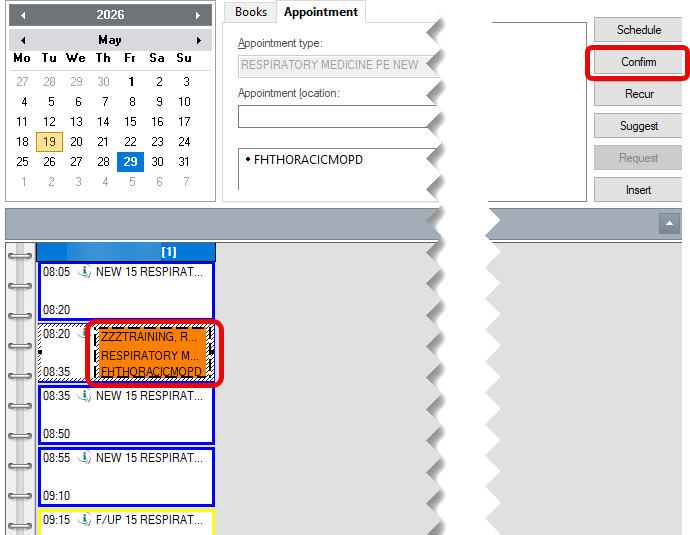
The Unconfirmed appointment displays against the resource. Select Confirm to confirm the appointment.
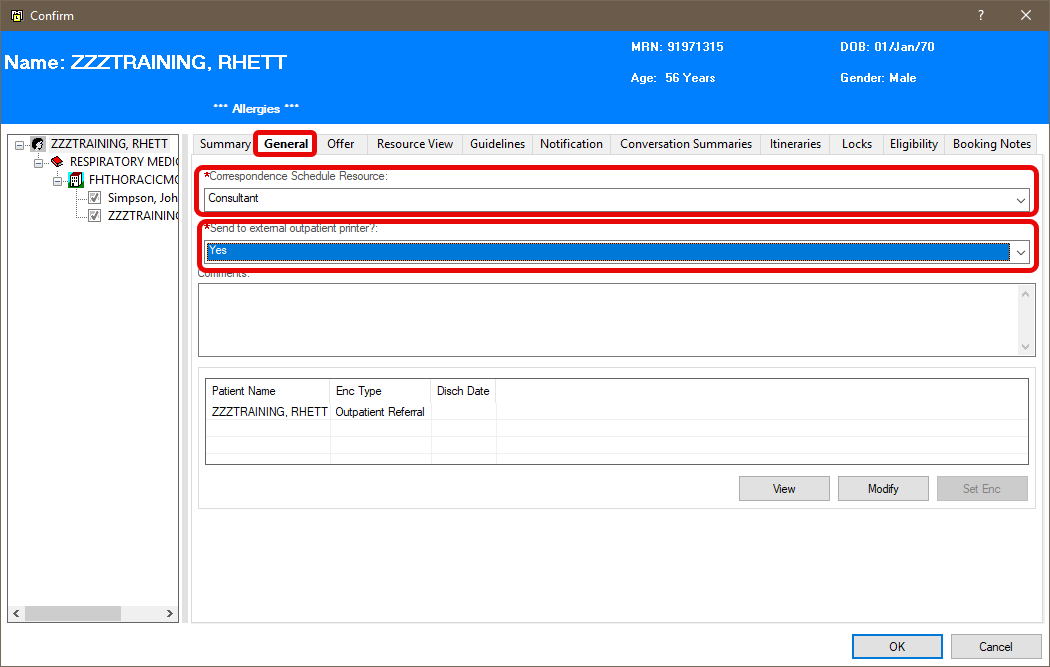
Complete the two mandatory fields. Before addressing, they will be highlighted in yellow and are indicated by a red asterisk to the left of the field. Select the Correspondence Schedule Resource (this will display on the patient letter informing the patient who they will see). Select whether or not to send to external outpatient printer.
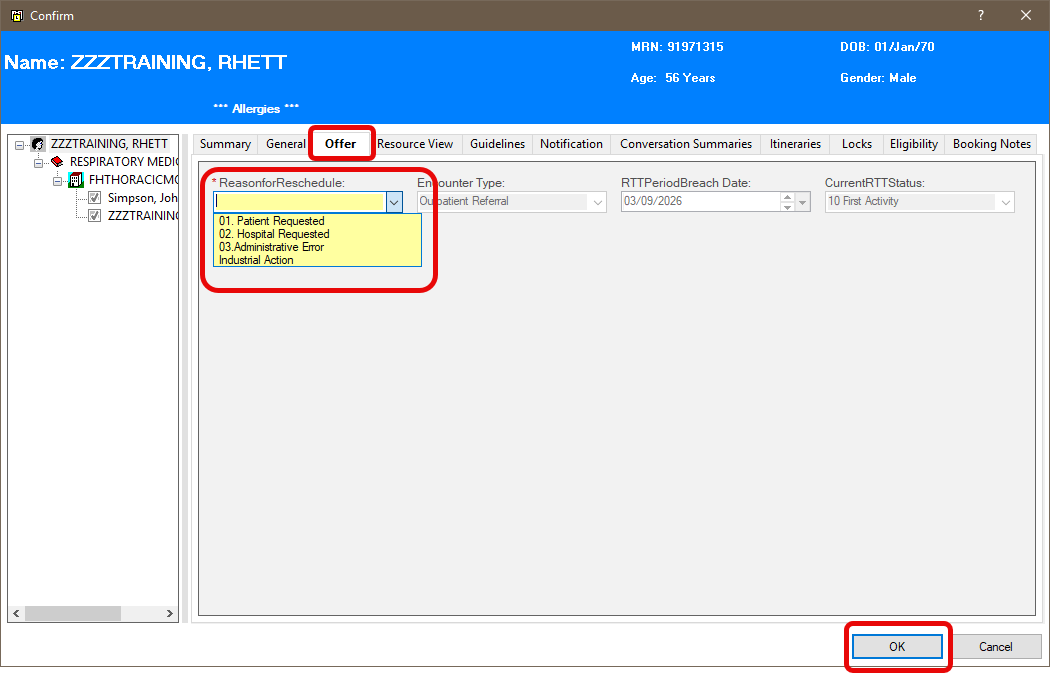
Click on the Offer tab to add the Rescheduling Reason. Click OK when finished.
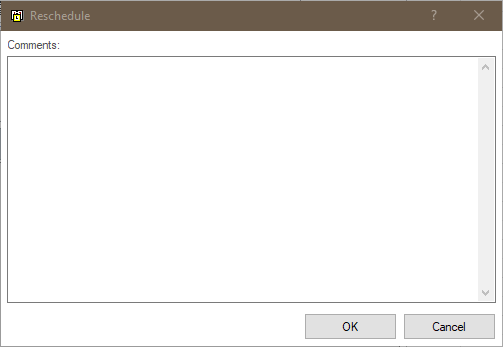
Add any further comments.
The appointment will now display as a confirmed appointment against the resource, with the previous appointment displaying “Rescheduled” on the Person Search Screen.