
More results...
More results...
Enter PowerChart and from the blue menu on the left of the screen -select the “Diagram Creation” Option.
You should get a message in the screen saying “Diagram Creation has opened in your internet explorer browser” and “Please refresh to open again” along with the date and time you attempted to open the menu. If you select the refresh button in PowerChart, it will open the Diagram Creation window in an additional browser tab.
The window (shown below) should open automatically. Your patient’s MRN, NHS number, Name and Date of Birth should be shown across the top of the screen.
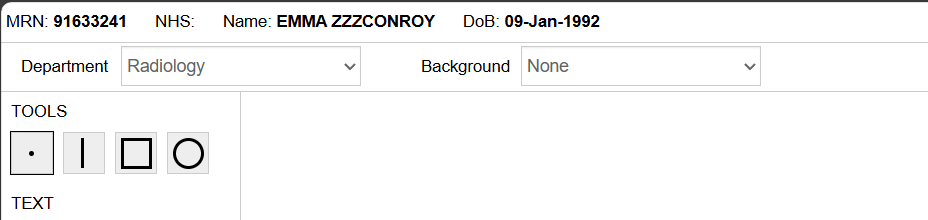
You can use the tools on the left hand side of the screen to annotate the background. To do this, select the tool you want (dot, straight line, square or circle) and click on the area of the diagram you wish to annotate.
Once you have completed your diagram – press “Save Image” in the top right corner. This will open a window asking you to confirm the department and to provide a description of the diagram. Once you have done this, press “Save” or press “Cancel” to continue editing. Saving will then clear the screen ready for further diagrams.
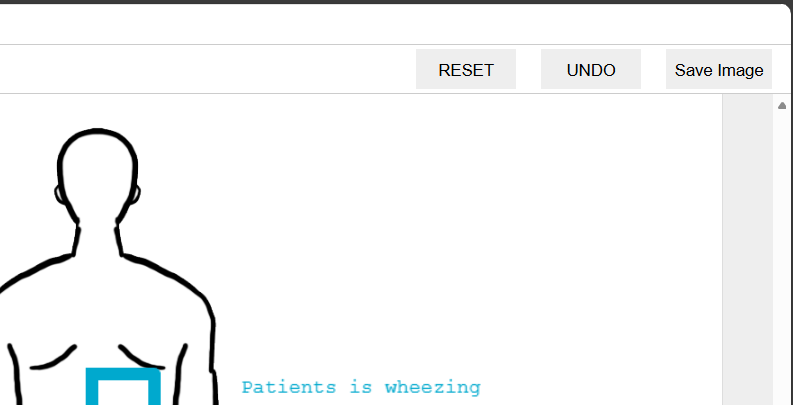
The saved diagram will then be sent to Diagram Store. For a guide on how to use Diagram store, please see (Diagram Store – IT Training Support).