
More results...
More results...
Enter PowerChart and from the blue menu on the left of the screen -select the “Diagram Store” Option.
You should get a message in the screen saying “Diagram Store” has opened in your internet explorer browser” and “Please refresh to open again” along with the date and time you attempted to open the menu. If you select the refresh button in PowerChart, it will open the Diagram Store window in an additional browser tab.
The window (shown below) should open automatically. Your patient’s MRN, NHS number, Name and Date of Birth should be shown across the top of the screen.

All previously created diagrams for the given patient will be shown in a list. You can search for lists using the search bar at the top and searching for the Department, Type or person who created the diagram. Alternatively, you can tick the “Only My Diagrams” box to filter out any diagrams created by other members of staff.
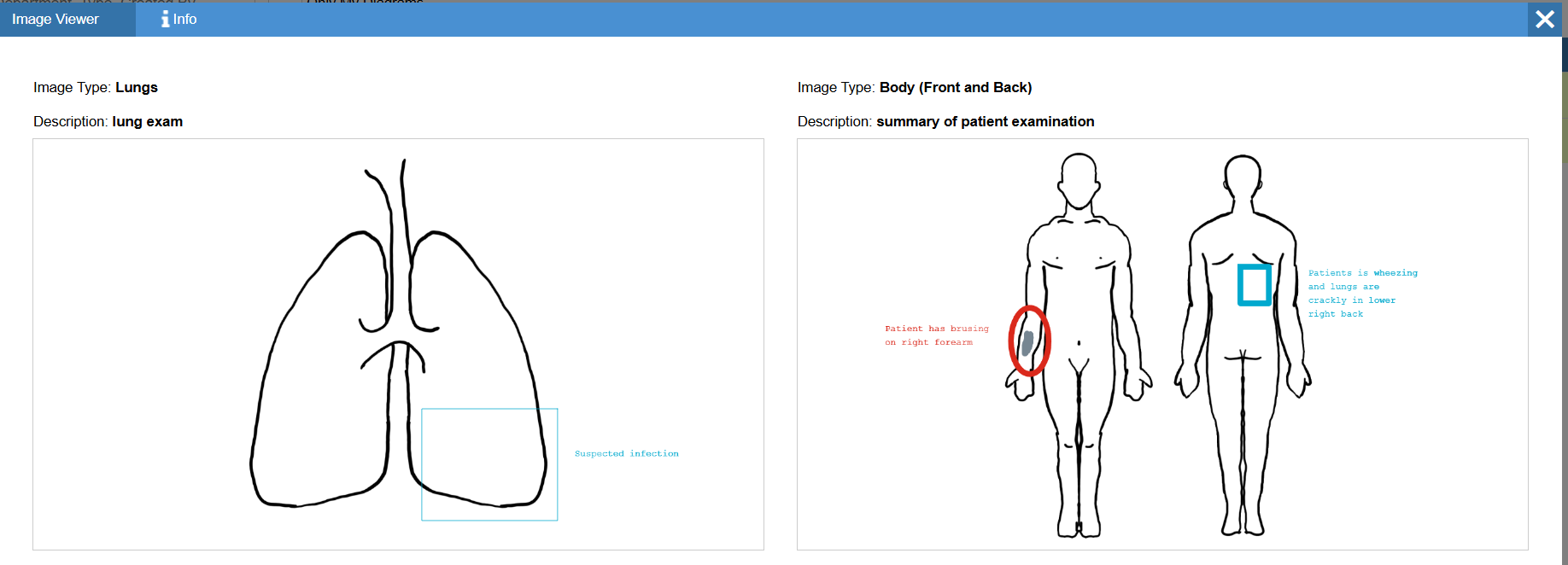
To compare two images, click the compare button on both images. The two diagrams will be shown in a pop up window side by side.
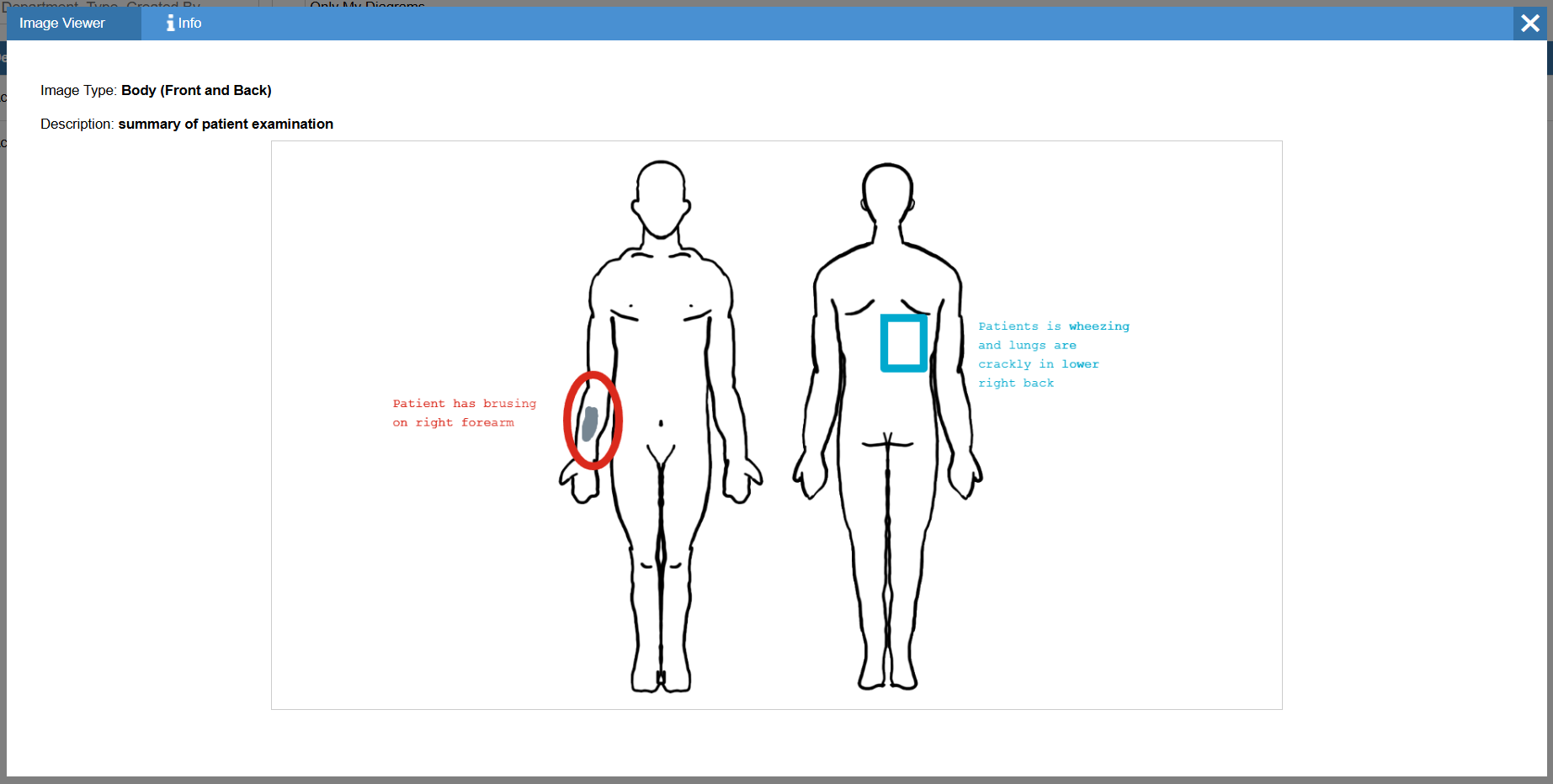
If you press the view button on an diagram, it will open the diagram in it’s own window.
If you click on the Edit button, the system will redirect you to the Diagram Creation browser window. Although the annotations will carry across, you may need to reselect the background for the diagram.
Once you have made the alterations to your diagram, click “Save”. You will need to re-enter the department and the description of the diagram.
The saved diagram will then be sent to Diagram Store. For a guide on how to use Diagram Creation, please see (Diagram Creation – Quick – IT Training Support).