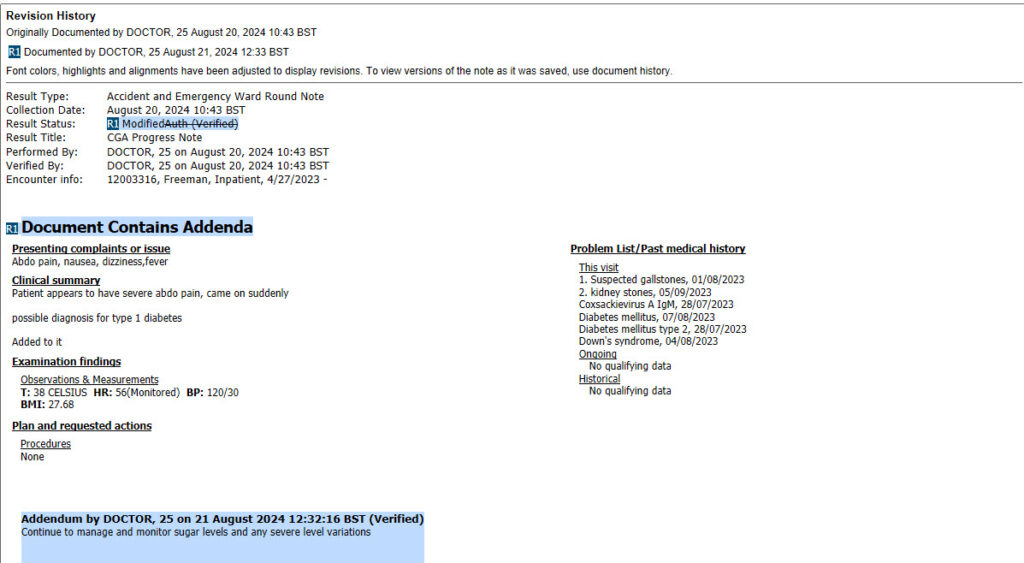
How to view tracked changes and the document history of an existing note in Powerchart:
Viewing Tracked Changes
Viewing tracked changes will allow you to see the details of specific revisions to a document, their author, and the time and date of the revisions.
In the patient record, select Document Viewing from the menu on the left:
Select the document you wish to view the tracked changes for. The document preview will display on the right side of the screen:
Click the small “Show Tracked Changes” button to the top of the list of documents:
The document preview will now highlight who has updated the document, where the adjustment has been made and is colour co-ordinated to show the changes made by users. The colours will change to a maximum of 10 times then number 11 will show as the same colour as number 1:
Click the Show Tracked Changes button again to turn off Tracked Changes view.