Organising your order favourites
Scenario
This guide covers the following:
- How to create, delete and rename folders
- How to organise and delete order favourites
Instructions
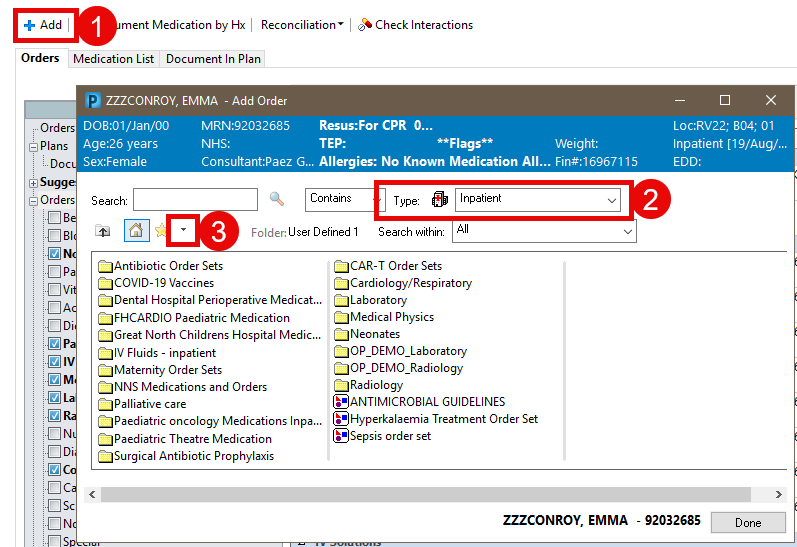
- From Requests/Care Plans or Drug List, click + Add.
- The Add Order box will open. Select the appropriate order Type from the drop-down list.
- Click the small arrow next to the star icon, then select Organise Favourites.
- The Organise Favourites pane will open.
The favourites displayed are associated to the Type you selected in step 2
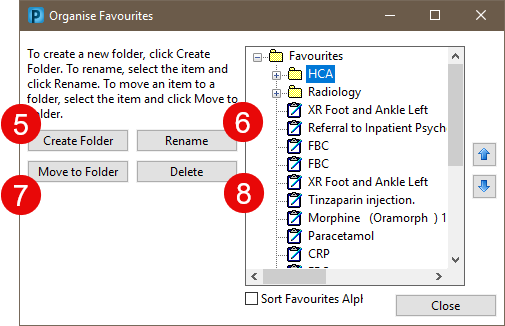
- To add a new folder click Create Folder.
- To rename a folder, select it and then click Rename.
- To move an order into a folder select it and then click Move to Folder.
- To delete an order/folder select it and click Delete.
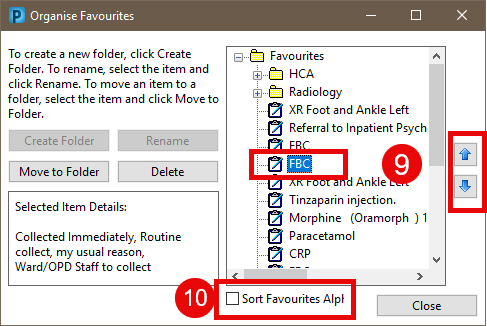
- To change the display order of the list, select an item and use the arrows.
- To sort all items alphabetically tick the box labels Sort Favourites Alphabetically.
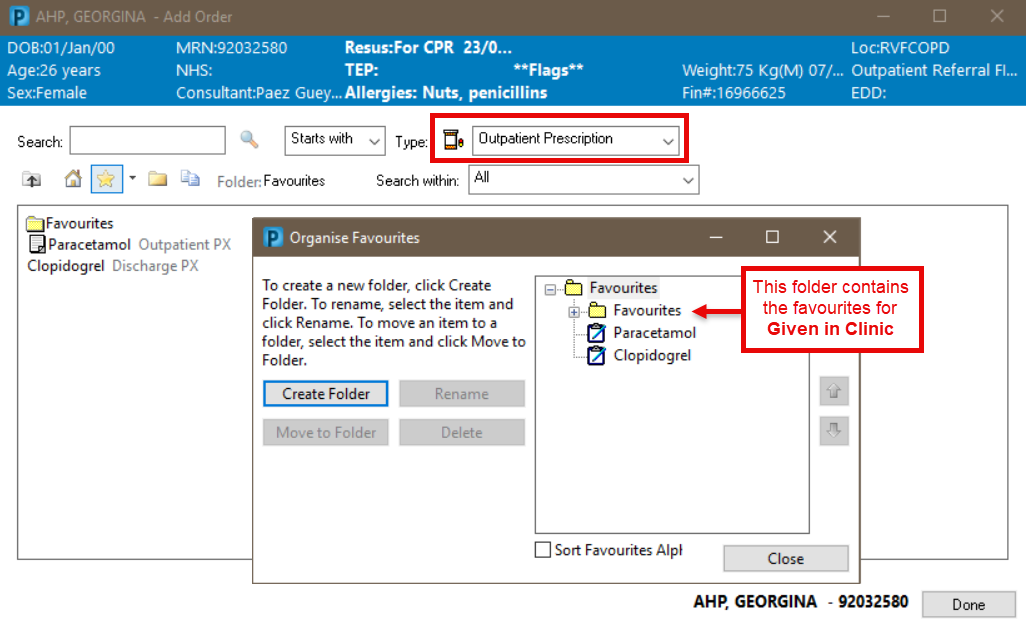
When the Outpatient Prescription or Discharge meds as Rx order type selected a second ‘Favourites’ folder will display
inside the top level favourites folder.
The second folder is not a duplicate. It contains the order favourites for the Given in Clinic order Type.