Adding Order Favourites
Scenario
This guide explains how to add favourites with the order details pre-populated. Setting up favourites can save time by reducing the need to enter the same order information each time you order or prescribe commonly used items.
Instructions
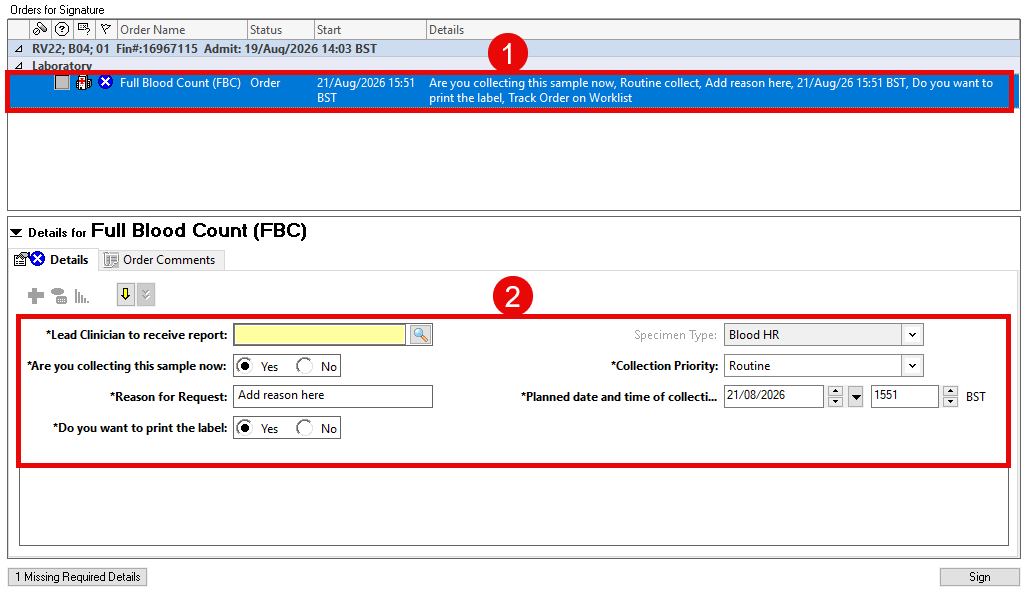
- From the Orders for Signature screen, select the relevant order.
- Fill out the order details that you want save.
- Note, the ‘Lead Clinician to receive report’ field cannot be saved.
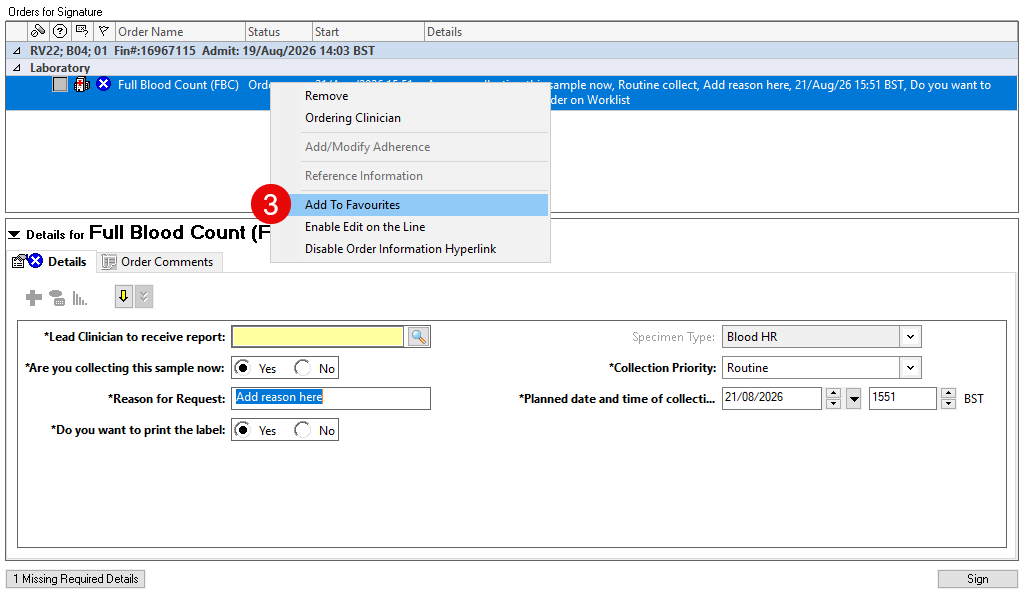
- At any time, right click on the order sentence and select Add to Favourites.
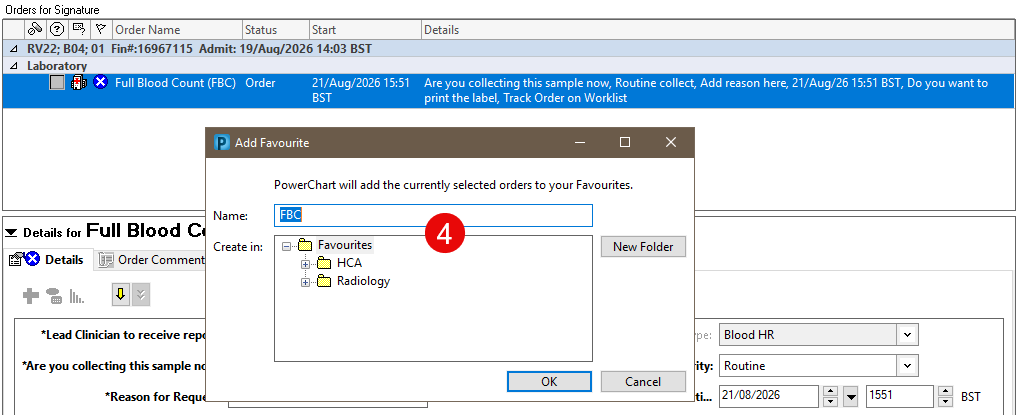
- The Add Favourite pane will display. Select/add a folder as required then click OK.
- The order will be saved and can be accessed from your favourites list.