How to create a shared staff task list in Outlook on the web
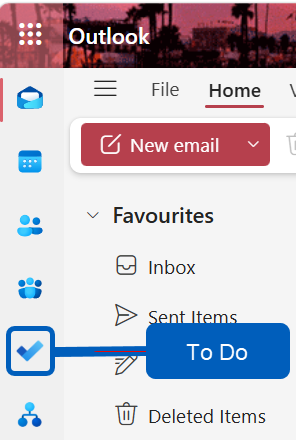
- Open Outlook on the web, then click the To Do icon
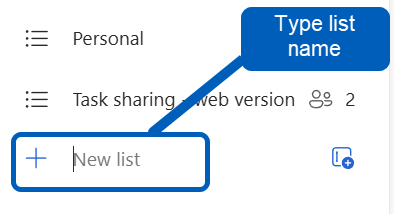
- Click New list at the bottom of the task lists menu, type a name for the list and press Enter
- Open your newly created list and click the Share button at the top right
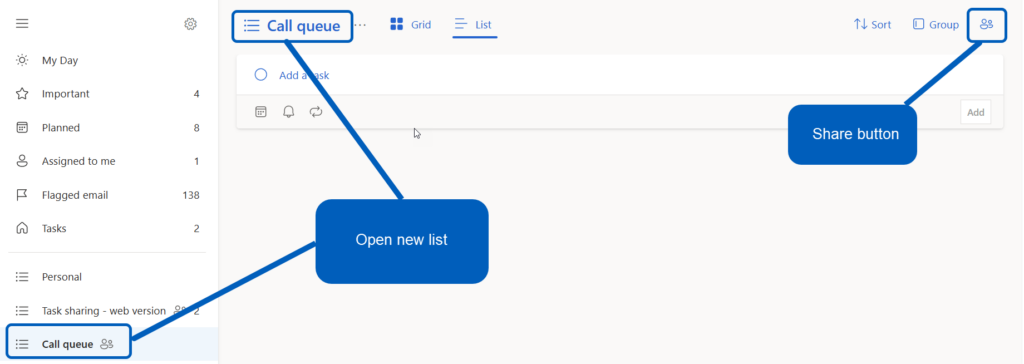
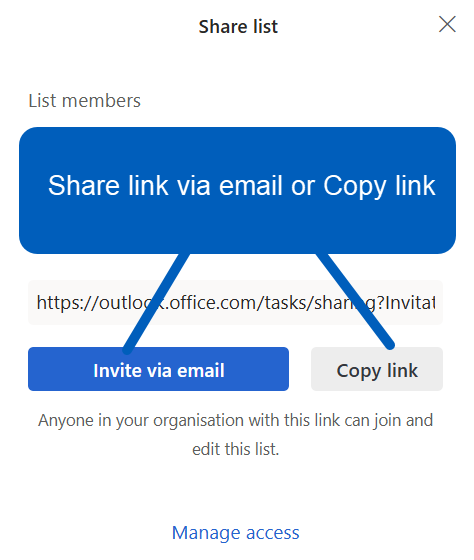
- From opening Share list window, share link with team members via email or Copy link
- Once team members accept the invitation, you can start assigning tasks to each other
Assigning tasks to each other
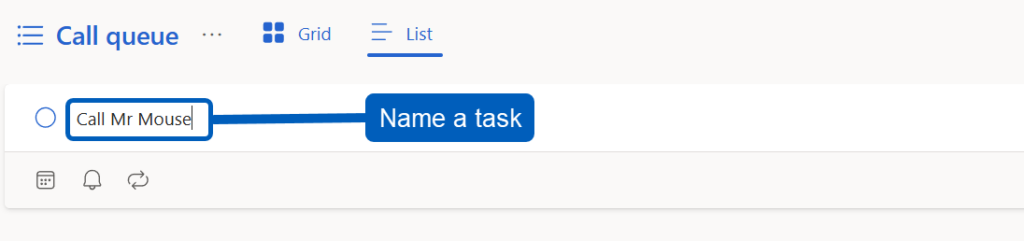
- Open the shared list, give the task a name and press Enter to save task.
- Double left click on the task to open up the options window, select Assign to.
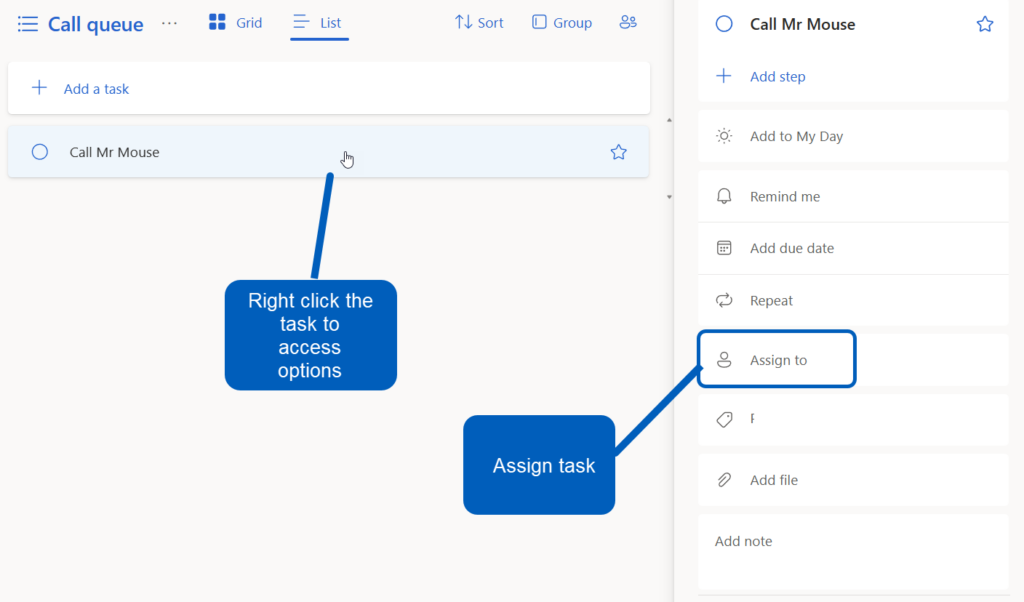
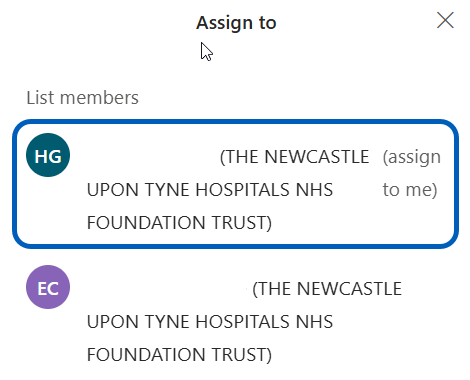
- The assign to window will open, select the team member from the list you want to assign the task to.
- Select the List view then you will see who the task has been assigned to

- Staff will be able to see tasks assigned to them in the shared task list and Assigned to me sections of To do