
More results...
More results...
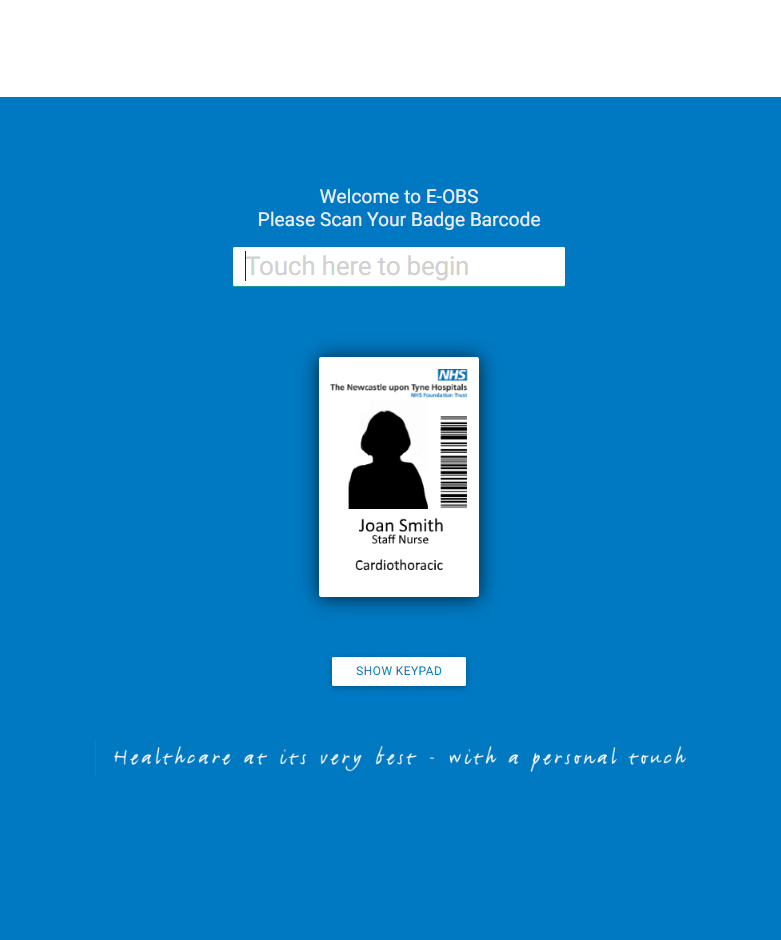
To document a patient’s comfort chart, you must first log in on the e-Obs. To do this, you can either use the barcode scanner attached to the e-Obs stand and scan your NHS badge, or you can press the “Use Keypad” button and type in your payroll number.
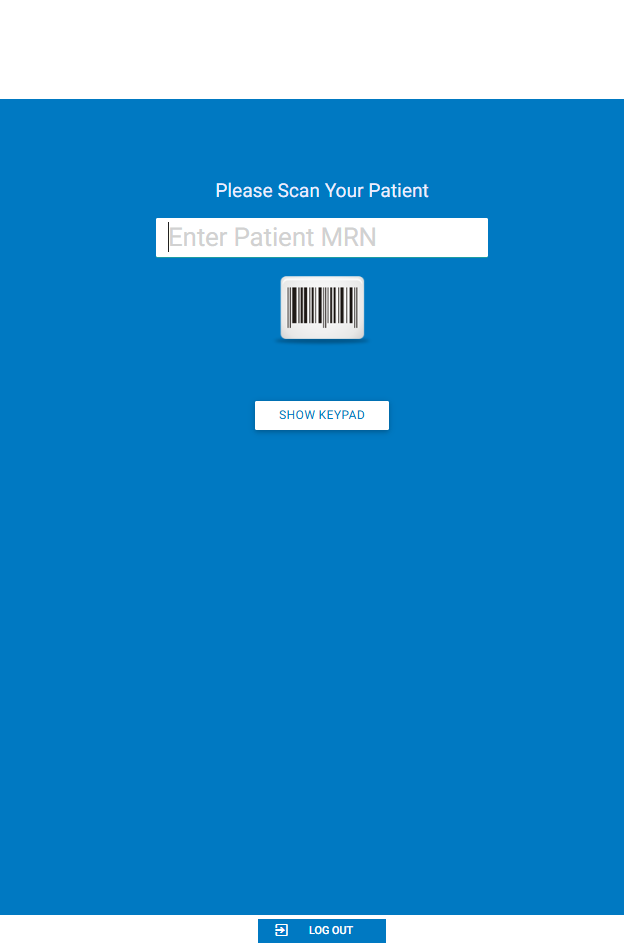
You will then be asked who your patient is. You can confirm this by either scanning the barcode on a patient’s facesheet or wristband, or by pressing the “Show keypad” button and entering the patient’s MRN.
Once you’ve done this, you should get a screen confirming the identity of your patient. If the patient is correct, then press “Yes, I confirm”. If not, then you will be returned to the search patient screen where you can search again for the correct patient.
When you confirm, you will be taken to the observation page. If you are not in the comfort chart, then press the “Change Chart” button at the bottom of the screen and select “Comfort Chart”.
On the left of your screen you will be shown previous observations for your patient. The top of the column gives you the date and time that these observations were made.
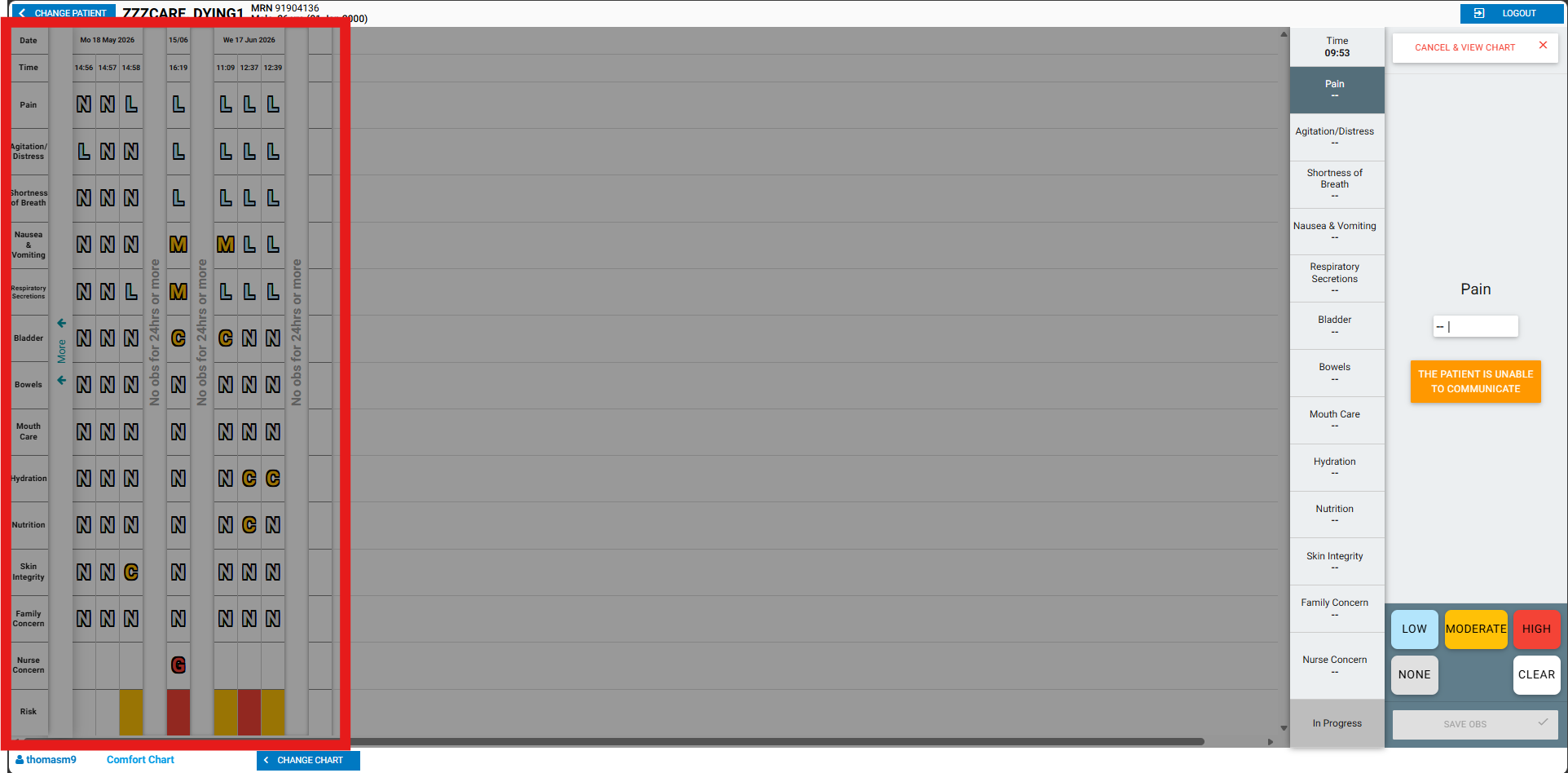
On the right of the screen will be a space to enter new observations. The first 5 columns will ask you to rate a patient on a scale of none to high. The colour of the button shows the risk level of that option.
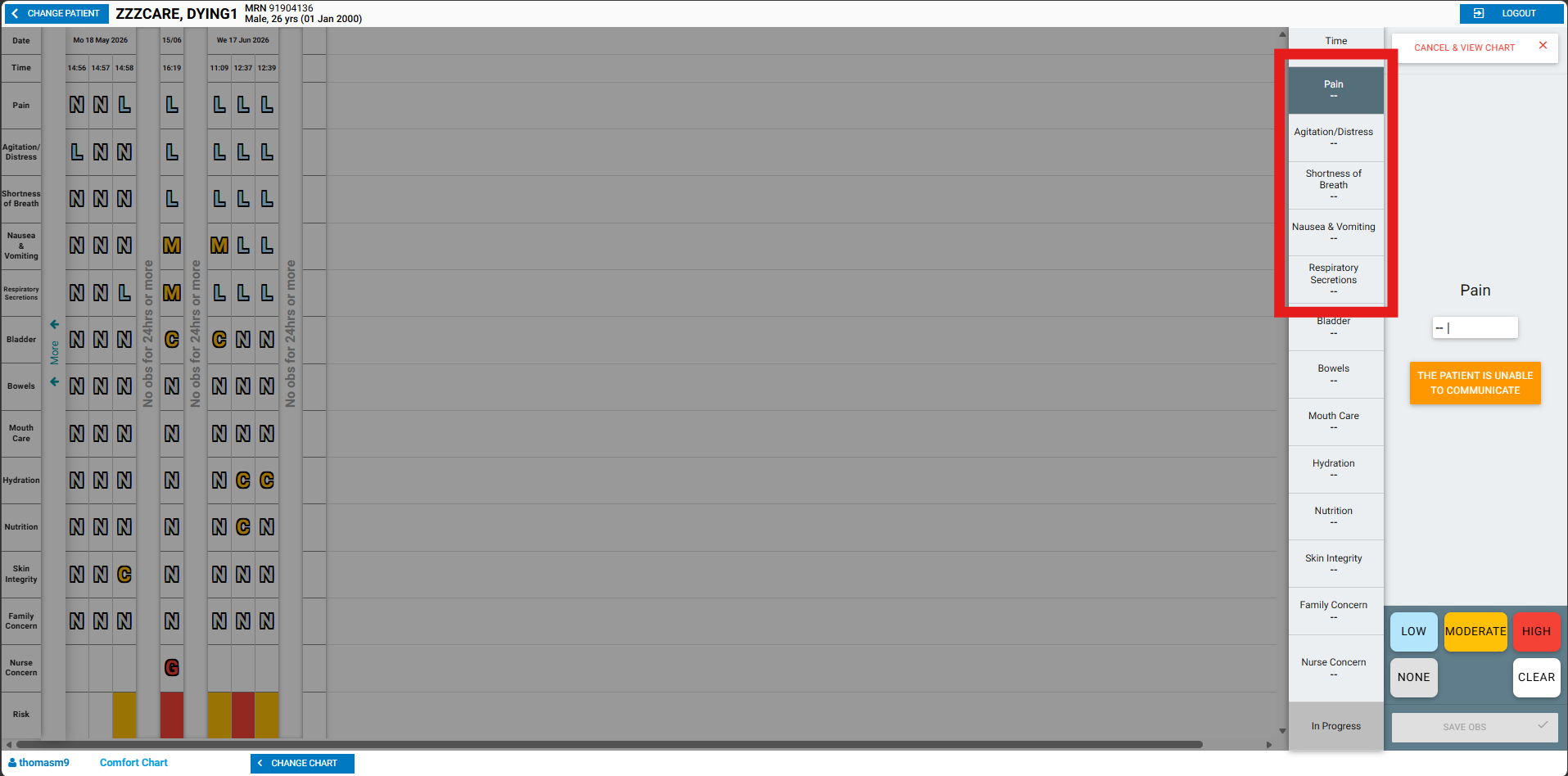
The next fields to be filled in for the patient are all simpler to complete. Each one is set up as “No concerns” or “Concerns (Report in Notes)”. If you have concerns about the patient, you should record these in PowerChart following the completion of the observation.
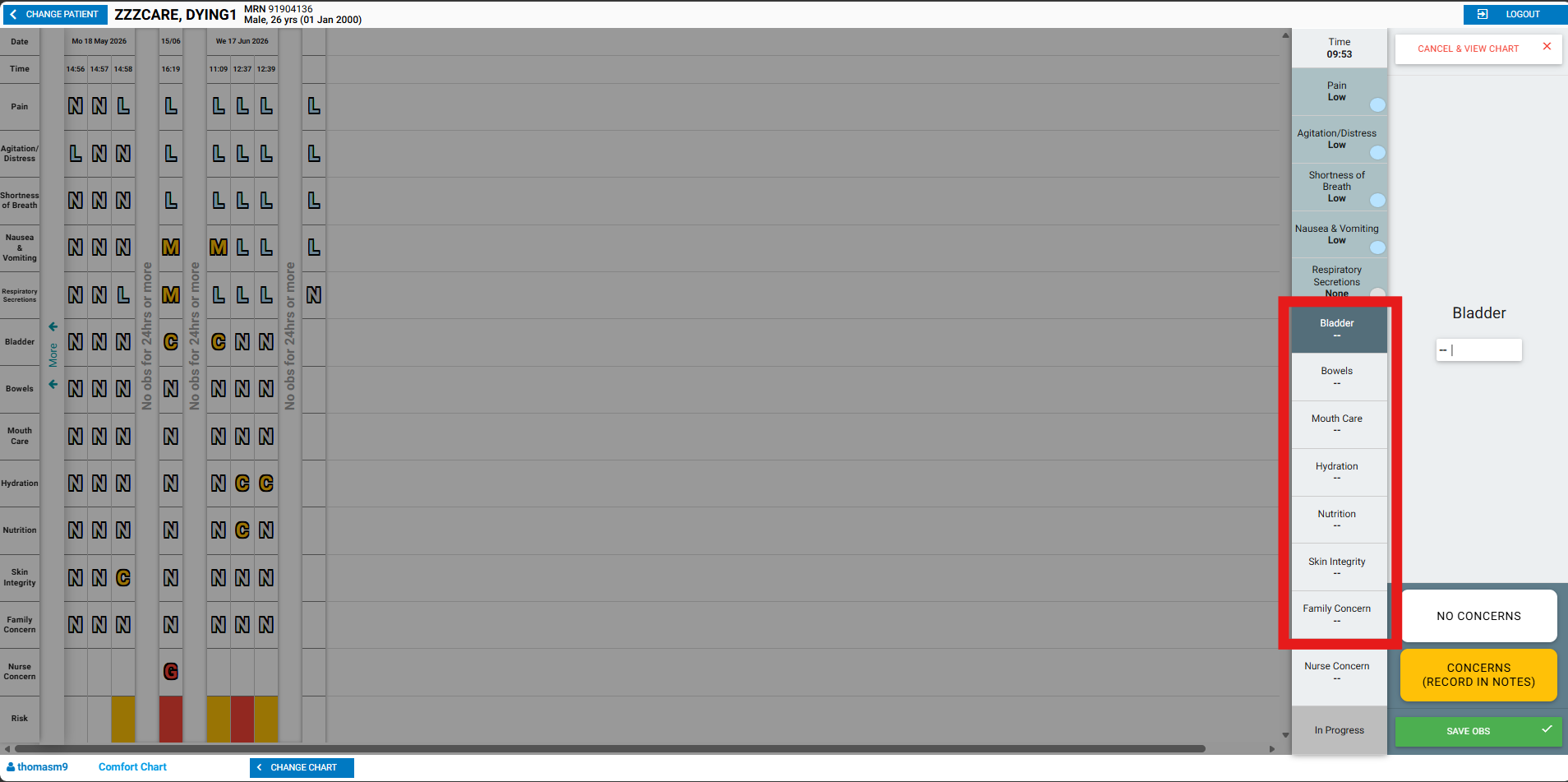
The final field (Nurse Concern) is designed to highlight risk indicators that the other fields may have missed. If you’ve completed the observations and no risks have been highlighted, but you still have concerns about the patient, this is the best place to flag them.
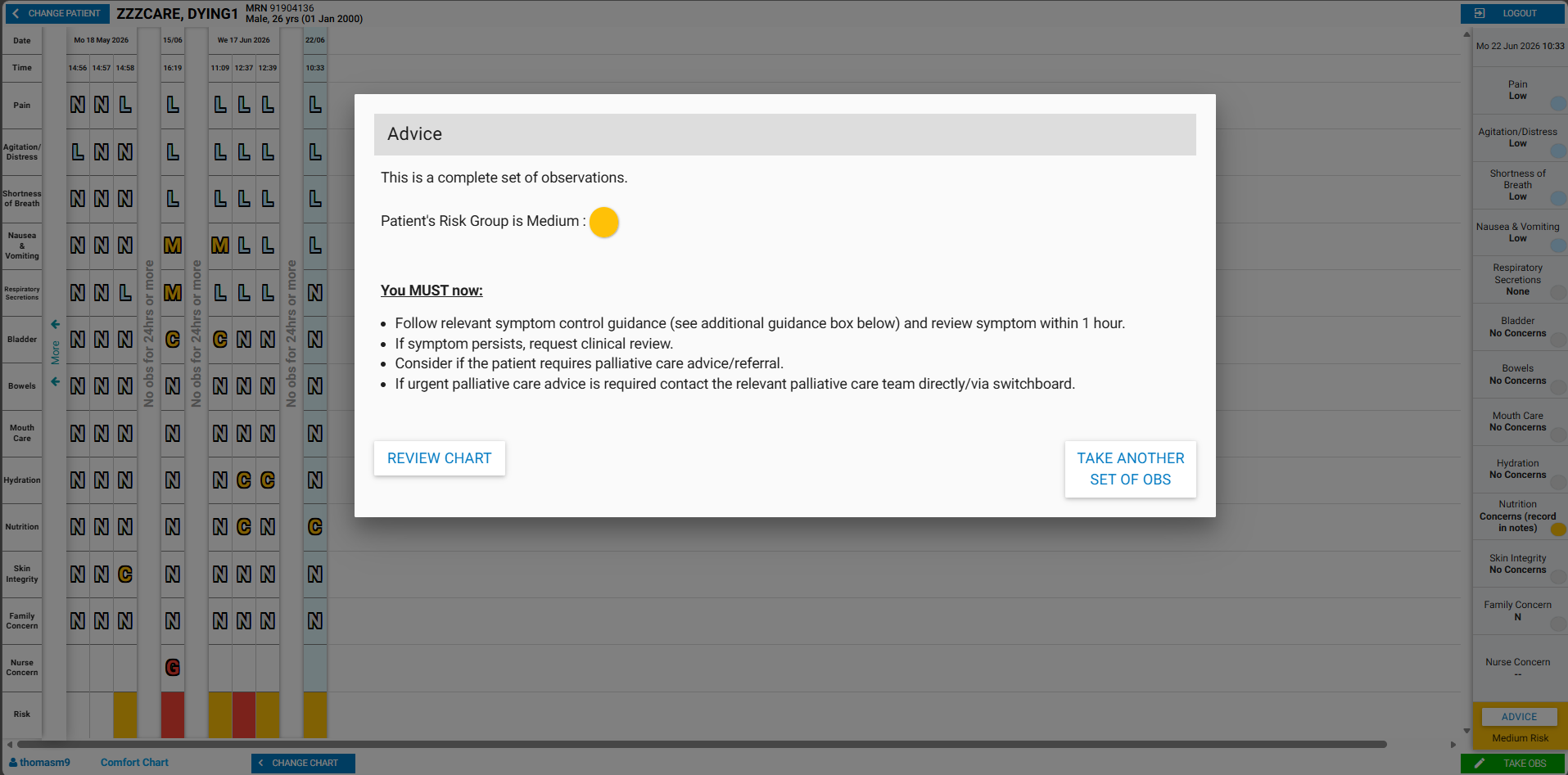
Following the completion of the e-Obs, you will be shown a window summarising the risk level of the patient and any next steps required.
To exit the comfort observations page, you can either select the “Change Patient” button in the top left of your screen and move onto a different patient encounter. Alternatively, you can press “Logout” in the top right corner to return the e-Obs device to how you would have found it.