Recording a Key Code in a Confidential Note
To record a Key Code within SystmOne using a Confidential Note, please follow the guidance below.
The guide is split into three sections:
Recording a Key Code
Viewing Key Codes
Adding an additional note on discharge.
Recording a Key Code
- Open the relevant clinical template and tick the box indicating that the patient has a door access key code.
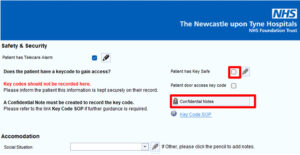
- Click on the Confidential Note quick action button to record the patient’s key code.
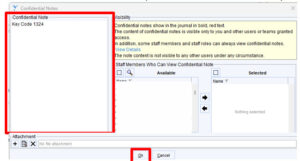
- Enter the key code in the text area on the left > Select OK
Note: The content of a Confidential Note is only visible to users within your service, regardless of wider sharing settings. The system has been configured so all users in your service can view these notes. Do not add any additional documentation to Confidential Notes. They should only be used for recording key codes in this context.
Viewing Key Codes
To view key codes:
- Navigate to Confidential Notes under Patient Home. The most recent entry will appear at the top of the list.
- Select the entry to view the key code in the lower section of the screen.
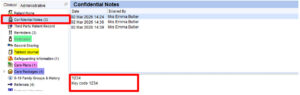
Note: The Confidential Note entry will appear in red within the journal. This content is only visible to users within your service. Users in a different unit will see that a Confidential Note exists but will not be able to view its content. See below.
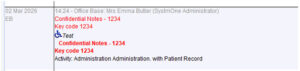
Adding a Note on Discharge
When a patient is due to be discharged from the service, in accordance with the SOP, an additional confidential note must be added to indicate that the key safe or keycode information may no longer be up to date.
To add a note:
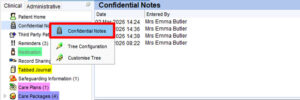
- Navigate to Confidential Notes under Patient Home.
- Right Click > Confidential Notes.
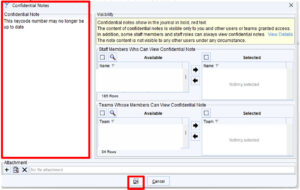
- In the text area on the left, enter: ‘this key safe’ OR ‘keycode number may no longer be up to date’ in the text area on the left > Select OK.
- Save the Record.
