SystmOne Equipment Guidance
The purpose of this guide is to demonstrate how to issue equipment to patients, return equipment and how to run equipment reports in SystmOne.
There are three sections to this guide:
- Issuing Equipment
- Returning Equipment
- Equipment Reporting
Issuing Equipment
- Open the patient’s record and navigate to the clinical tree to find the equipment node (you can also access it on your templates if there has been a quick link set up).
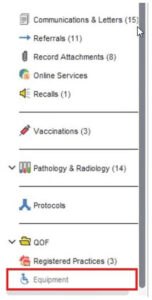
- Right click on the equipment node and click ‘Record Equipment’.
- In the ‘Record Equipment’ window that appears, select the equipment category.
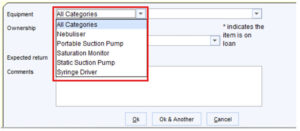
- Select the equipment type.
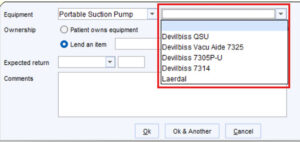
- Select the equipment type you are giving to the patient.
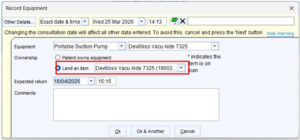
- To finish recording the equipment given to patient, click ‘Ok’ or ‘Ok & Another’ to record another equipment item.
- Remember to save the patient record to complete this process
Returning Equipment
- Click on the equipment node on the clinical tree.
- Right click on the equipment item and click ‘Return Equipment’.
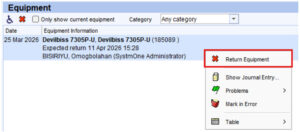
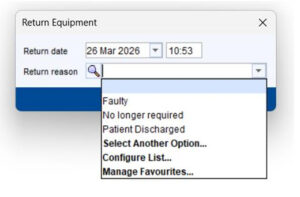
- Select from the list of return reasons and press ‘OK’.
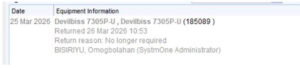
- The equipment will now be displayed in grey to show it has been returned.
- Remember to save the patient record to complete this process.
Equipment Reporting
- On the top menu, navigate to Reporting > Miscellaneous Reports > Equipment Report.
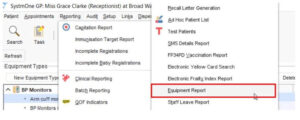
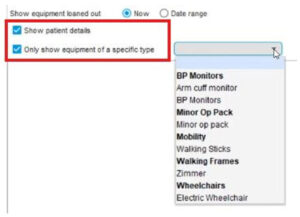
- You can run a report on equipment loaned out now or by selecting a date range.

- You can choose to see patient details and to only show equipment of a specific type.
- To generate the report, click ‘Run Report’.
