More results...
More results...
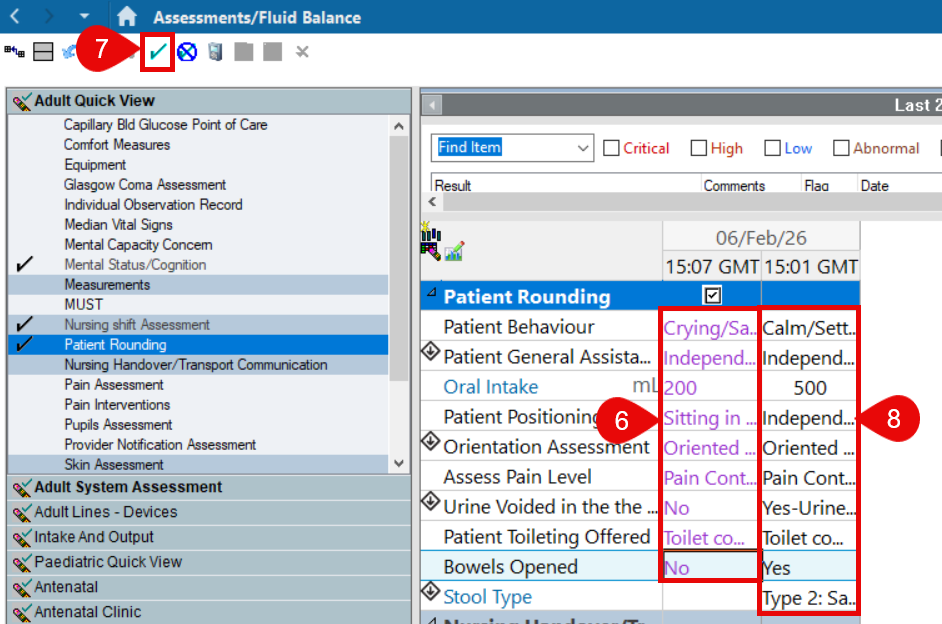
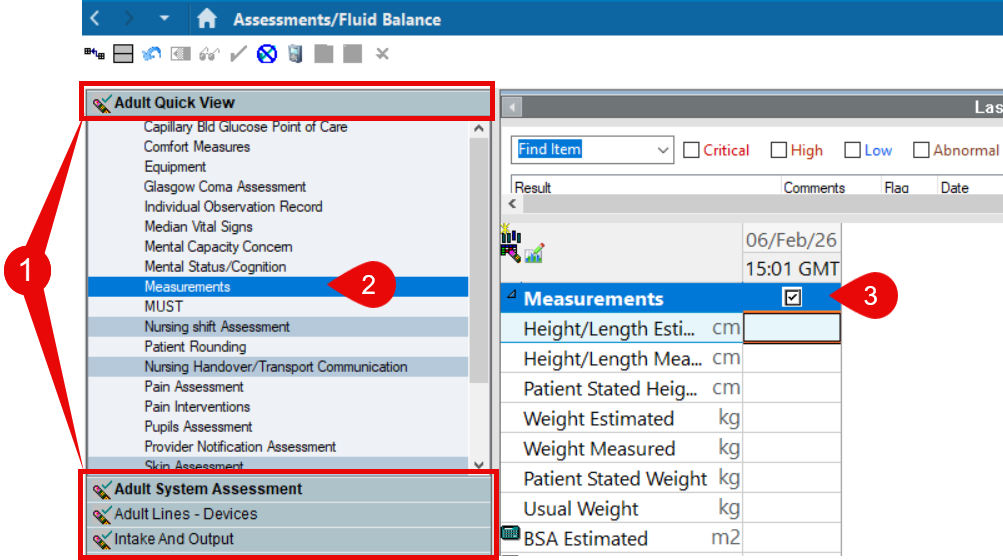
How to complete an assessment in the Assessments / Fluid Balance section of the patient record. Additional guidance regarding how to use keyboard controls when completing assessments can be found here.
|
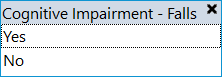
Single select list – Choose an answer, the next item will open automatically
|
 |
| Multi select list – Click the answer(s) to tick them and then press Enter or Tab or click the ‘X‘ in the corner of the box to move on | 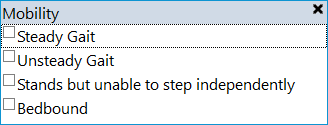 |
| Free text – Type in the answer and then press Enter or Tab or click into the next field to move on |  |
| Time/ Date – pressing T on the keyboard will default today’s date and the current time into the field. Press Enter to move on |  |
| Staff look-up – enter the name of the staff member you wish to search for then click the magnifying glass icon |  |