More results...
More results...
The application has a default view which can be changed.
Once you have followed the How to Create a View guide, use this guide to move between different views.
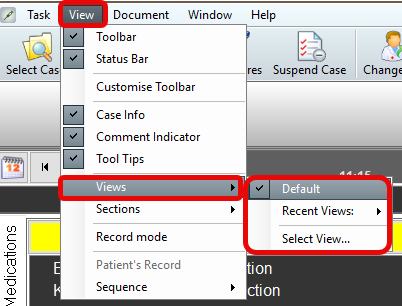
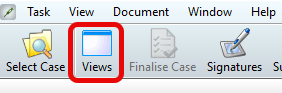
Note: This screen can also be accessed directly by selecting the Views icon in the top grey menu bar.
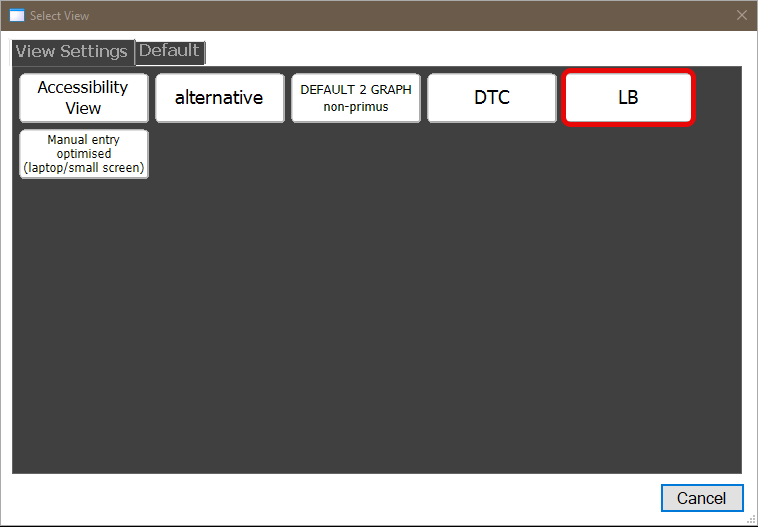
Only default views will display until additional views are created.
Views are listed alphabetically.
Clicking on a view will apply it instantly.