
More results...
More results...
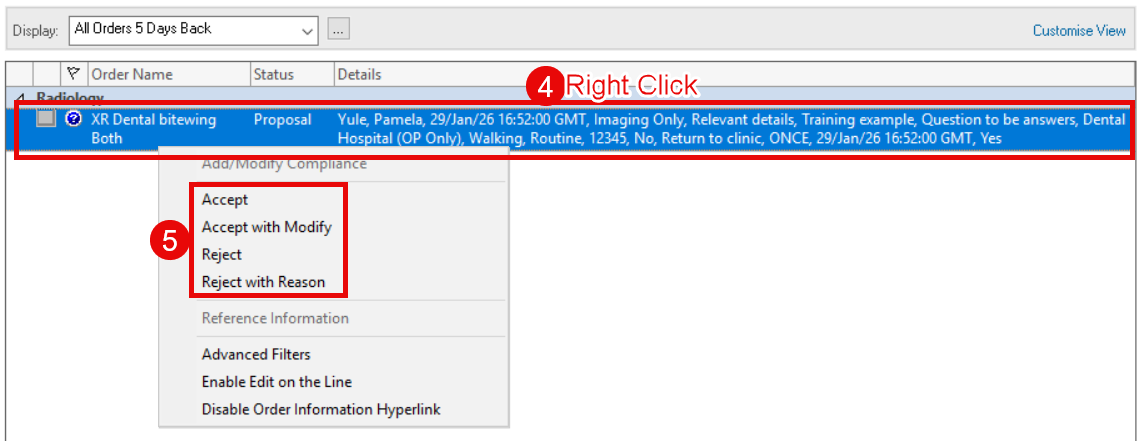
When a student working in the Dental Hospital places any type of order the order will remain in the Proposed status until it is it accepted by a clinician. This guide shows how to accept a proposed order.
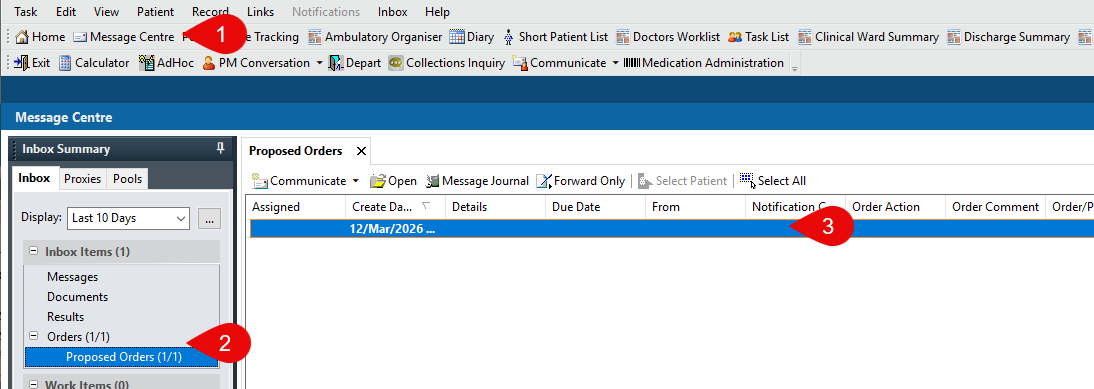
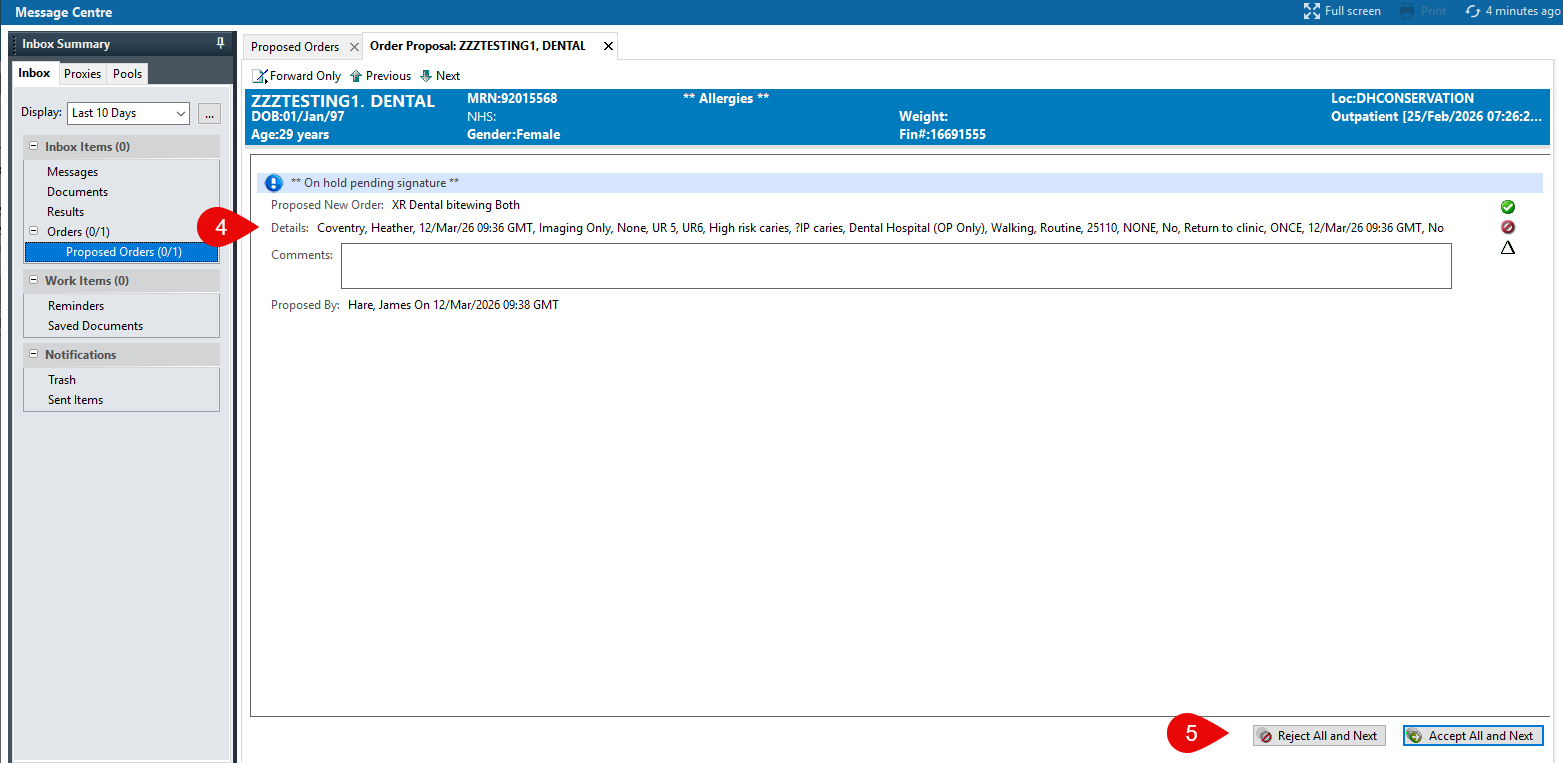
If Accepted the order status within the patient record will change to Ordered.
If Rejected the order will be cancelled. The proposed order will be removed. There will be no record this order was proposed in the patient record and no notification is sent to the person who placed the order.
 and the status will be Proposal.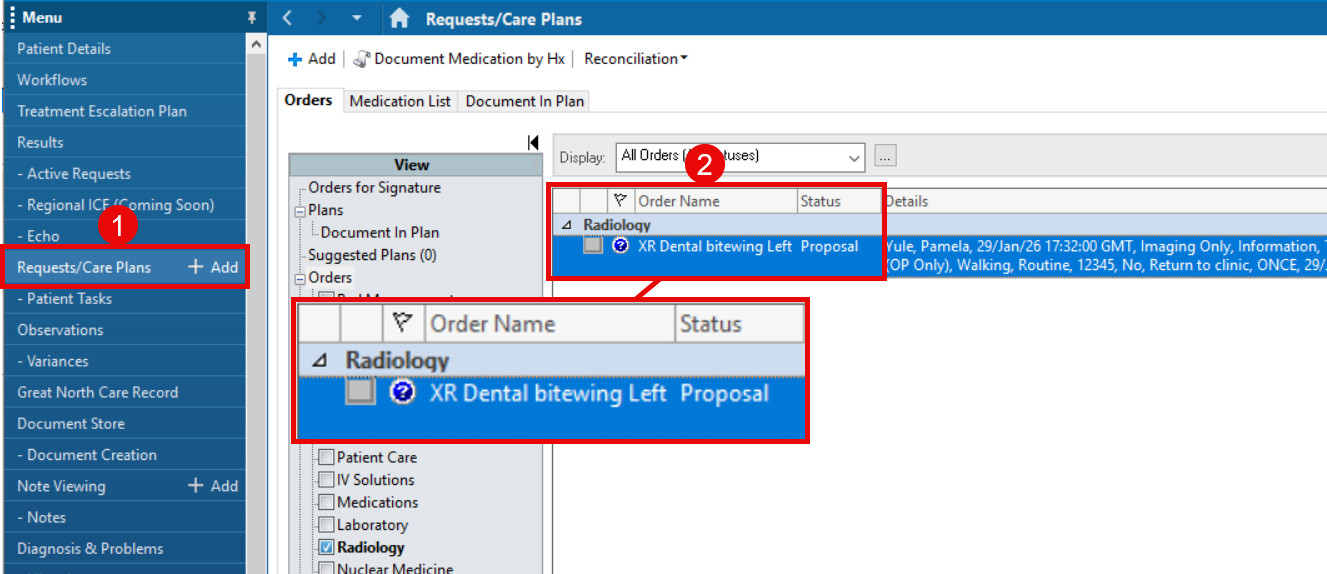
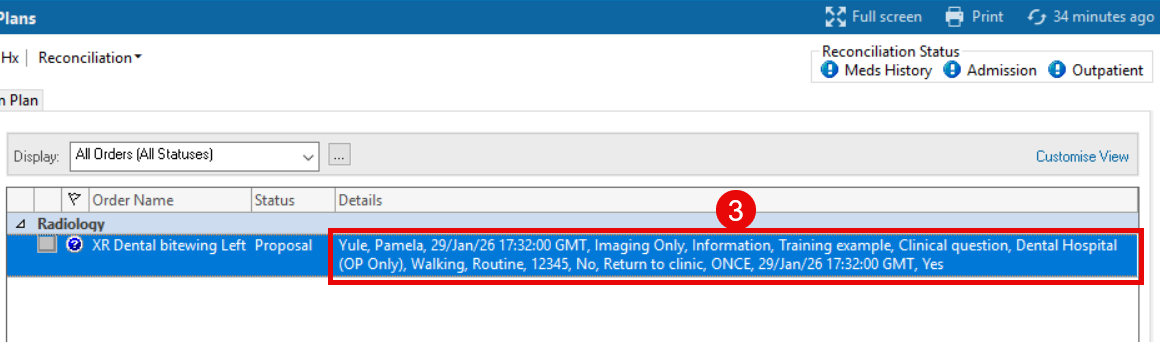
If Accepted the order status will update to Processing. After refreshing the status will be Ordered:

If Rejected the order will be cancelled. The proposed order will be removed. There will be no record this order was proposed in the patient record and no notification is sent to the person who placed the order.