Discharge Dashboard
How do I access the Discharge Dashboard?
Click
View then
Ward Dashboard.
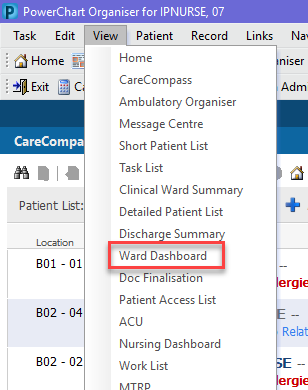
You should also be able to see and click on Ward Dashboard in the top grey menu bar.

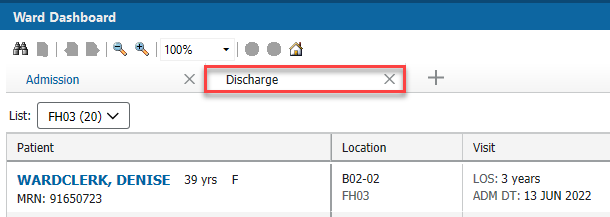
From the Ward Dashboard screen, click on Discharge tab
How do I set the List up?
- Click Select List.
- Click Patient list and all of your active lists will display. Click on the list you wish to see displayed.
- If you do not see the list you need, click List Maintenance.
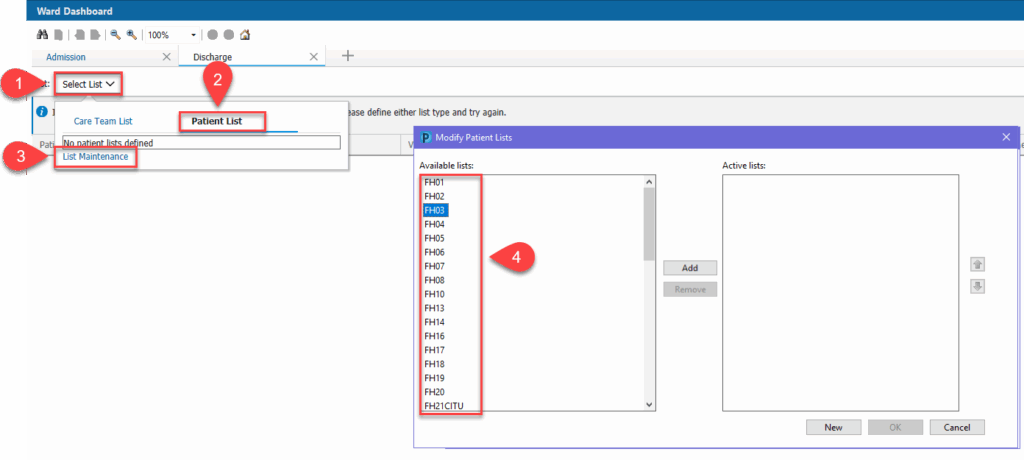
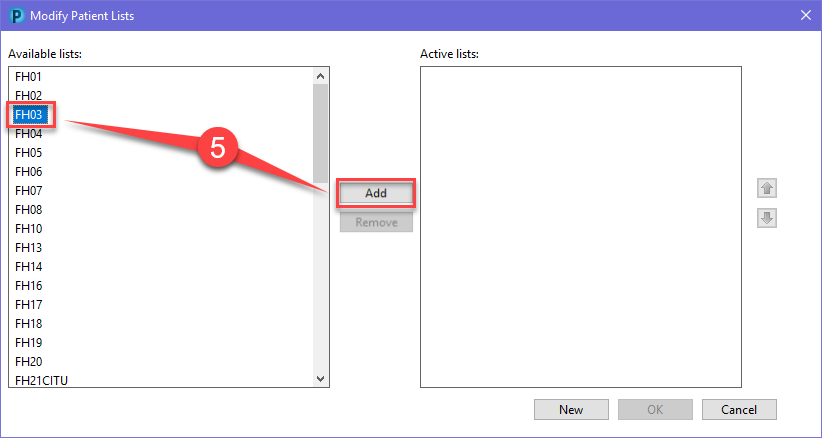
- You can now create new lists or move available lists already created to the active list.
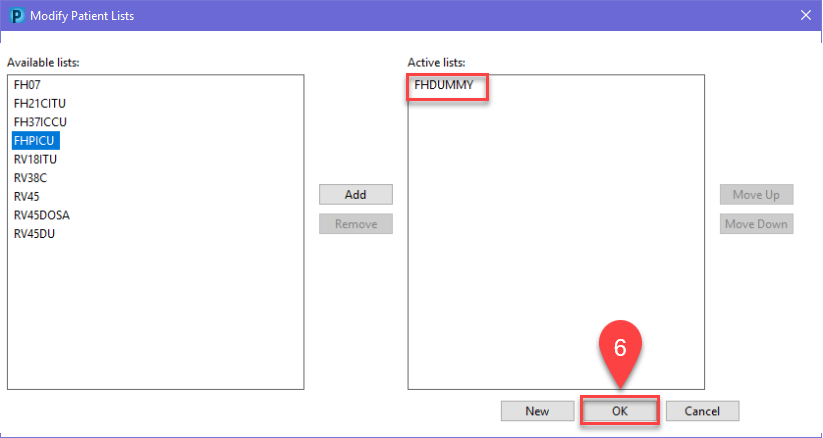
- Select the list you wish to make active then click the Add button in the middle to pull it across into the Active lists column.
- Click OK.
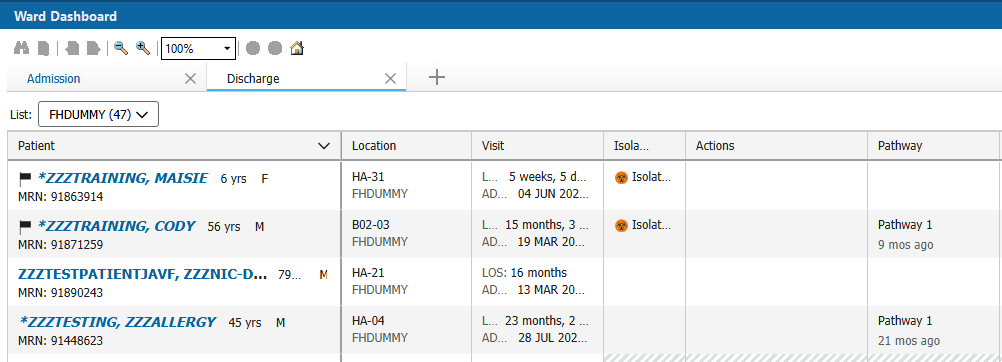
- A list of patients will now appear.
How do I Establish Relationships?
- You have selected a patient list to view.
- Some patients may have inactive fields (boxes will appear grey with diagonal lines).
- Click Establish Relationships.
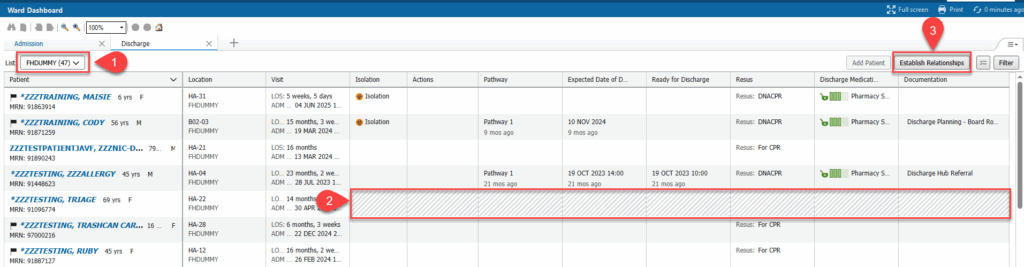
- Click Select All and then Submit.
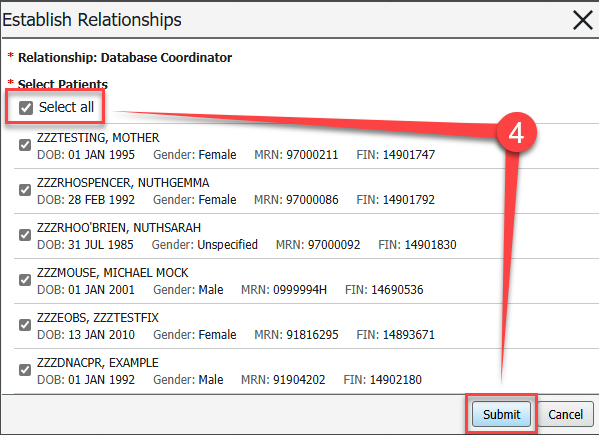
- The page will reload, this may take a few moments.
How do I customise the columns and rows?
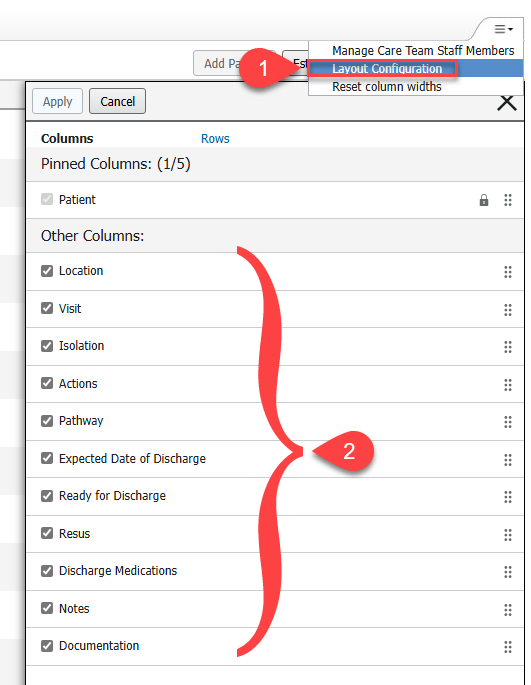
- Click on the drop-down arrow in the top right-hand corner of the screen and select Layout Configuration.
- Defaults to Columns. Add or Remove a column by ticking or unticking box. You can reorder columns by clicking and holding onto the 6 dot icon on the right side and dragging up or down.
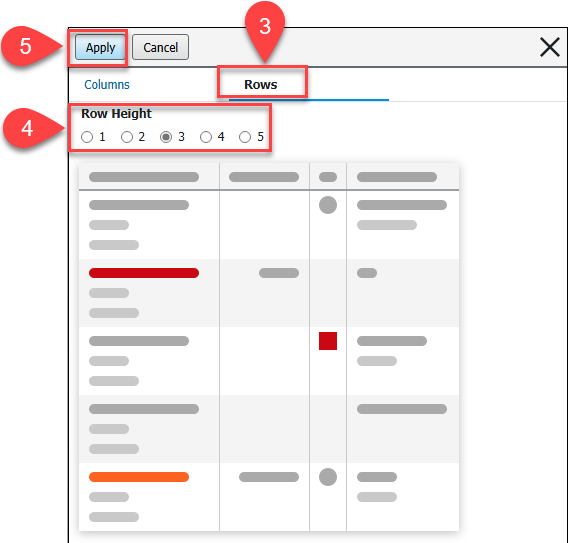
- Select Rows.
- Select Row Height to customise the rows. Up to 5 rows can be displayed per patient.
- Click Apply.