How to run device reports in ICNET
This guide shows how to run reports in the ICNET system. Specifically reports related to invasive devices are covered in this guide.
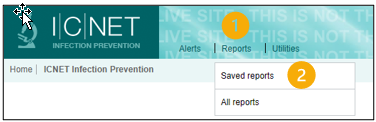
- Open ICNET and select Reports.
- Then select Saved reports.
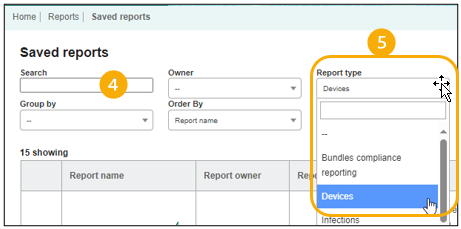
- A search and filter screen is shown.
- Search for the report you would like to run.
- Alternatively, to view all device reports select Devices in the Report type drop down.
- A list of reports matching your criteria is displayed.
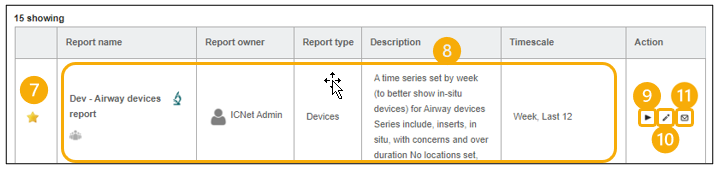
- Clicking the star icon will add the report to the Pinned reports widget on the home screen.
- The Report name, Report Owner, Report Type, Description and Timescale are shown.
- Clicking the Run button
 in the Actions column will run the report.
- Clicking the Edit selection
 button allows the data pulled in this report to be edited. Please note, changes made will apply only to this session. To request a permanent change contact IT Service Desk.
- Clicking the Email subscription
 button allows you to request for this report to be ran and emailed to you at regular intervals.