
More results...
More results...
This guide shows how to use order/prescribing favourites once you have added them. In this guide:
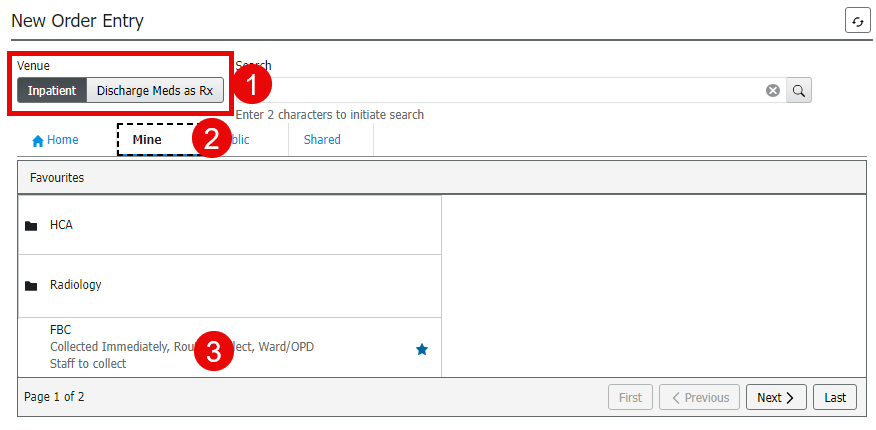
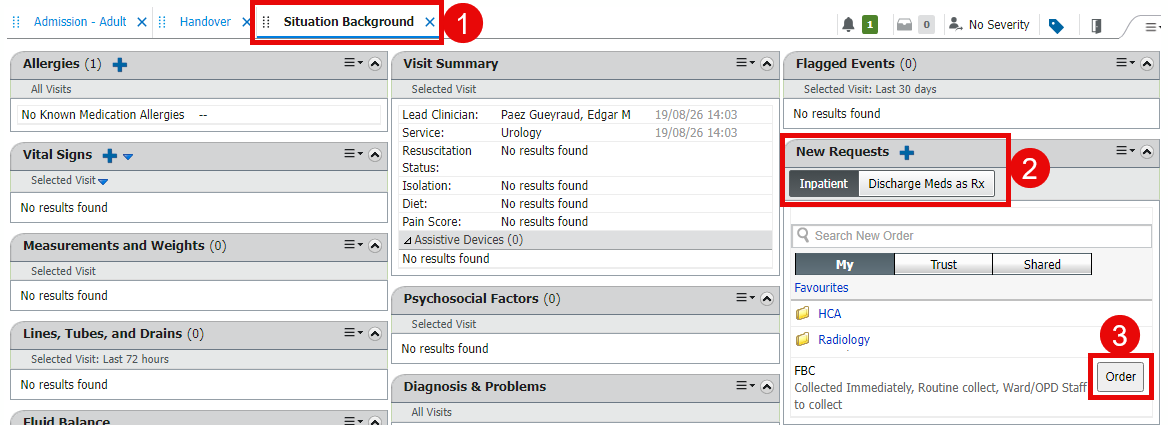
The favourites that display in the Mine/My tab relate to the Venue used when saving them. The table below shows which venue to select to view/use a favourite.
| The favourite I saved was a… | Venue/Type when saving was… | Venue/Type to use this favourite is… |
| Medication | Inpatient | Inpatient |
| Discharge Meds as Rx | Discharge Meds as RX or Outpatient Prescribing |
|
| Given in Clinic | Given in Clinic or Outpatient Prescribing > Ambulatory in-office favourites |
|
| Outpatient Prescribing | Discharge Meds as RX or Outpatient Prescribing |
|
| All other order types (radiology, bloods, labs etc.) | Inpatient | Inpatient |
| Given in Clinic | Given in Clinic or Outpatient Prescribing > Ambulatory in-office favourites |
|
| Outpatient Prescribing | Given in Clinic or Outpatient Prescribing > Ambulatory in-office favourites |