How to save an email to your SharePoint page
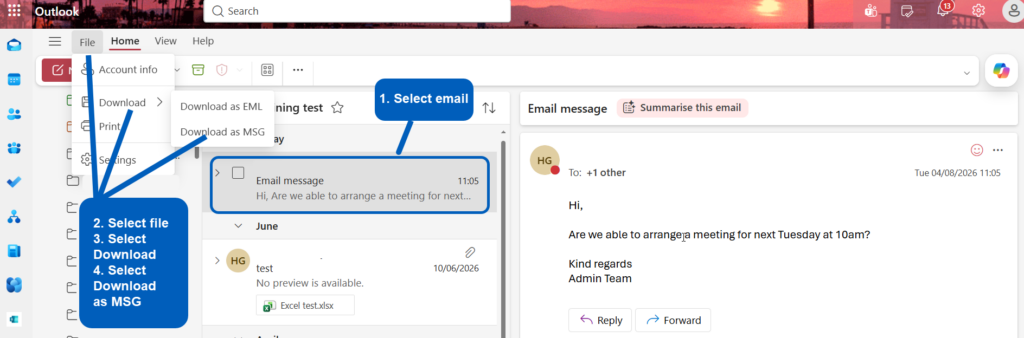
- In Outlook on the web, select the email you are wanting to save to your SharePoint page.
- Select File
- Select Download
- Select Download as MSG
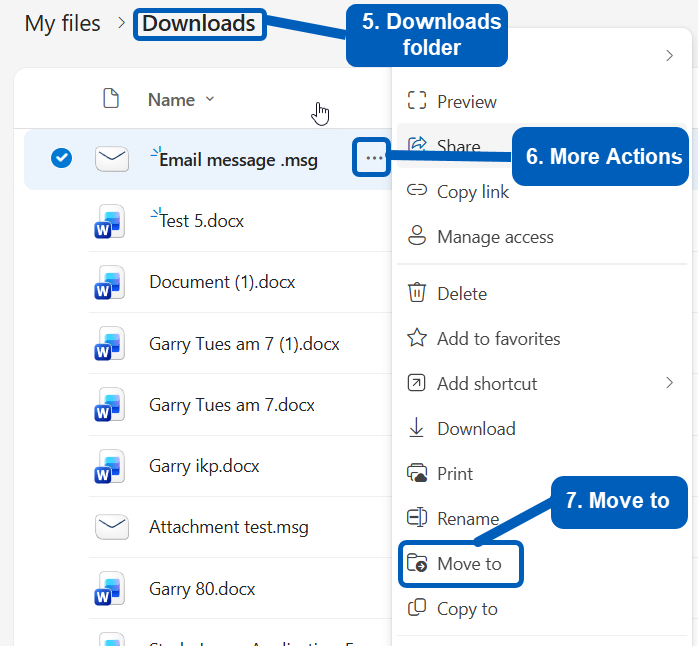
- Go to your Downloads folder in the Documents folder in your OneDrive
- Select the three More Actions button to the right of the email message
- From the opening window, select Move to
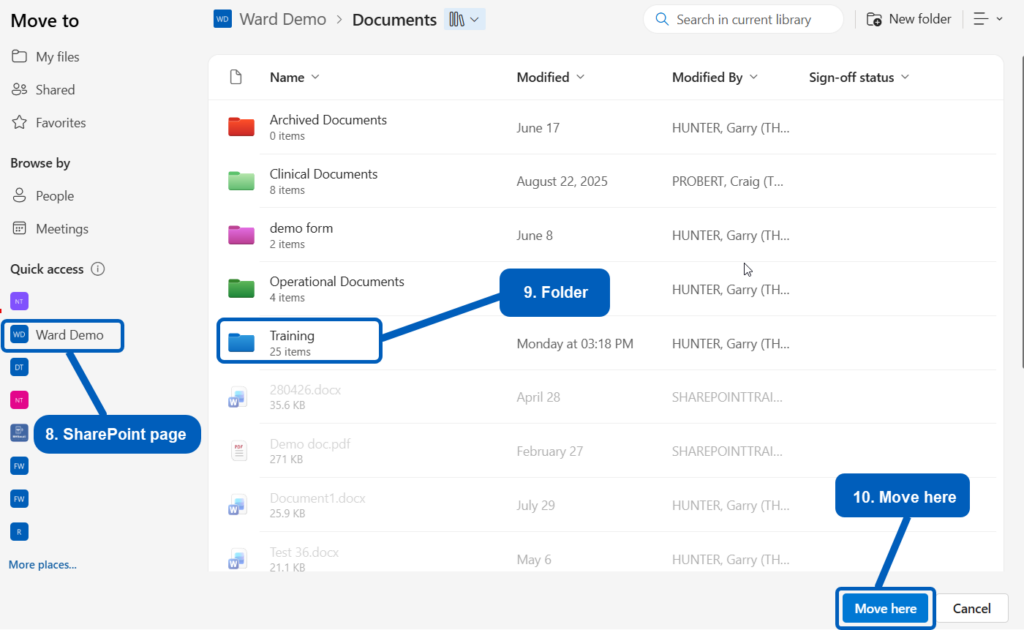
- From the opening Move to window, select your SharePoint page from the Quick access area,
- Select the folder from your SharePoint documents library you want the message to be saved in
- Select Move here
- The message will now be saved in your SharePoint folder