How to Add Colour Filters
Why add Colour Filters?
Colour filters have been used for years to support people with colour blindness and people with visual reading problems such as Dyslexia. By adding a filter, users may experience:
- Less contrast – Softer mixes of bright and dark colours on screen
- More stable text – Stops letters from shaking, blurring or “dancing” on the page
- Less eye strain – Cuts down on headaches and eye tiredness so people can read for longer
How to add Colour Filters?
This guide will help you set up colour filters on your display.
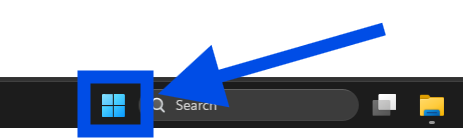
- Select Start
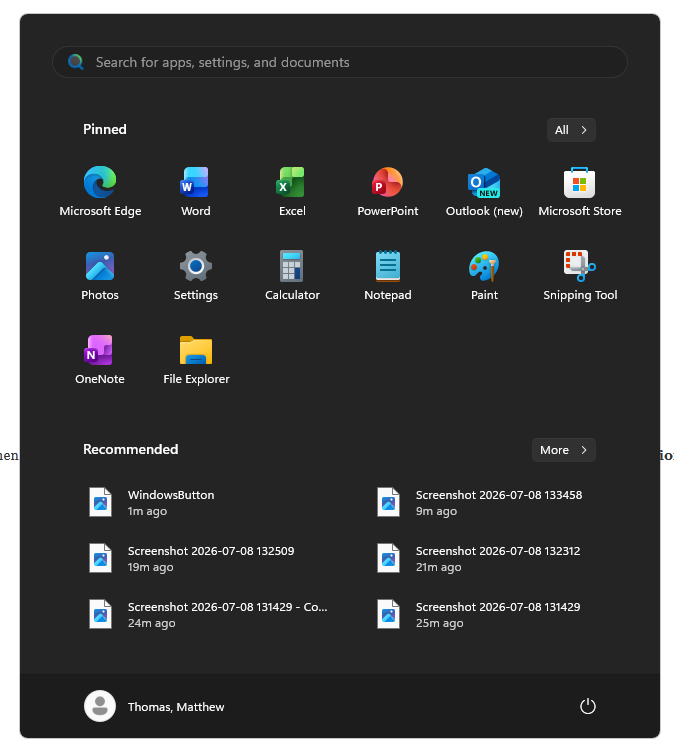
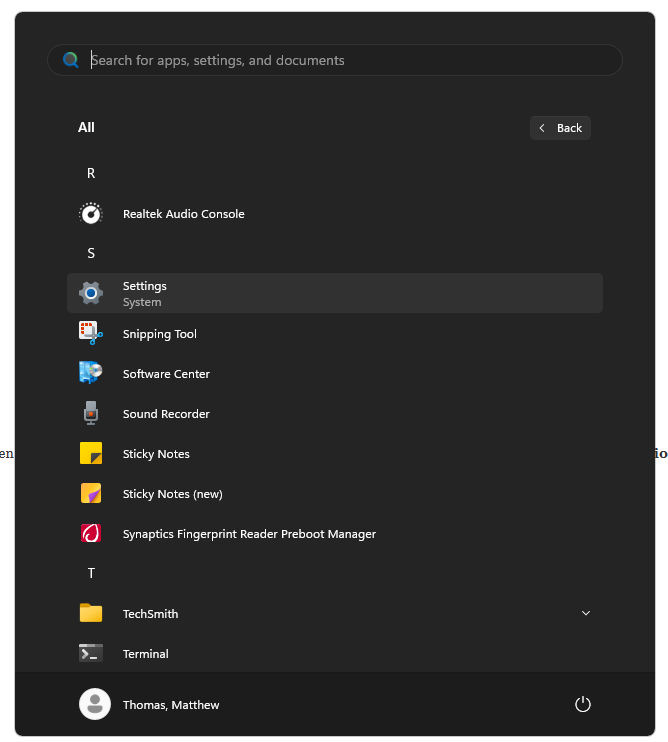
- Select Settings > More Accessibility Settings > Colour Filters
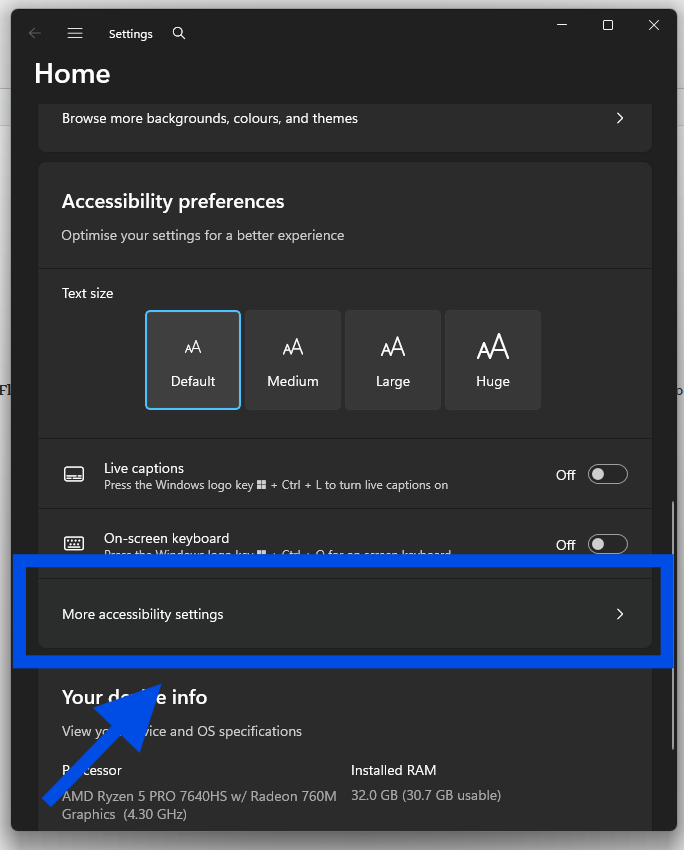
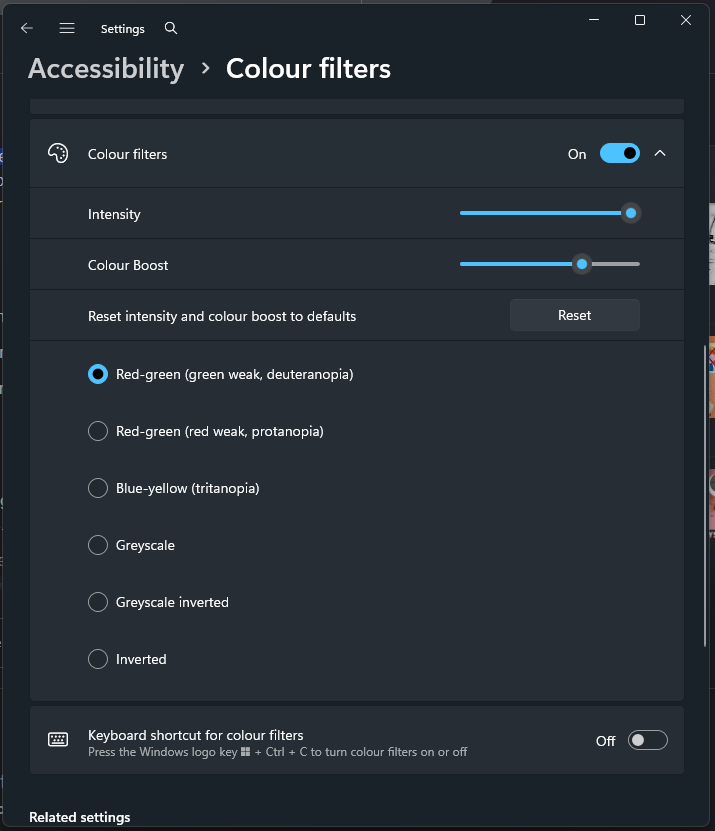
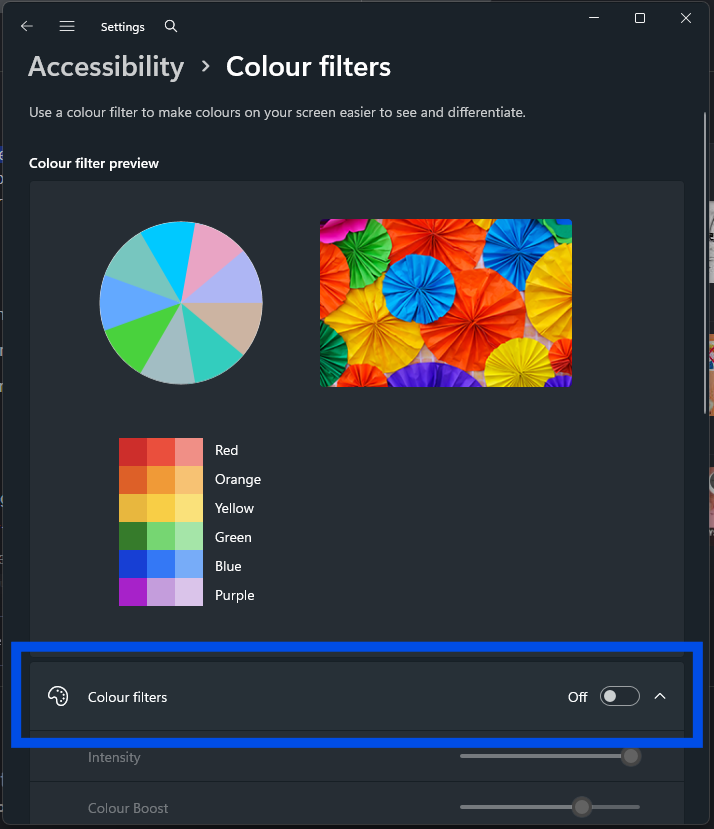
- Turn Colour Filters to “On”
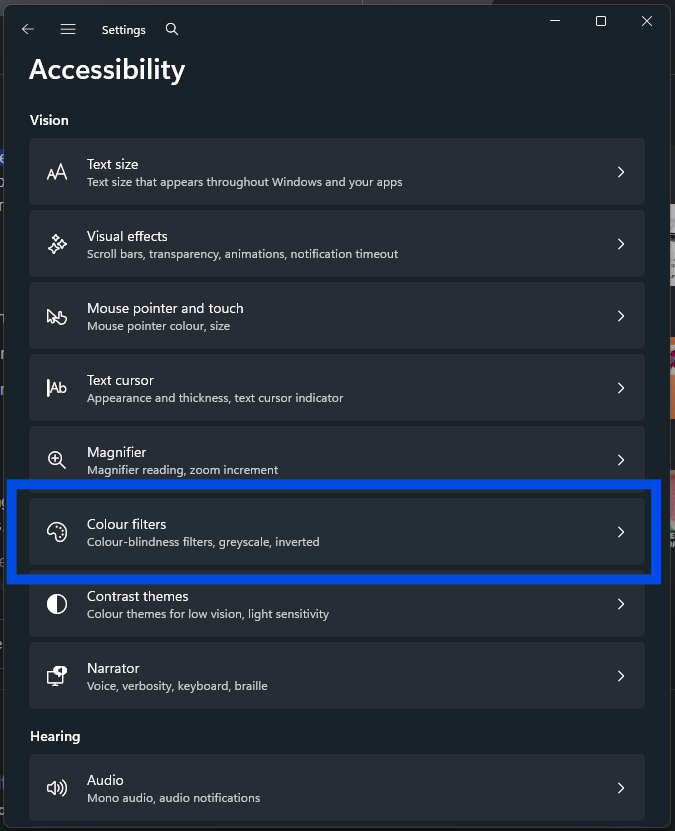
- Select the colour filter that you want
Which Filter should I Use?
When you activate colour filters, you will need to choose which filter you would like to use. Filters are a personal choice, so pick whichever filter is the best fit for you.
- Red-Green (Deuteranopia – green weak): Adjusts the palette to boost contrast for users who struggle to tell red and green apart due to green weakness.
- Red-Green (Protanopia – red weak): Adjusts the palette to boost contrast for users who struggle to tell red and green apart due to red weakness.
- Blue-Yellow (Tritanopia): Shifts the colour spectrum so that blue and yellow hues become distinct for users with blue-yellow colour blindness.
- Grayscale: Removes all colour entirely, helping users reduce visual distractions or rest over-stimulated eyes.
- Inverted / Grayscale Inverted: Reverses the colour values (turning bright white backgrounds into dark surfaces), which significantly cuts down glare and light sensitivity in dark environments