Orders screen overview
Scenario
This guide will show you how navigate the Orders section, including how to filter orders and how to check the status of an order.
Orders View Panel
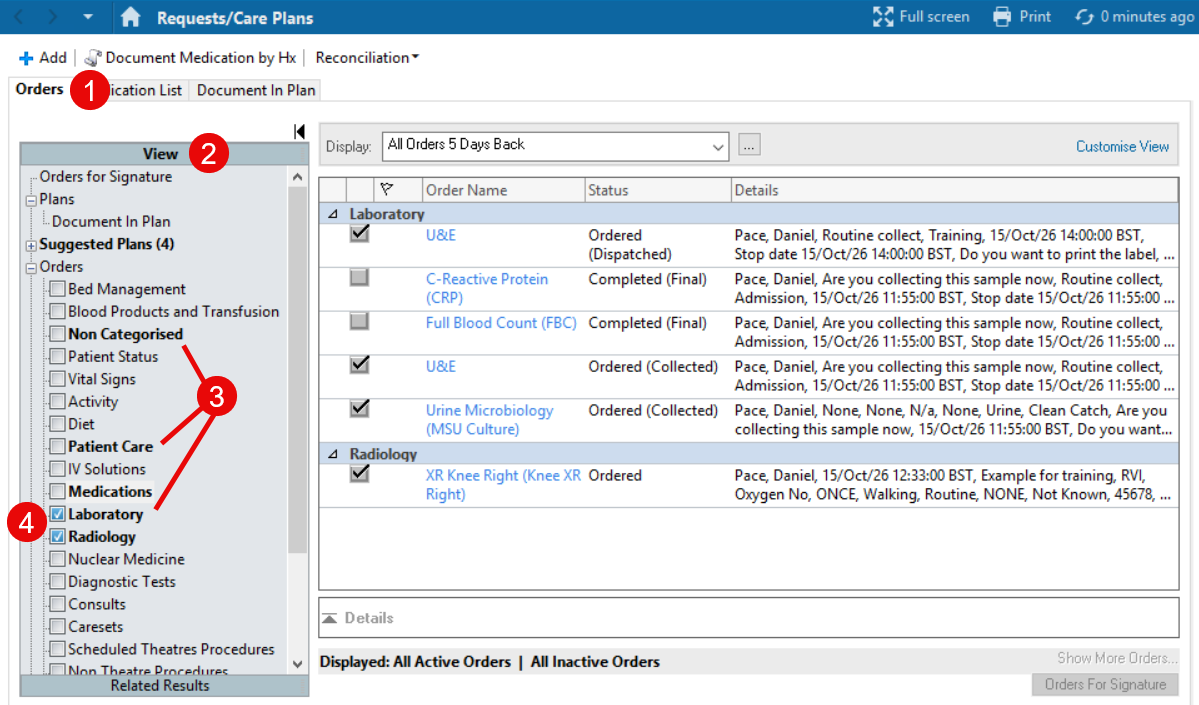
- From Requests / Care Plans, go to the Orders tab.
- Expand the View section (if not already expanded).
- In this area, if the text next to a box is bold then it means there is an order on the system in that category.
- If you are looking for a specific order, you can unclutter your screen by unticking the boxes next to the text. This will remove that section from the display screen, but will not discontinue or remove the orders from the patient.
In the example below, we can see that the patient has “Patient Care” and “Medication” orders, but only the “Laboratory” and “Radiology” orders will show in the display. The orders shown in the display are also split into their categories for you.
Display Filter
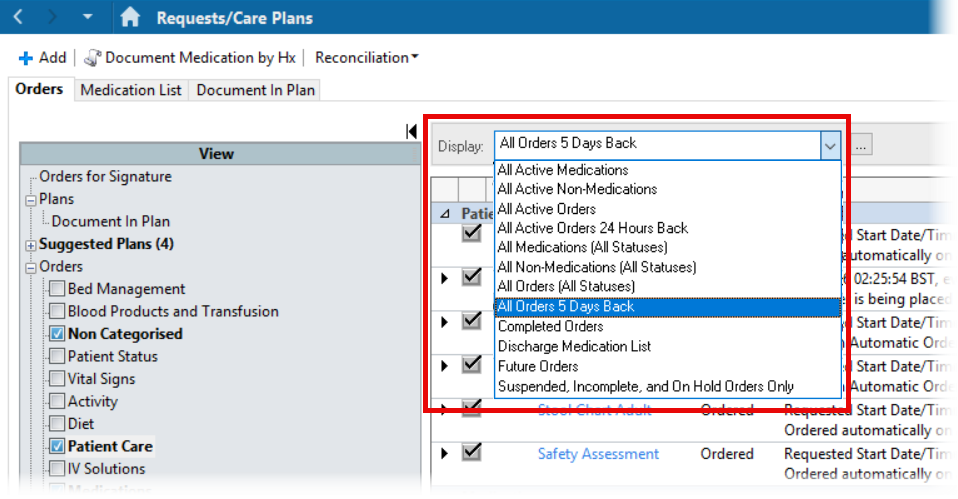
There are various pre-set filters in the Display drop-down menu. Using these can also help unclutter your screen. The filters are self explanatory and include:
- All orders 5 days back
- All active medications
- All active orders
- All active orders 24 hours back
- All active non-medications
- All orders (all statuses)
- Completed orders
- Discharge medication list
- Future orders
- Suspended, incomplete and on hold orders only
Order Status and Details
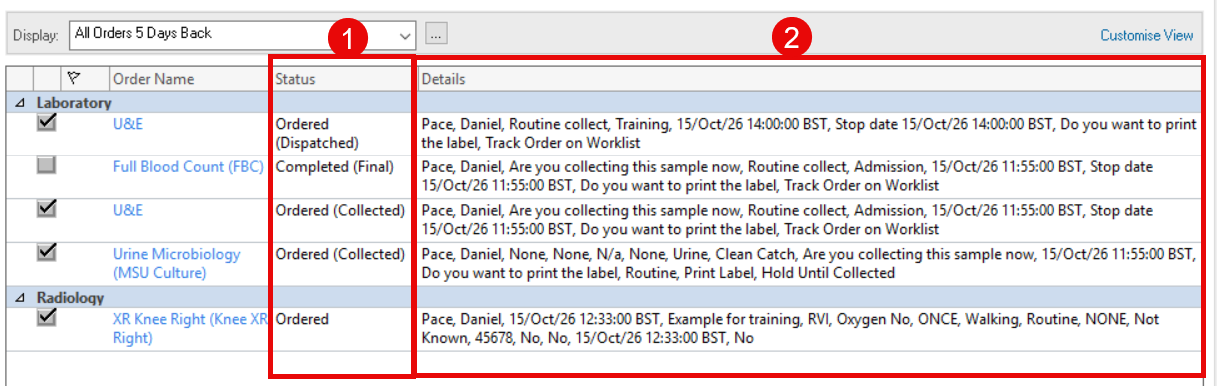
- For each order, you will have a status next to the name of the order. This will tell you what is currently happening with this order and can indicate if action is required.
- Details column will show you a summary of the information provided when ordering the test (i.e. who ordered, is the sample being collected now, etc).
Common order status are as follows:
- Processing – Recent order – refresh your page and this will update.
- Ordered (Dispatched) – When the order was made it was indicated the sample will be collected later. Once the sample is collected, and marked as complete in Patient Tasks, the status will update.
- Ordered (Collected) – The order has been made and the sample has been collected.
- InProgress – Labs are currently processing the sample.
- Completed (Final) – The results are available.
- Discontinued – The order has been cancelled.