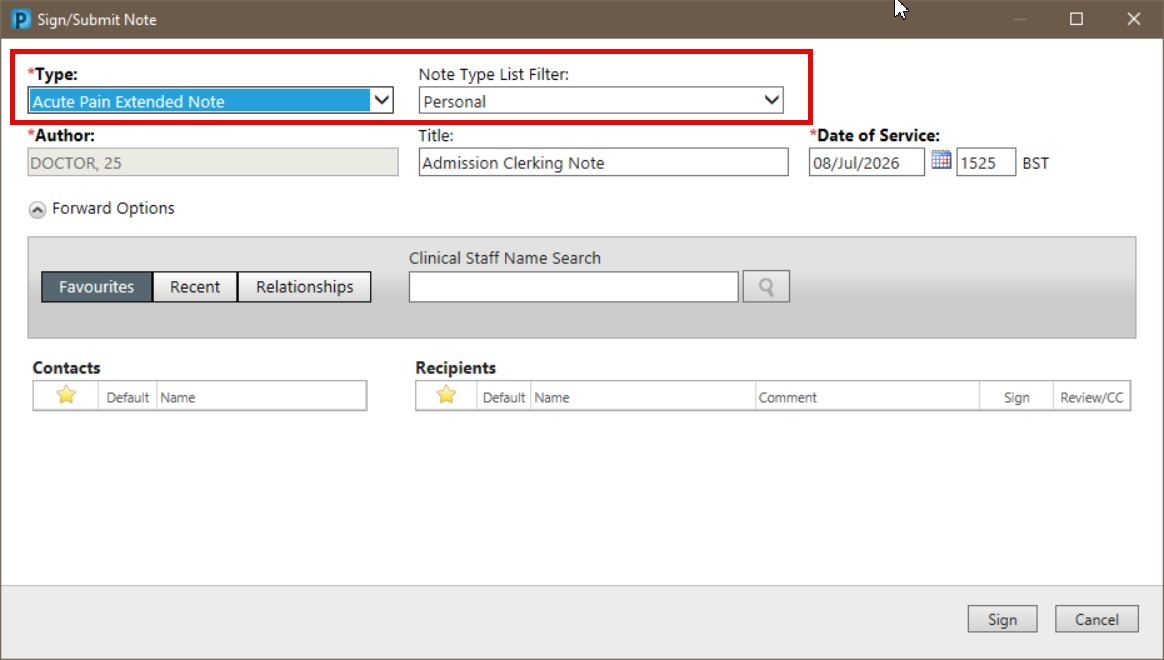
Personal Note Type List set up
Scenario
You want to create a personal note type list allowing you to easily choose the correct note type when creating a clinical note in PowerChart.
Open the New Note screen
In order to select the correct menu option, you need to begin on the New Note screen. This can be done the following ways:
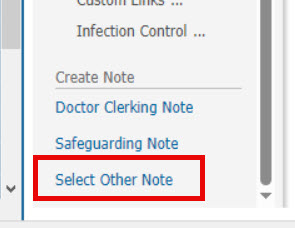
- From the workflow, scroll to the bottom and click Select other Note.
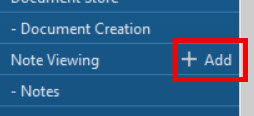
- From the blue menu, click on Add+ beside Note Viewing.
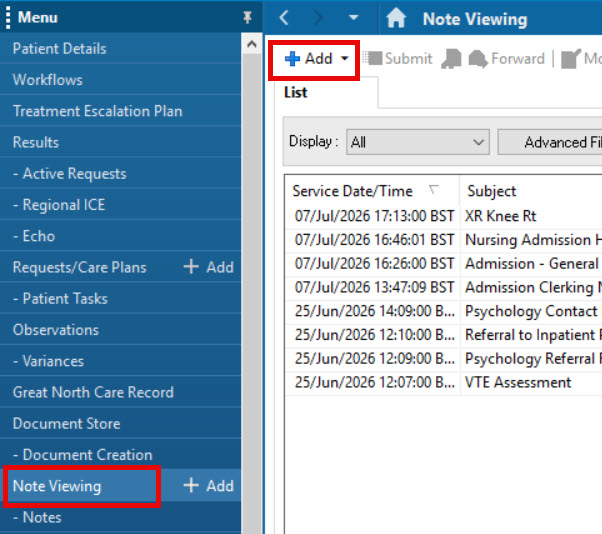
- From the blue menu, click on Note Viewing and then click the Add+ button.
Customise the list
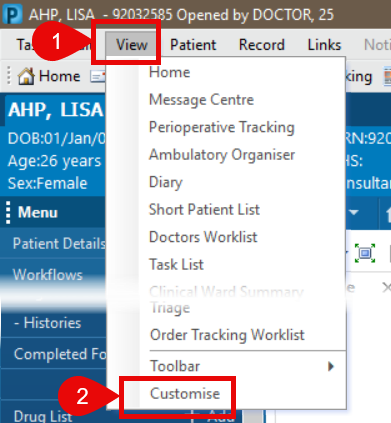
- From the New Note screen, select View menu on the top menu bar .
- Select Customise at the bottom of the list.
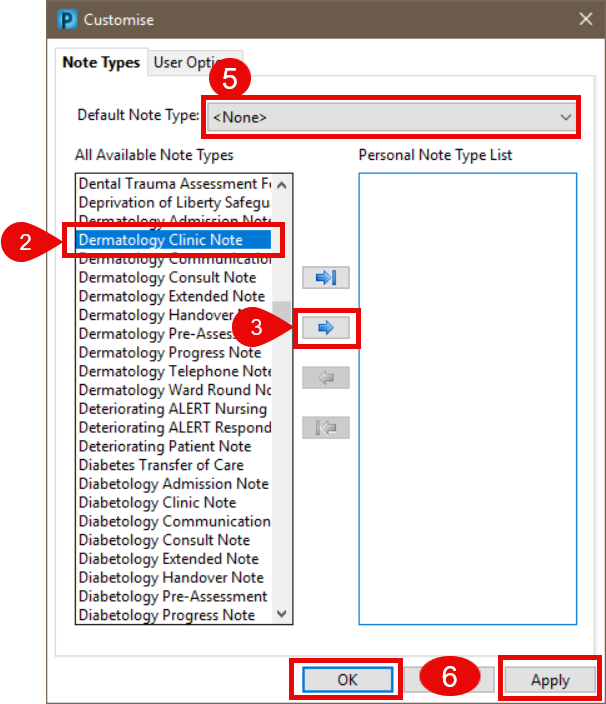
- In the Available note type, select the note type you wish to add.
- Use the second arrow button to move it into the right side of the window.
- Repeat for all required note types.
- At the top, select a Default Note Type.
- Click Apply then click OK.
Use your customised list
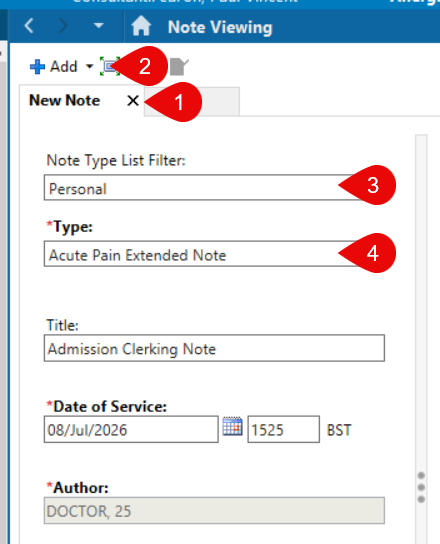
- Close the New Note window by clicking the x.
- Open the New Note window by clicking Add+.
- In the Note Type Filter List dropdown select, Personal.
- In the Type dropdown, the select note types will display.
Alternatively, the Note Type can be selected from the Sign/Submit Note screen:
- Complete your note and Click Sign/Submit.
- In the Note Type Filter List dropdown select, Personal.
- In the Type dropdown, the selected note types will display.