Making PowerChart easier to Read
Visibility Options
This guide will help to make text within PowerChart easier to read using a variety of tools.
Zoom
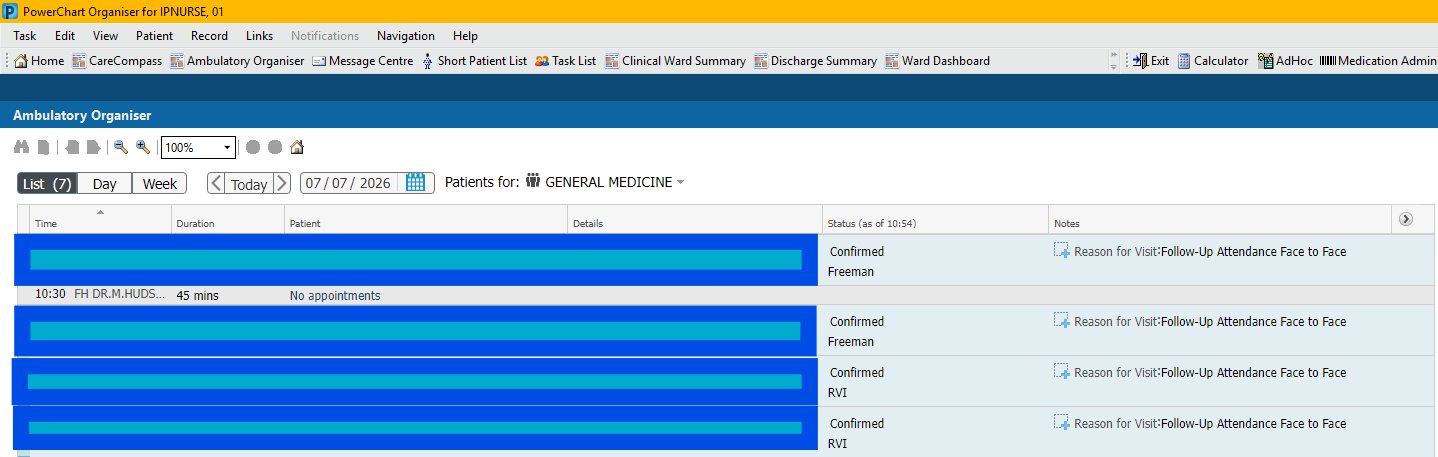
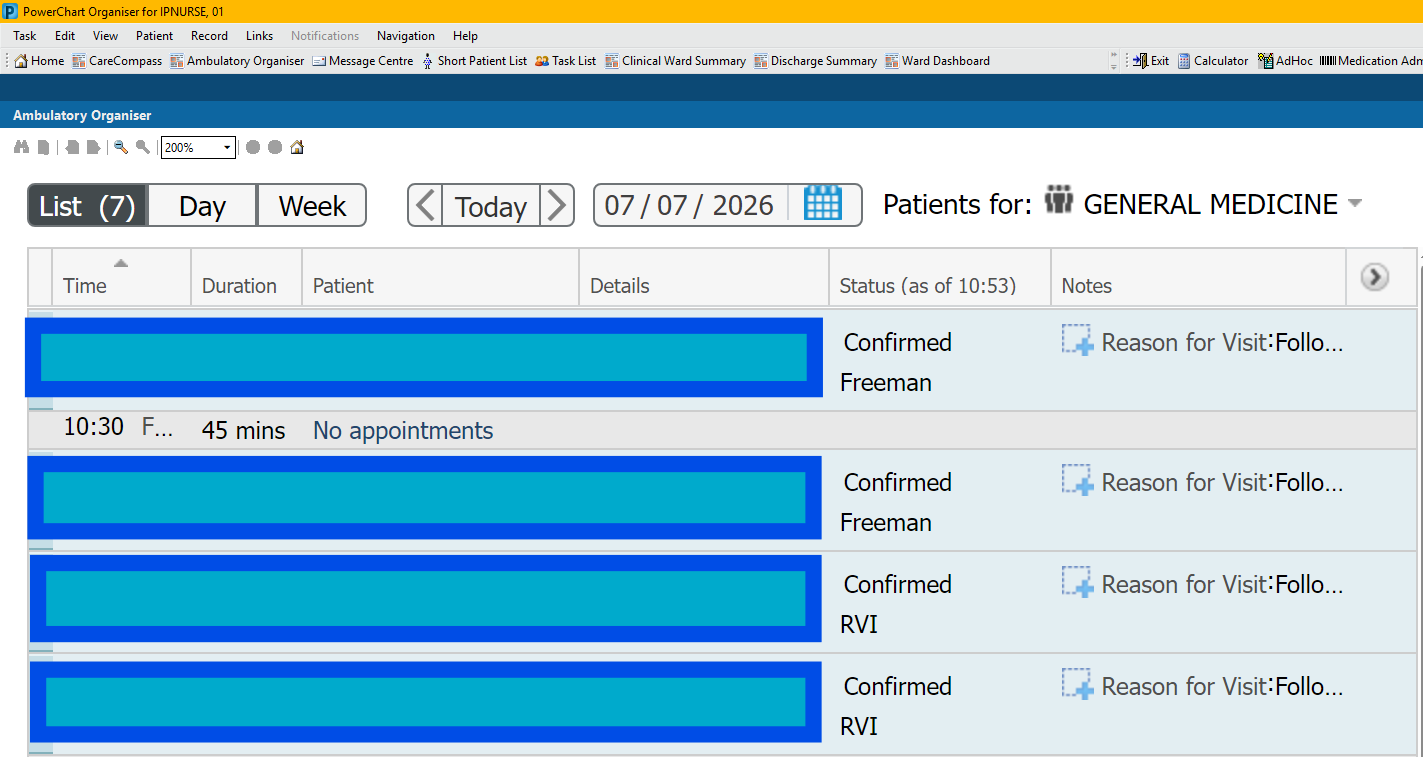
- To adjust the size of text in CareCompass and Ambulatory Organiser, you can change the zoom settings to increase the size of the text shown. A higher percentage will give you larger text.
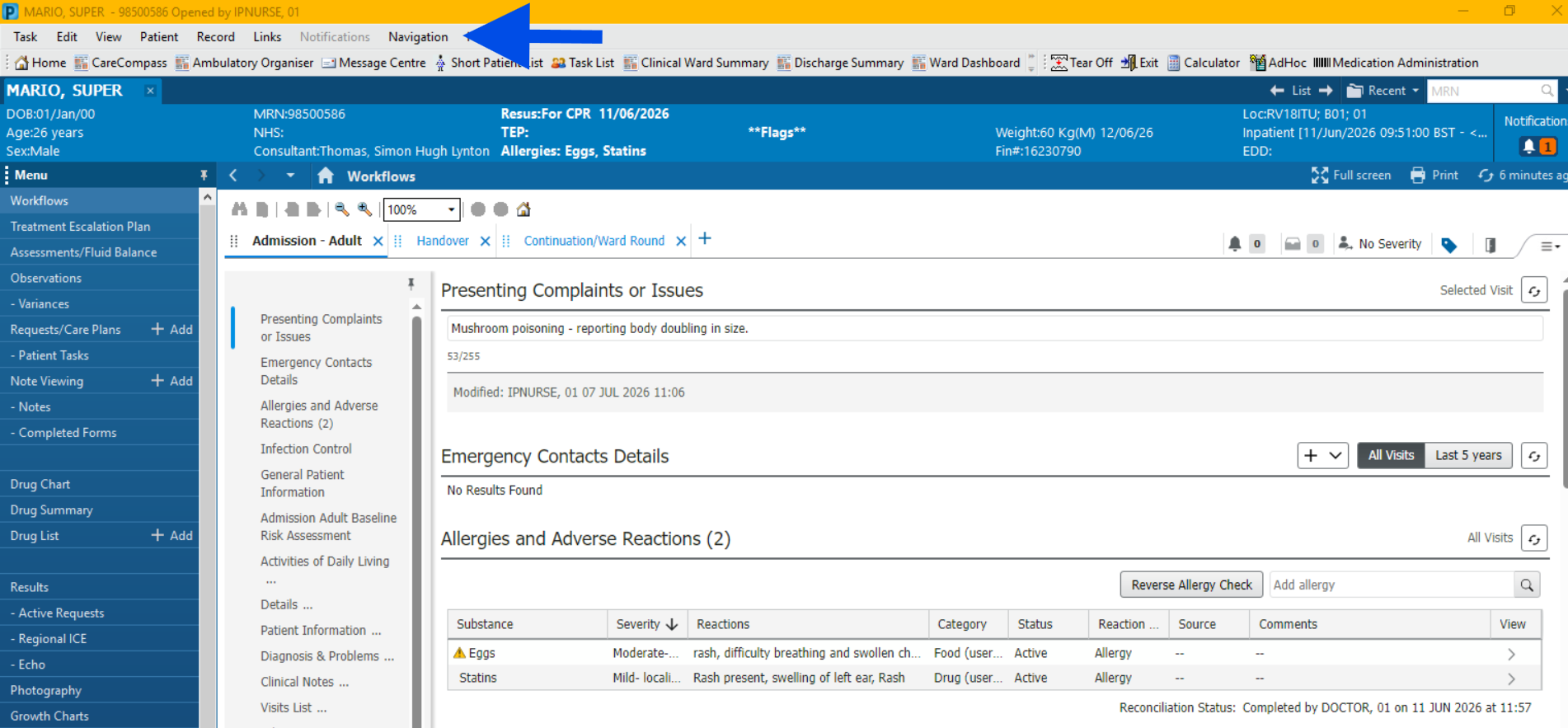
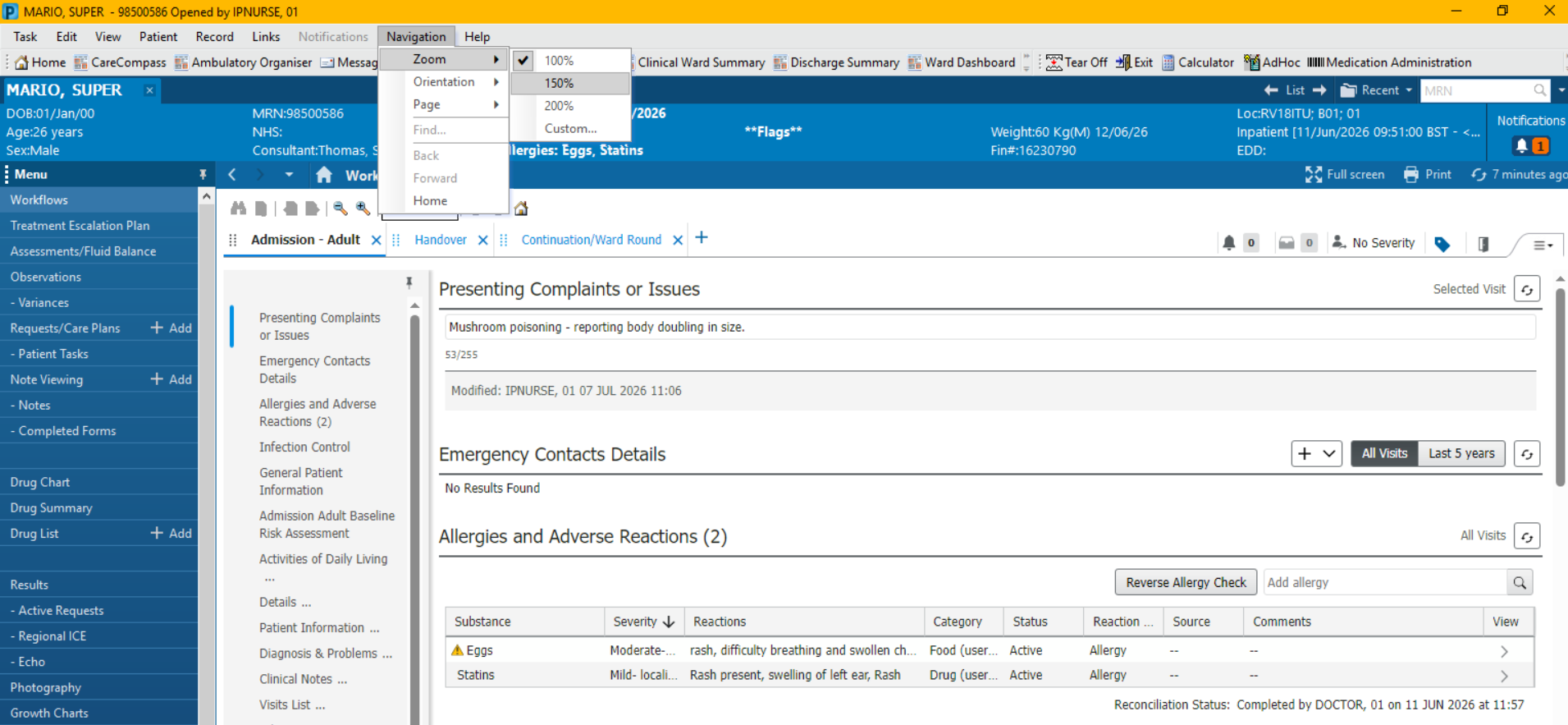
- You can also adjust the zoom within a patient record. To do this, look for the “Navigation” menu at the top of your screen. From this menu, select the Zoom menu to amend the zoom of the page. As before, a higher percentage will increase the size of the text shown. Increasing the size of the workflow will cause the grey workflow contents menu to tuck away, but this can be restored using the arrow on the left hand side of the screen.
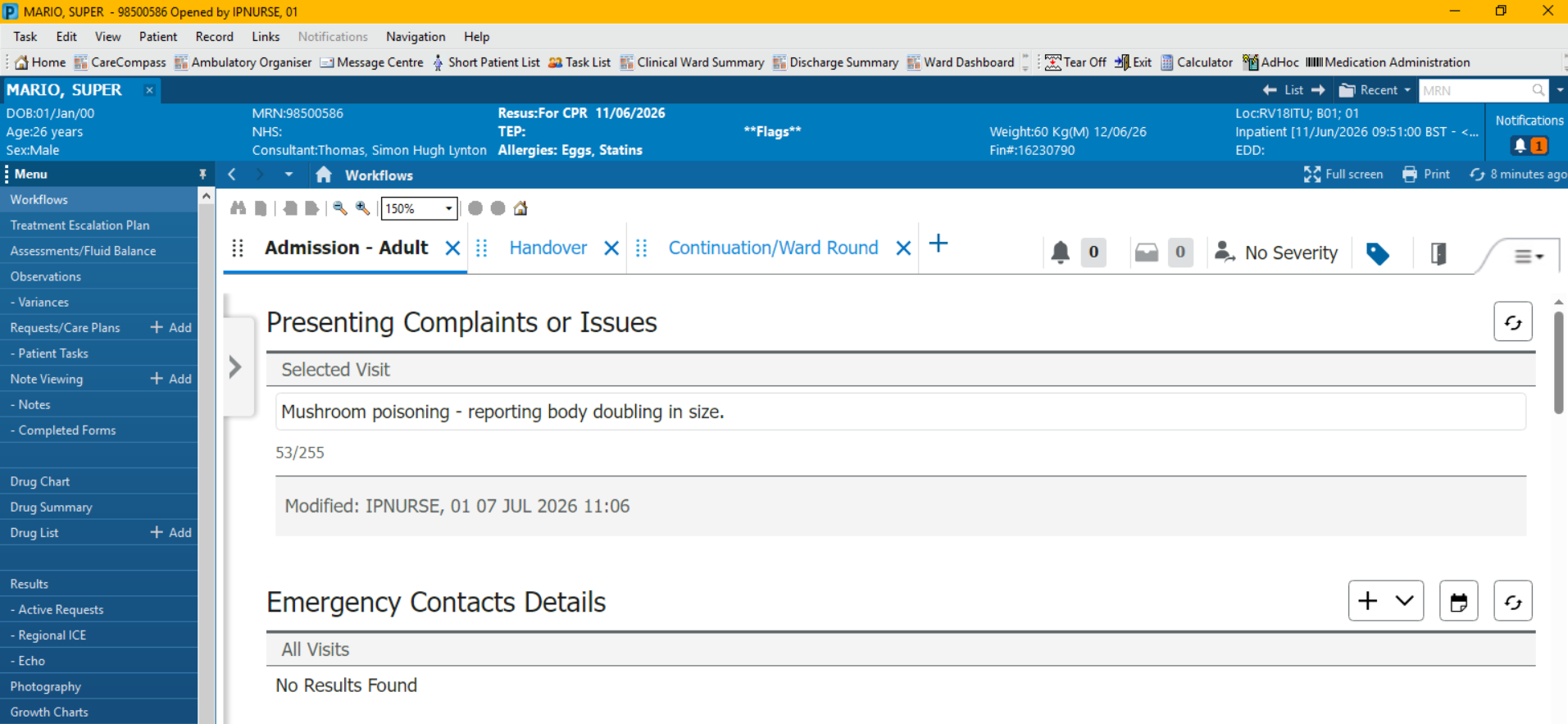
NOTE – Adjusting the zoom will not be available in all areas of the patient record.
Adjusting font size
When in parts of the patient record such as Assessments/Fluid Balance, you can increase the font size to make the text easier to read
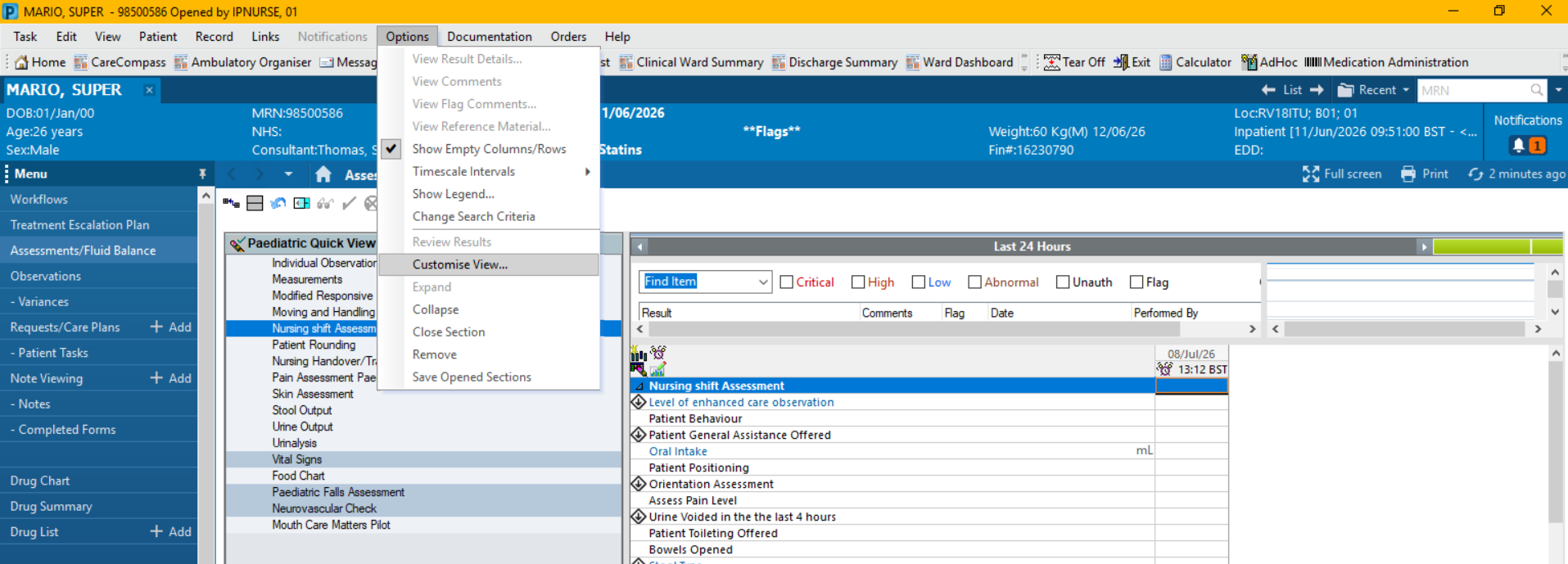
- Go to the “Options” menu at the top of the screen.
- In the “Options” menu, select “Customise View”
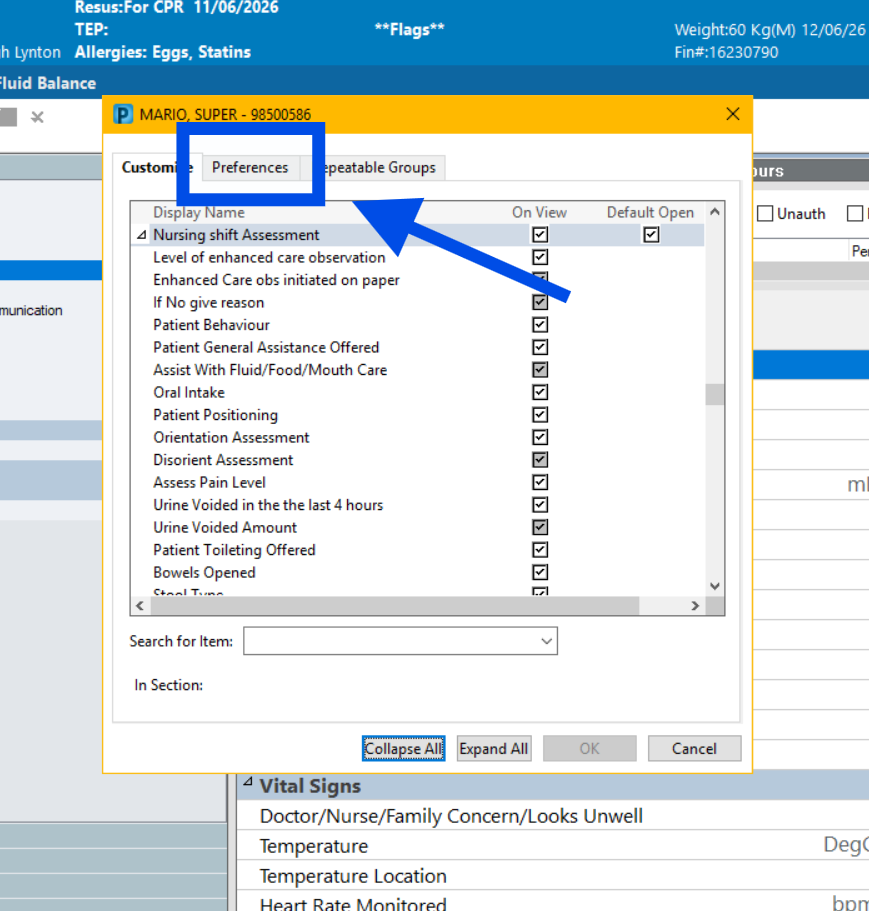
- In the “Customise View” Window, select the preferences tab.
- Double click on the “Font Size” box, and change the font size to your preferred size. In the example pictures, the new text size is set to 12.
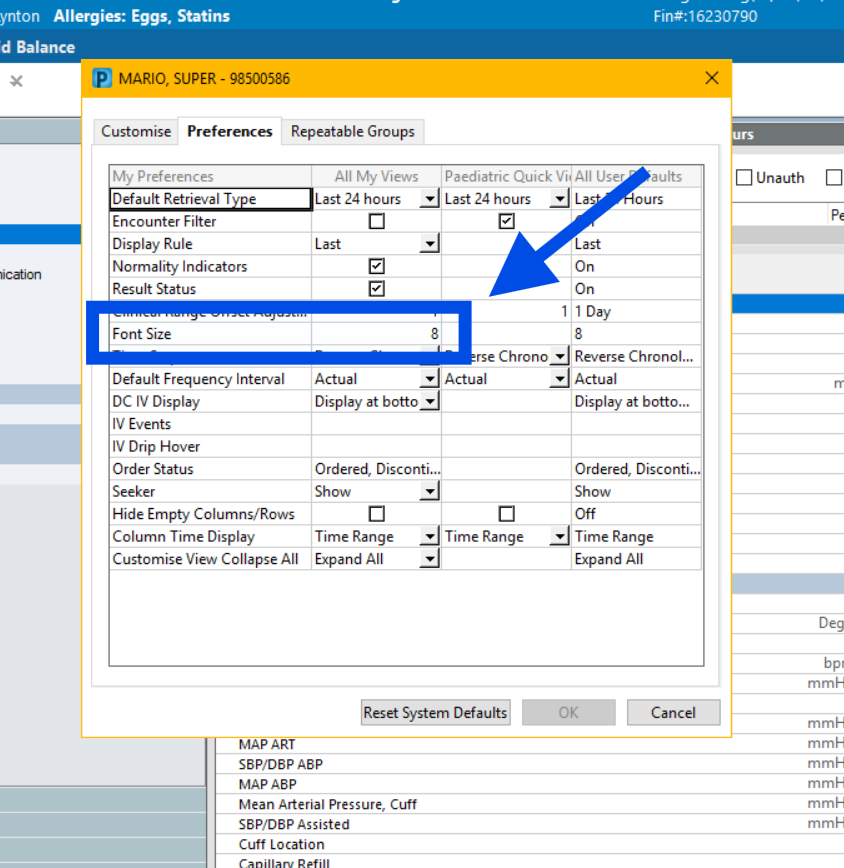
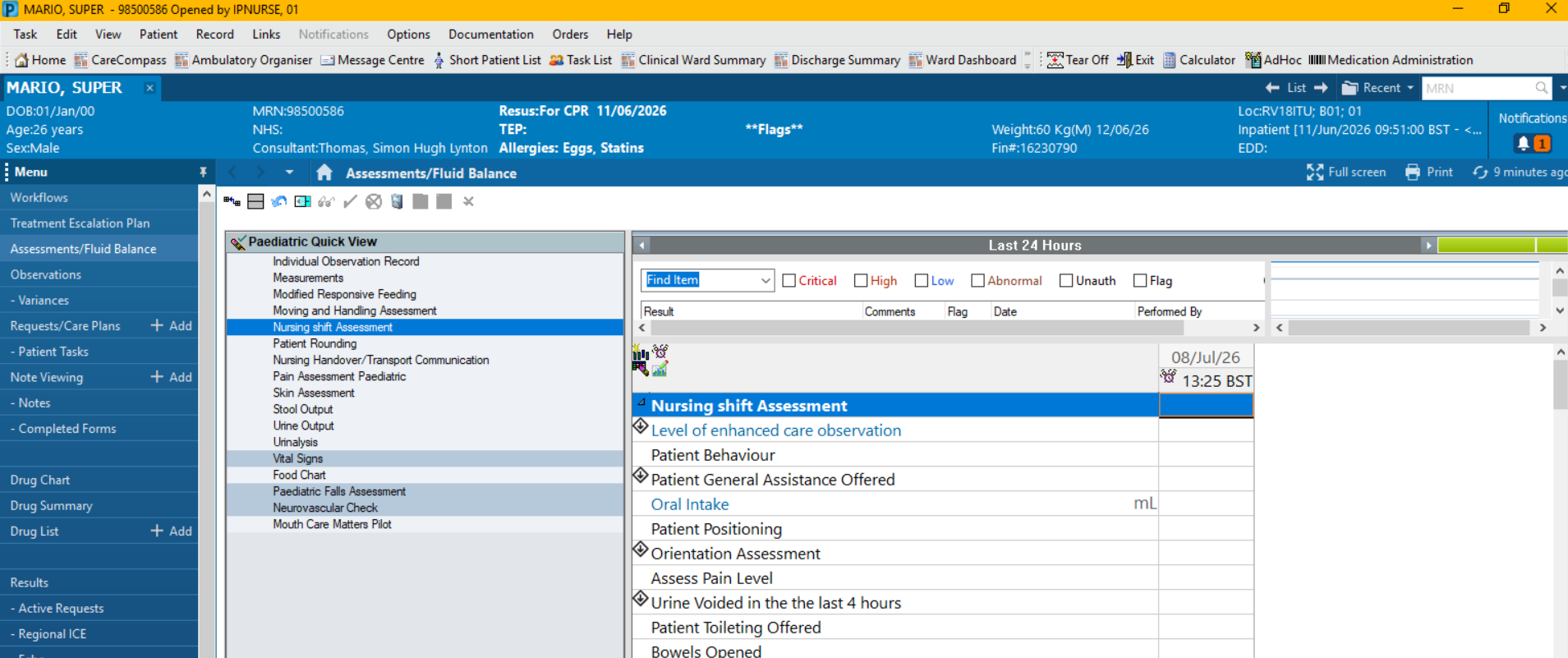
NOTE, this will only affect the data screen. The Navigation bands and the sub-groups will remain the same size.