Making Windows easier to Hear
Where to Find the Menus
This guide will help to make text within PowerChart easier to hear using a variety of tools.
Before you can change your Accessibility Settings, you will need to find your Accessibility options.
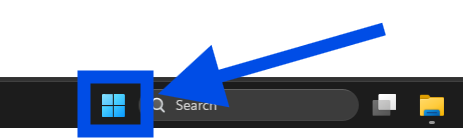
- Click on the windows button in the bottom of your toolbar
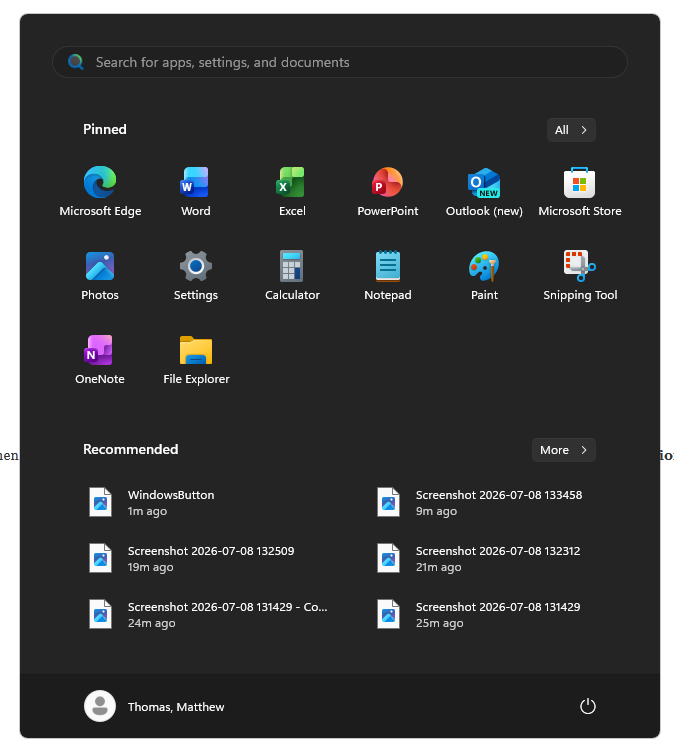
- Click “All” in the top right corner.
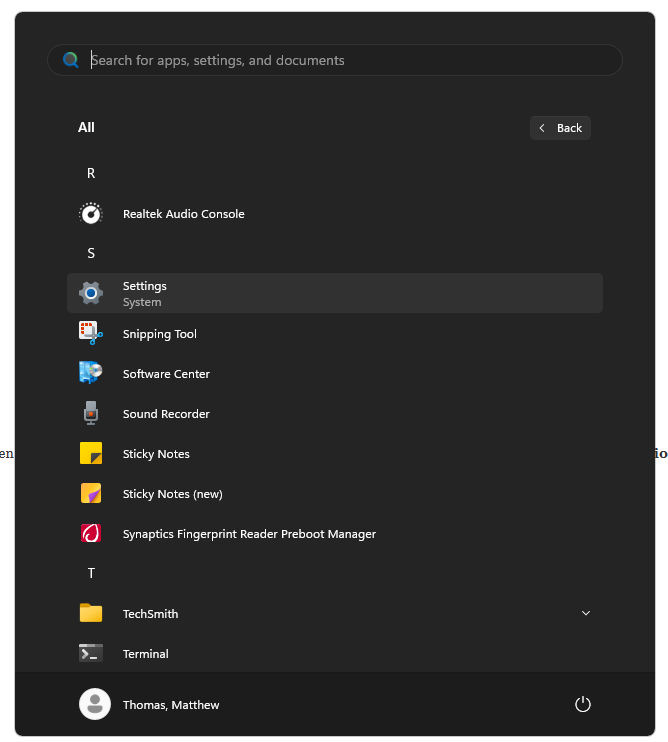
- Scroll down to Settings and click on it. This should open the Settings window.
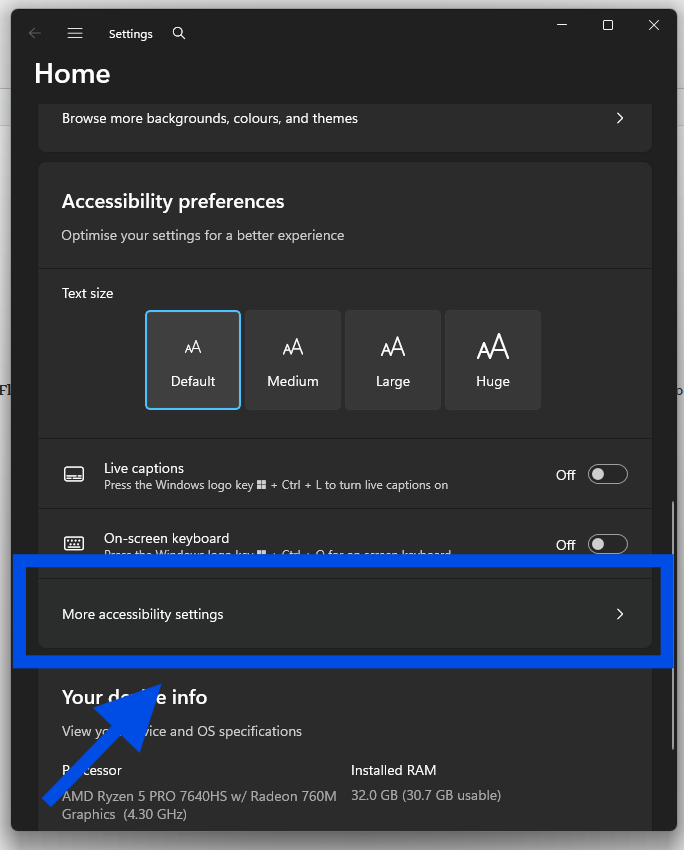
- Scroll down the Settings window until you find the “Accessibility Preferences” section
- Click on “More Accessibility Settings” to see all the different accessibility options.
Visual Audio Alerts
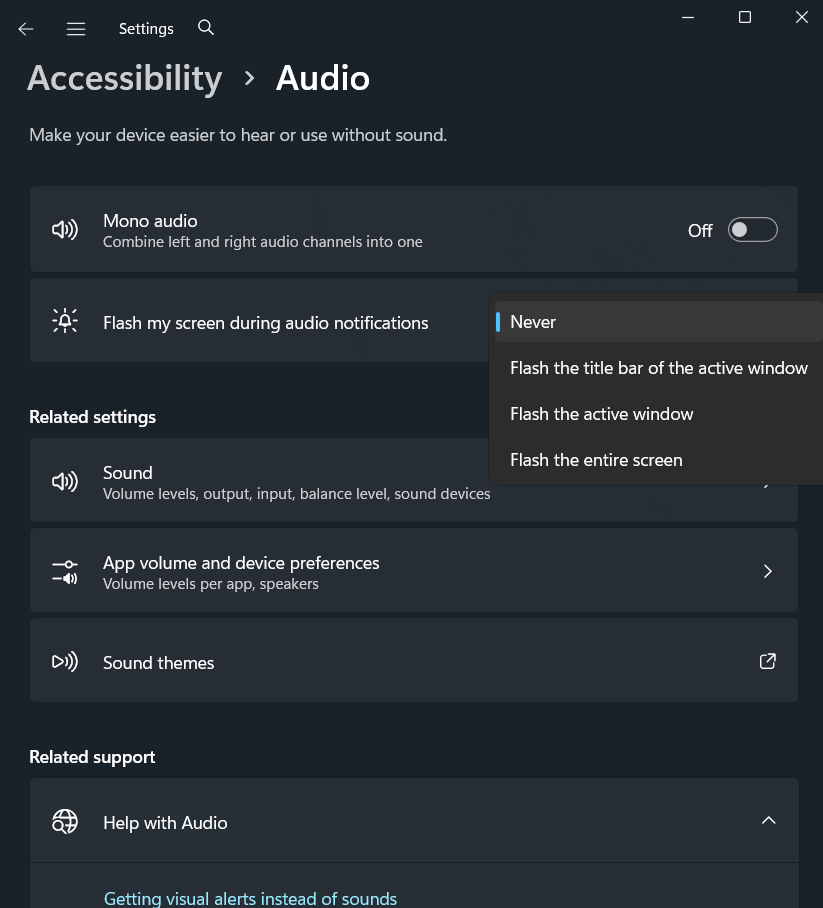
- If you have trouble hearing audio alerts, you can have your PC display them visually. Select the Start button, then select Settings > More Accessibility Settings > Audio. Under Flash my screen during audio notifications, choose how you want audio alerts displayed. You can choose to have the title bar of the active window, the active window, or the entire screen flash when a notification arrives, instead of relying on sound alone.
Extended Visual Notifications
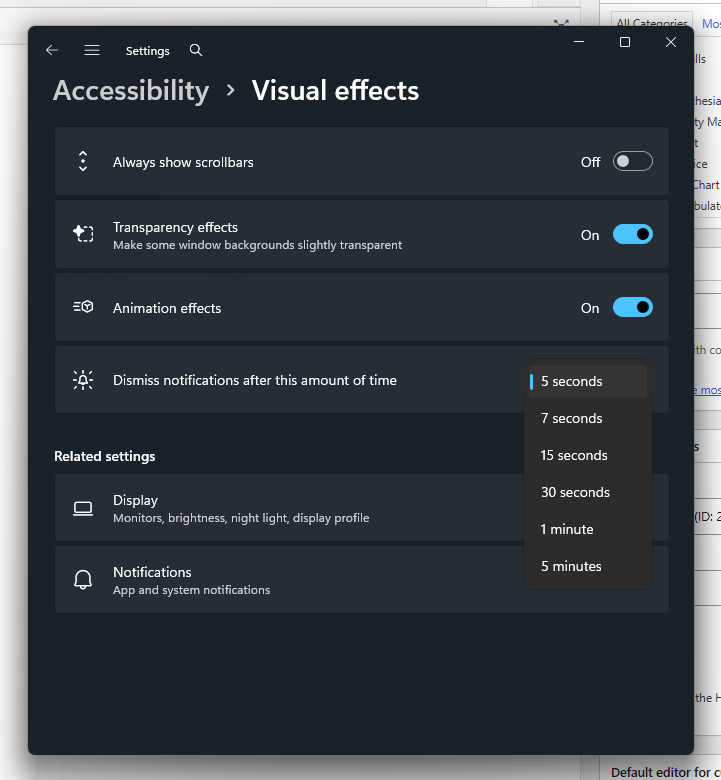
- By default, Windows notifications disappear five seconds after they appear. If you want more time to read them, you can increase how long they’re displayed. Select the Start button, then select Settings > More Accessibility Setting > Visual effects. Then, under Dismiss notifications after this amount of time, choose the amount of time you want.
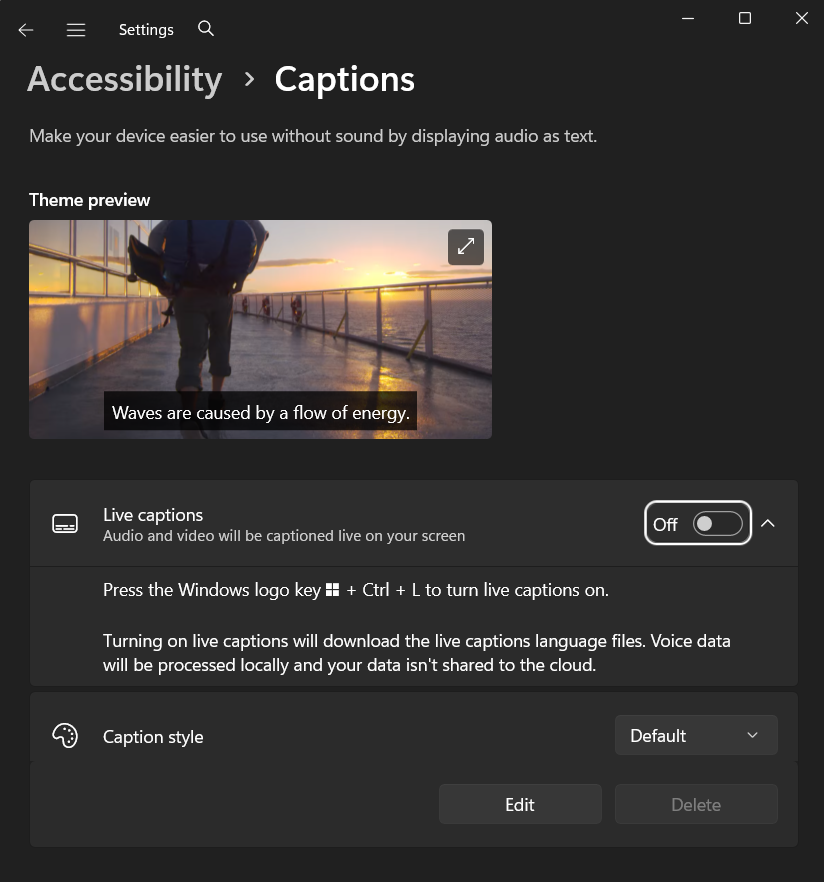
Video Captions
- If you have trouble hearing audio while playing videos, you can have your PC display them visually. Select the Start button, then select Settings > More Accessibility Settings > Captions . Then switch on the Live captions You can also use the Captions Style option to adjust how you want your captions to be displayed.