
More results...
More results...
There are two ways to initiate the Care for the Dying Patient care plans. This can either be done via “New Order Entry” in the patient’s workflow, or it can be done from the “Requests/Care Plans” section of the blue menu on the left hand side of the screen.
Find the New Order Entry section of the workflow. You can use the version in the Caring for the Dying Patient workflow, but you should also be able to use “New Order Entry” in any of the other workflows that also contain one.
At the top of the section, you will be able to toggle between two options. Choose the “Inpatient” option

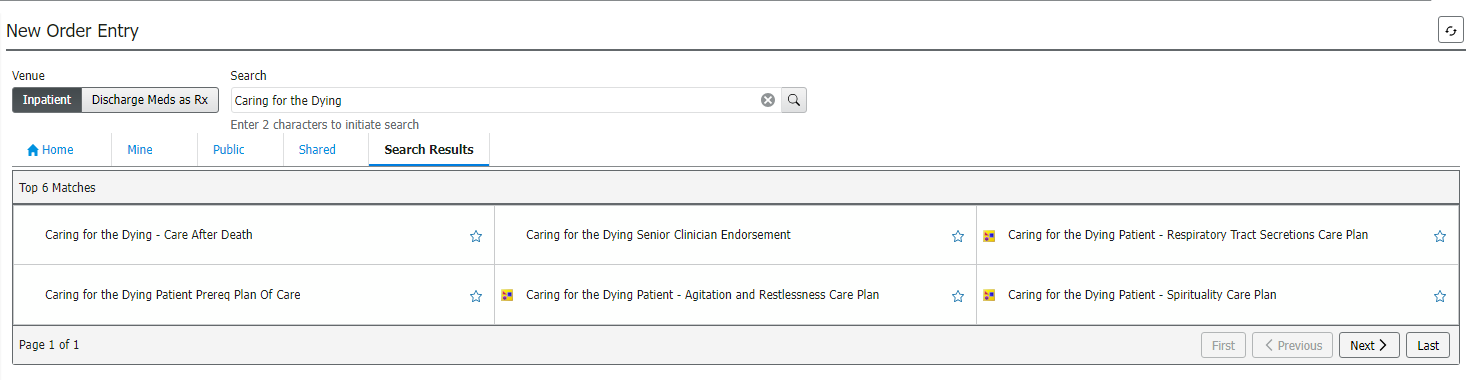
You now need to search for the correct Care Plan. If you search for “Caring for the Dying Patient” you should get the options appearing in front of you. If you are unsure about which option is a care plan, look for the small yellow symbol. This symbol means you are looking at a Care Plan.
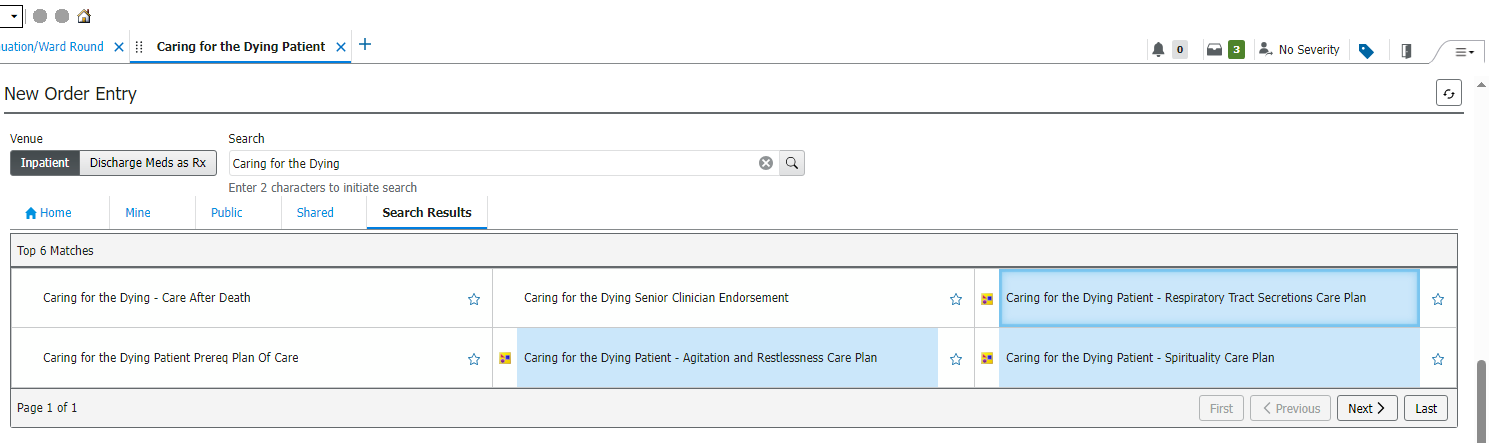
Click on the care plans you want to initiate. As you click on them, they will be added to your order basket. Your order basket will show how many items are included for each order. Once you are ready to order the plans, click on your order basket.
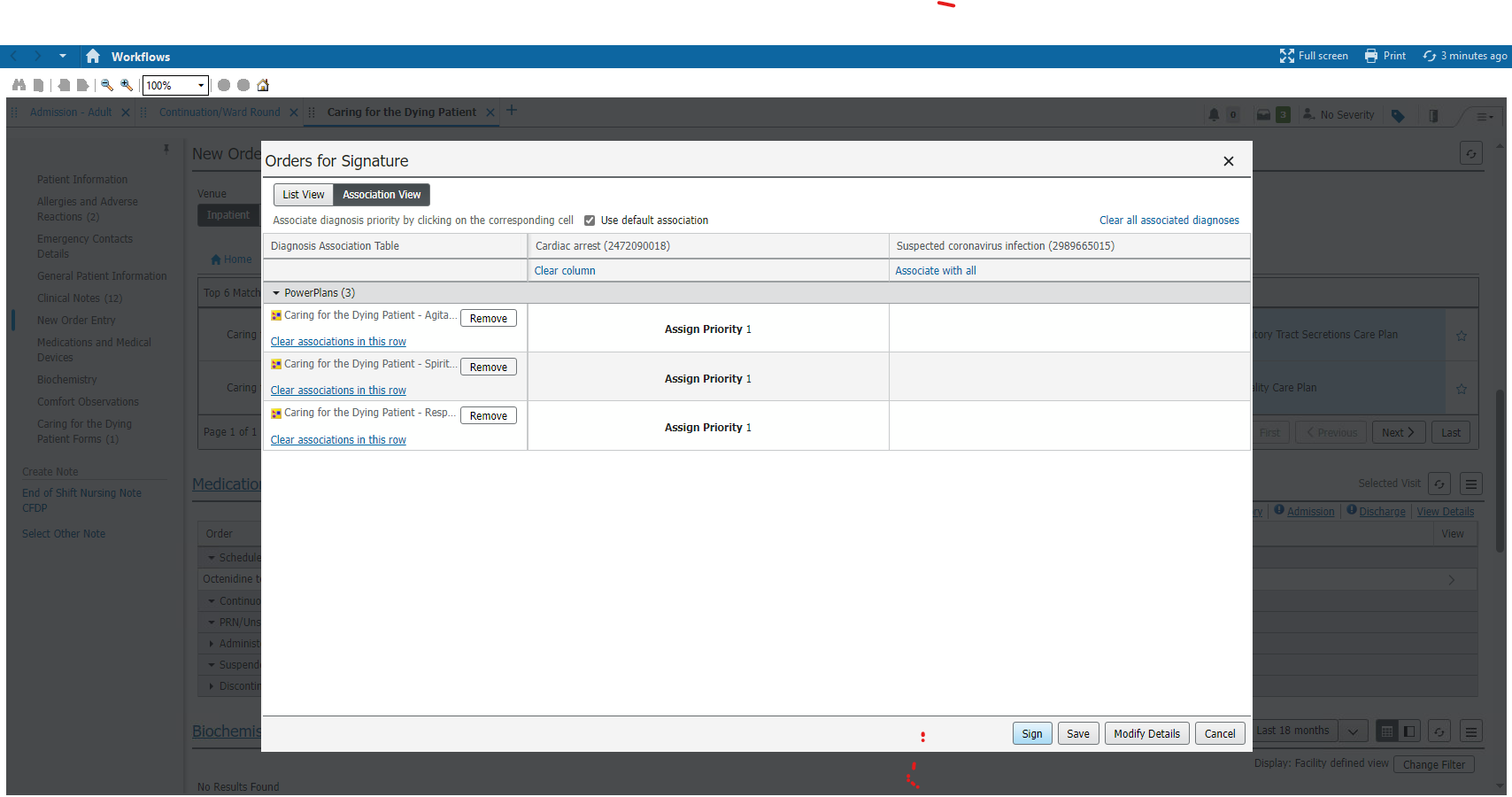
Your order basket will show all the items you have currently got ready to order. If you wish to remove any, click the “remove” button and it will be taken out of your basket. Once you are ready to proceed, click on “Sign”.
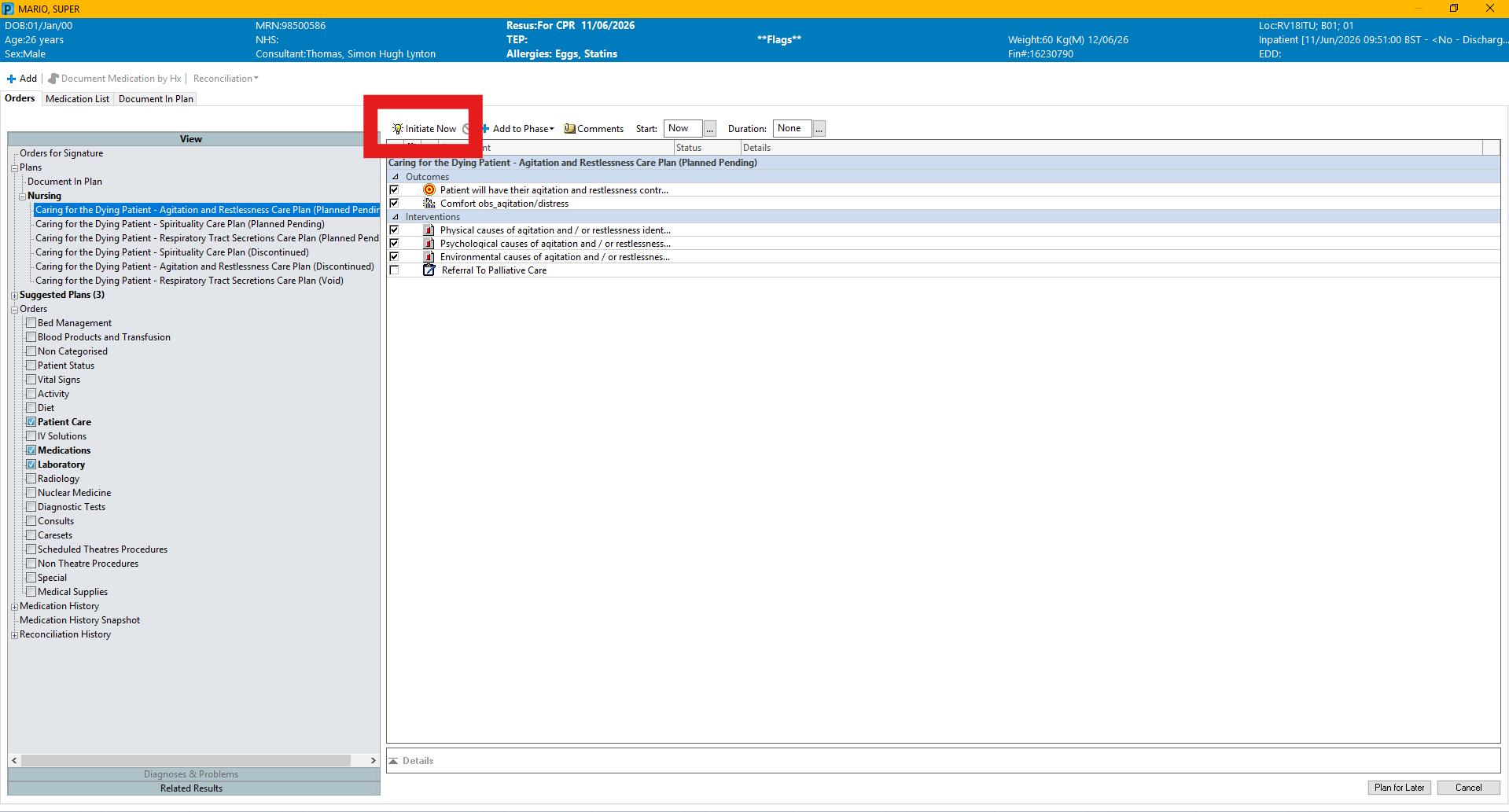
This will then give you the Care Plan screen. On the left hand side, you will see a list of all care plans assigned to a patient and the status of the plan. Your new ones should show as “Planned Pending”.
To initiate the care plan, click the initiate now button (shown by a lightbulb) above the breakdown of the plan.
All components of the plan should then have a lightbulb light up next to that component. The description of the plan in the list on the left should now show “Initiated Pending”. Click on any other care plans you wish to initiate and repeat the process. When all your ordered care plans are showing as “Initiated Pending”, click on “Orders for Signature” in the bottom right corner of the page to begin the signing process.
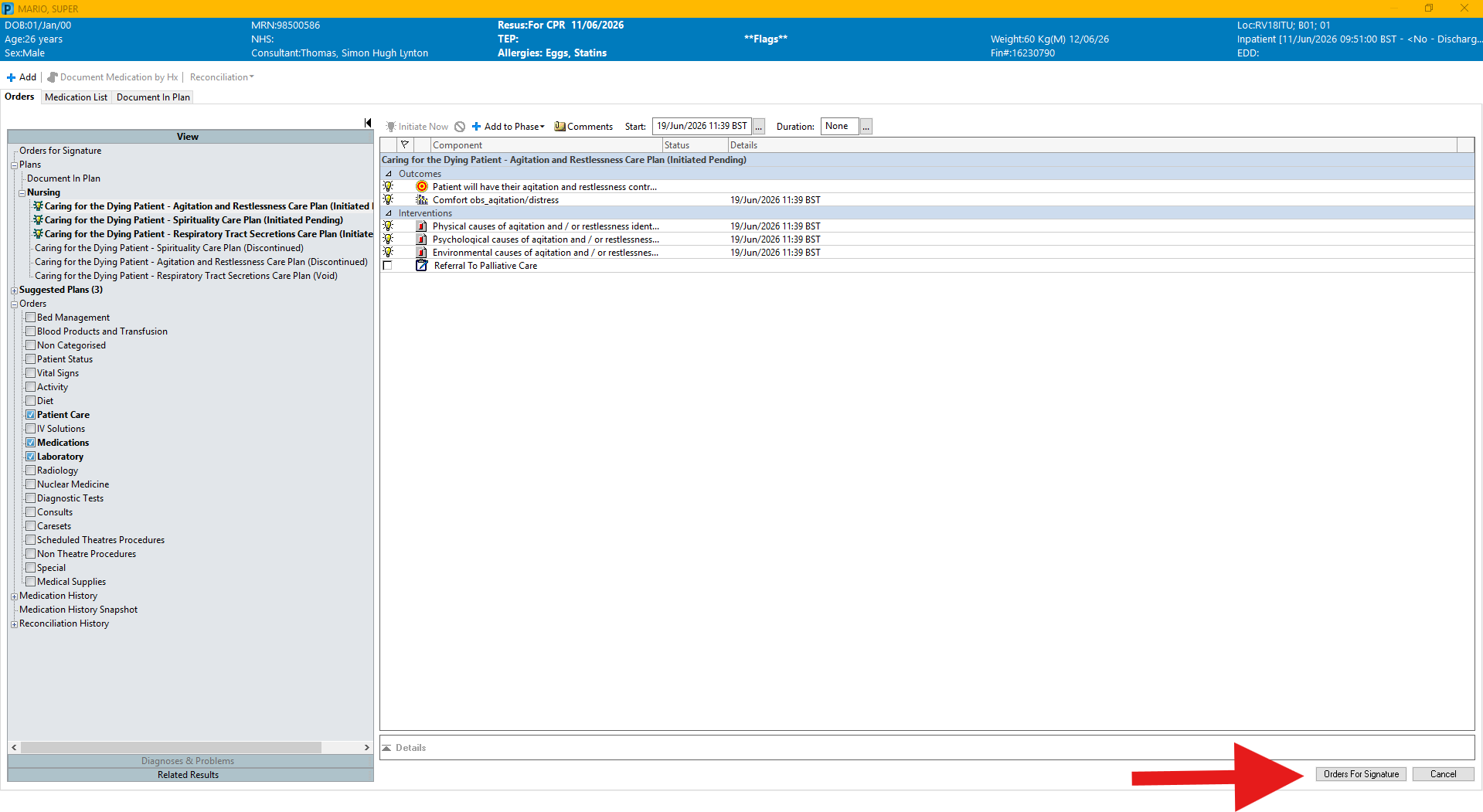
The “Orders for Signature” button will disappear and be replaced by a “Sign” button. Click this, and refresh your page.
Your care plan(s) will now be initiated and ready to be documented on. You will be returned to the “New Order Entry” section of the workflow.
Find the Requests/Care Plans option in the blue menu on the left of the page.
Click the Add button in the top left corner of the page. This will give you a pop-up window where you can select your orders/plans.
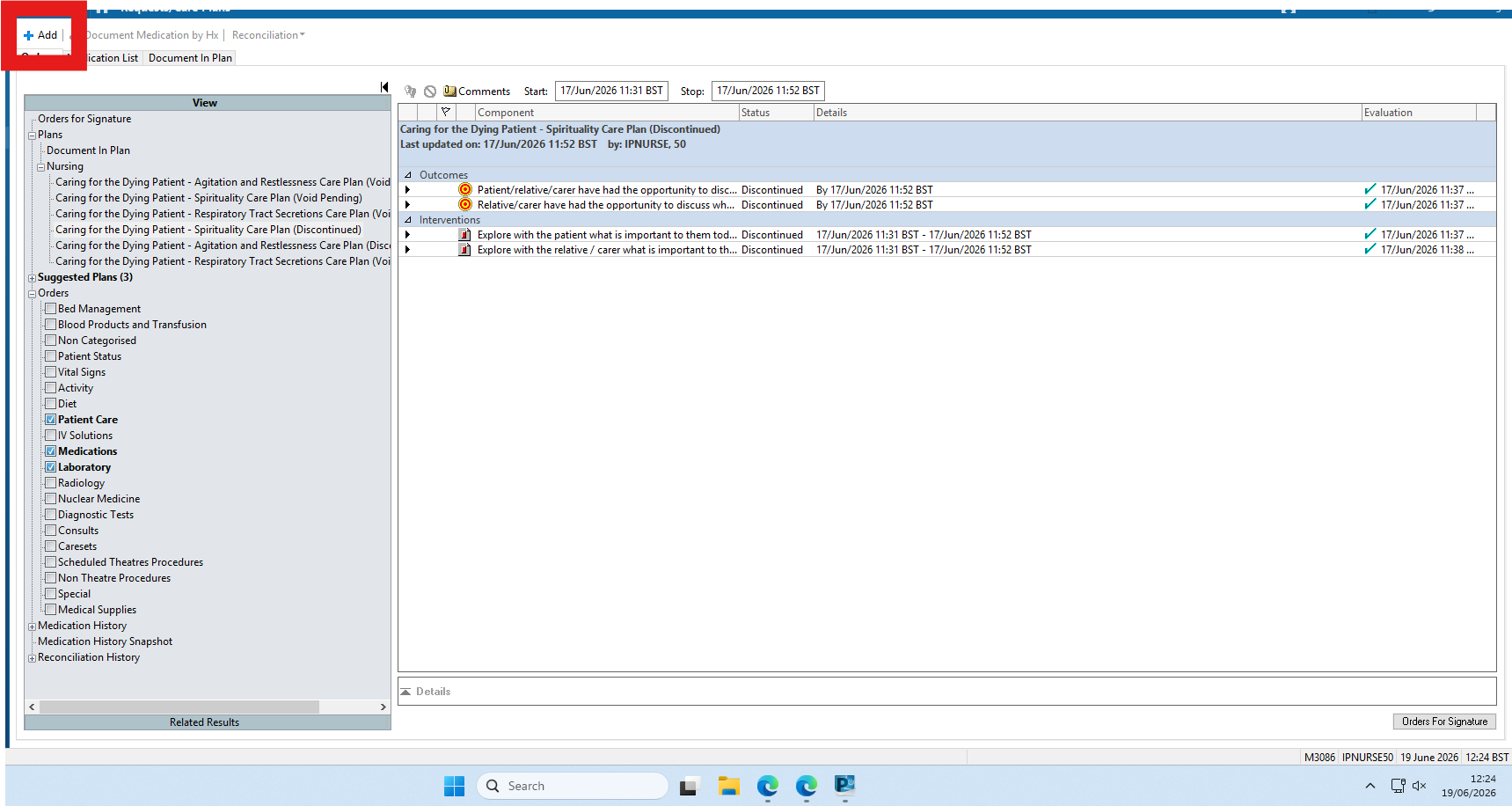
You now need to search for the correct Care Plan. If you search for “Caring for the Dying Patient” you should get the options appearing in front of you. If you are unsure about which option is a care plan, look for the small yellow symbol. This symbol means you are looking at a Care Plan. You only need to single click on the plans to queue them up. If you double click then you will queue up 2 identical plans. Once you have selected all the plans you want, click “Done” in the bottom right corner.

This will then give you the Care Plan screen. On the left hand side, you will see a list of all care plans assigned to a patient and the status of the plan. Your new ones should show as “Planned Pending”.
To initiate the care plan, click the initiate now button (shown by a lightbulb) above the breakdown of the plan. All components of the plan should then have a lightbulb light up next to that component. The description of the plan in the list on the left should now show “Initiated Pending”. Click on any other care plans you wish to initiate and repeat the process. When all your ordered care plans are showing as “Initiated Pending”, click on “Orders for Signature” in the bottom right corner of the page to begin the signing process.
The “Orders for Signature” button will disappear and be replaced by a “Sign” button. Click this, and refresh your page.
Your care plan(s) will now be initiated and ready to be documented on.