AutoText – Document Creation
Information
The following guide will show how to create Auto text in Document creation. AutoText allows you to add frequently used working to your letter quickly and easily.
Three types of Autotext are available:
Personal – you create and they are for your own use
Departmental – for your own department to use (create by your Office Manager / Administrator)
Trustwide – for all users (created by IT Department)
Instruction
- Click on Autotext tab, select Manage AutoText
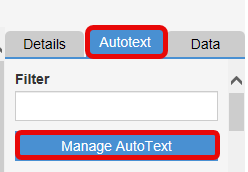
- A box will appear, AutoText Management screen click on the Create button

- In this fill out the following:
A: Type in a name of the AutoText for future use
B: Add in free text, for example it recent medical guidance / instruction for the patient. NOTE: you can copy and paste from other Document using Ctrl + C and Ctrl +V
C: Add any Data items to this Autotext – this will pull any relevant information from the patient encounter each time you use it
D: Save the AutoText. Once you save this AutoText it will be available for future use under the Personal Autotext section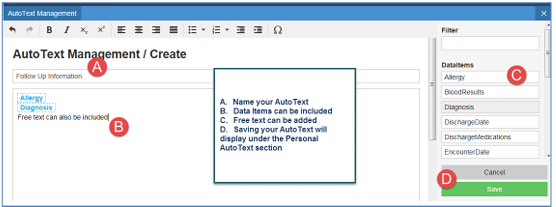
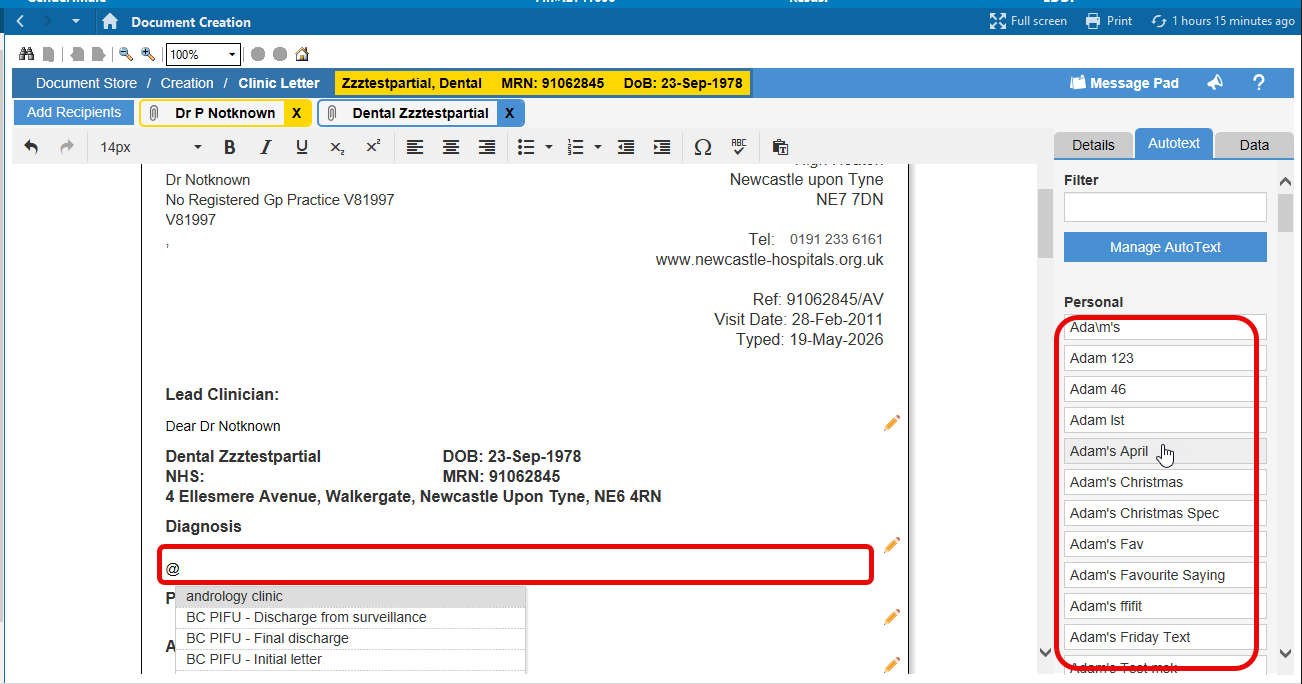
- Inserting your AutoText: There are two methods of adding auto text into your document. There are 2 options.
Ensuring the that you are in a text box (pencil icon) Type @ then letters from the name of your auto text. This system has predictive text and a box will appear with the relevant text OR Again ensure that you are in the text box, and from the side menu Select the relevant auto text.