
More results...
More results...
To add a TCI patient to a bed via PM Office
Open PM Office. In the grey menu on the left of the screen, select the option “Published Waiting Lists”. Then select the relevant waiting list for your ward.
When you select the waiting list, you will be asked to specify a timeframe for this patient appointment. To select a single day, enter the date in question into the “Starting Date/Time” and “Ending Date/Time” as shown below.
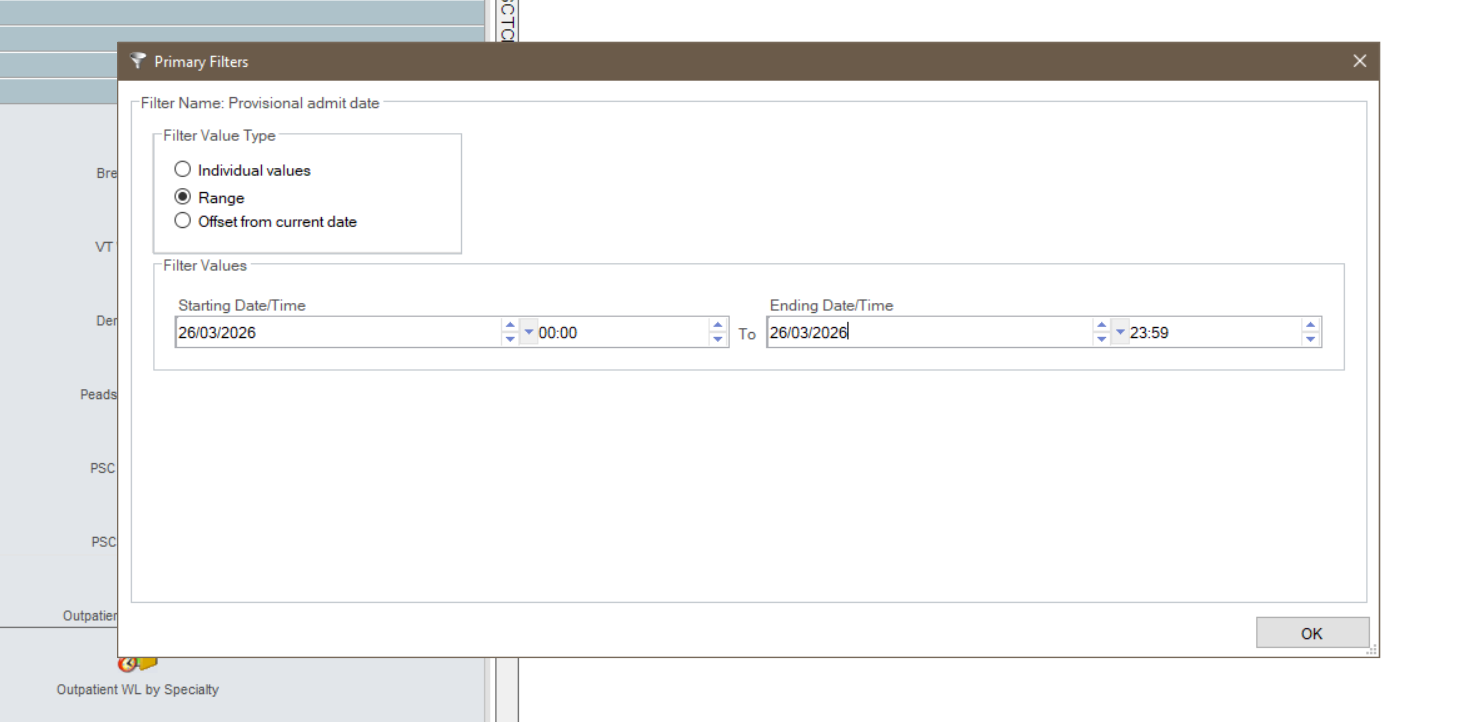
This will give a list of all patients booked in for an appointment in the date range chosen.
3. Right click on the patient and select “Conversation” from the menu that appears.
In the next menu, select “elective inpatient admission“.
By selecting elective inpatient admission, the information already gathered in Schapptbook will be pulled through into the encounter. If a patient is admitted via either a “emergency admission” or in Capacity Management, this information would not pull through and would need to be repeated.
Work through the “elective inpatient admission” form filling in the mandatory yellow fields. Once all of these fields are completed, press the “ok” button in the bottom right corner of the window. This button will close the form and add the patient to the bed selected in the visit details tab of the form.