Insert Date/Time
Scenario
This process shows how to insert a new column for a specific date/time when completing an assessment in Assessments/Fluid Balance.
From a time column
- With a patient record open, navigate to Assessments/Fluid Balance.
- Select the required navigator band and assessment.
- Right click at the top of any time column and select Insert Date/Time.
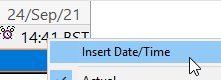
- Enter the required date/time and hit Enter on the keyboard.

To enter the current date and time place the cursor in the date field and press T on the keyboard
Using the Insert Date/Time icon
- Click the Insert Date/Time icon.
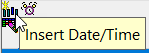
- Enter the required date/time and hit Enter on the keyboard.
