Attach a file to an email
You are looking to share a file by attaching it to an email in Outlook on the web
Step-by-Step Instructions
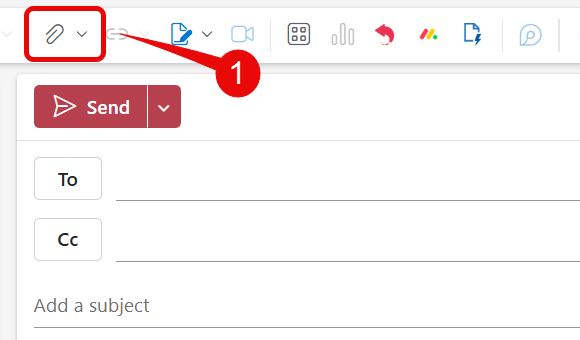
- In Outlook, click on New email, then select Attach a file to this item icon
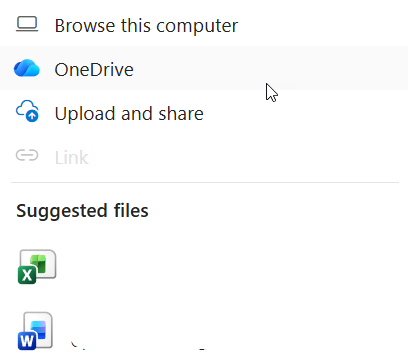
- From the opening window, you now have four options from where to attach the file either:
- Browse this computer
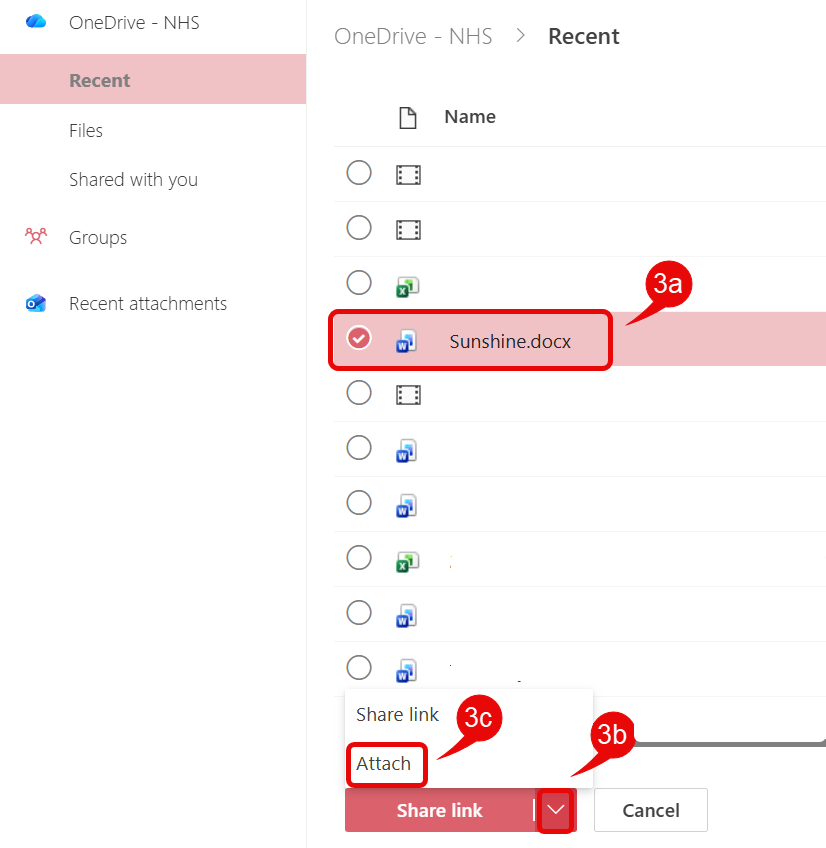
- OneDrive
- Upload and share
- Suggested files
- select your file
- click on the down arrow
- select Attach
- move to stage 9
- If you selected Upload and share then from the opening window find and select your file, then move to stage 7
- If you select Browse this computer from the opening window find and select your file, then move to stage 9
- If you selected a suggested file then move to stage 7
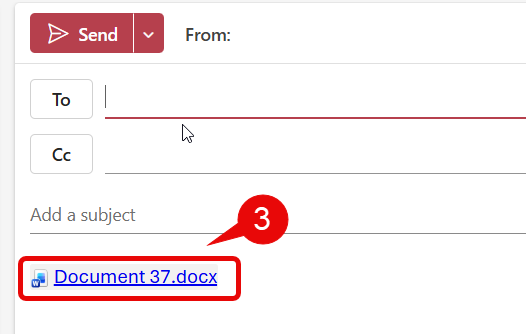
- The file will now appear in the email message body
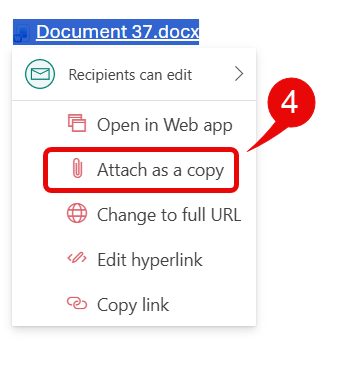
- Right click on the file link, then select Attach as a copy
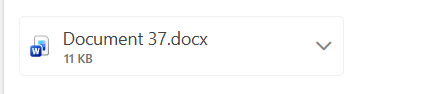
- Your file will now be attached as a copy without the web link
- When your email is sent, the file will be accessible for email recipients
- Note – because the web link has been broken, if a recipient updates the document it won’t update your copy.