Dental Prescribing Using a Preset List of Common Medications
Introduction
Prescribe quickly from a preset list of common Dental medications.
Instruction
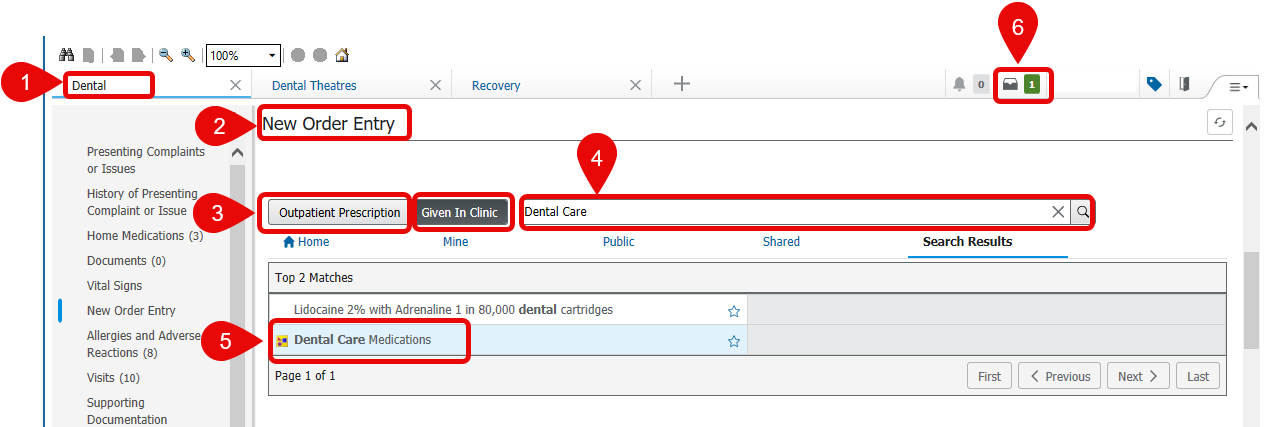
- Open the patient chart in the Dental workflow.
- Go to New Order Entry.
- Select the correct ordering Venue: Given in Clinic or Outpatient Prescription.
Choosing the correct prescribing venue is essential. If a prescription is entered as “Given in Clinic” (the default setting) when it should have been issued as an “Outpatient Prescription” for collection from the RVI Pharmacy, the pharmacy will not receive the order, and the patient will be unable to collect their medication.
- Search for Dental Care Medications.
- Select correct match.
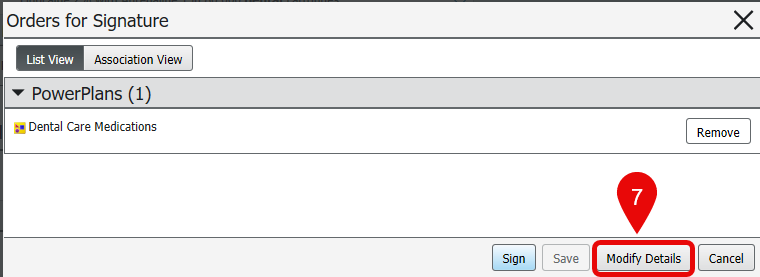
- Click on the basket (top right).
-
- Select Modify Details.
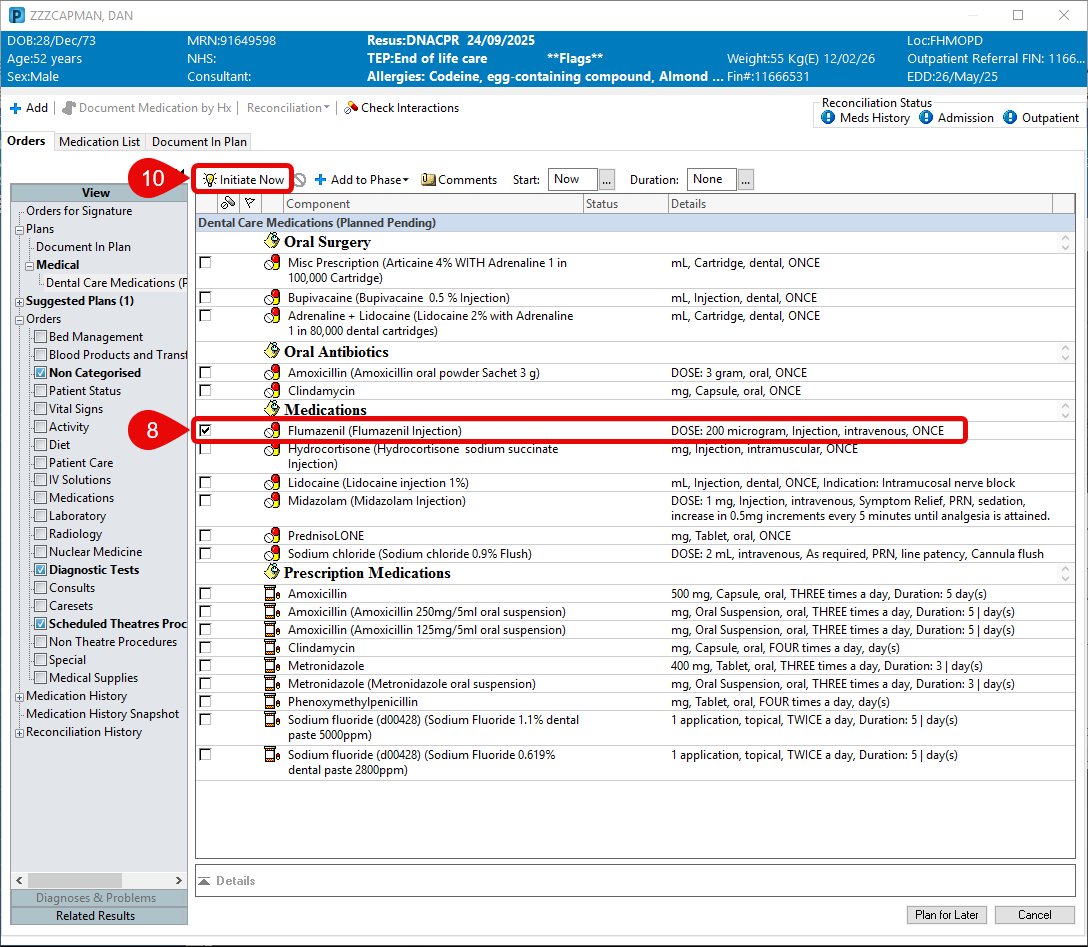
- Tick the box next to the desired drug/sentence.
- Repeat as appropriate.
- Click Initiate Now.
- Notice how the ticked box now appears as a light bulb and that the Plan for Later button has now changed to Orders for Signature.
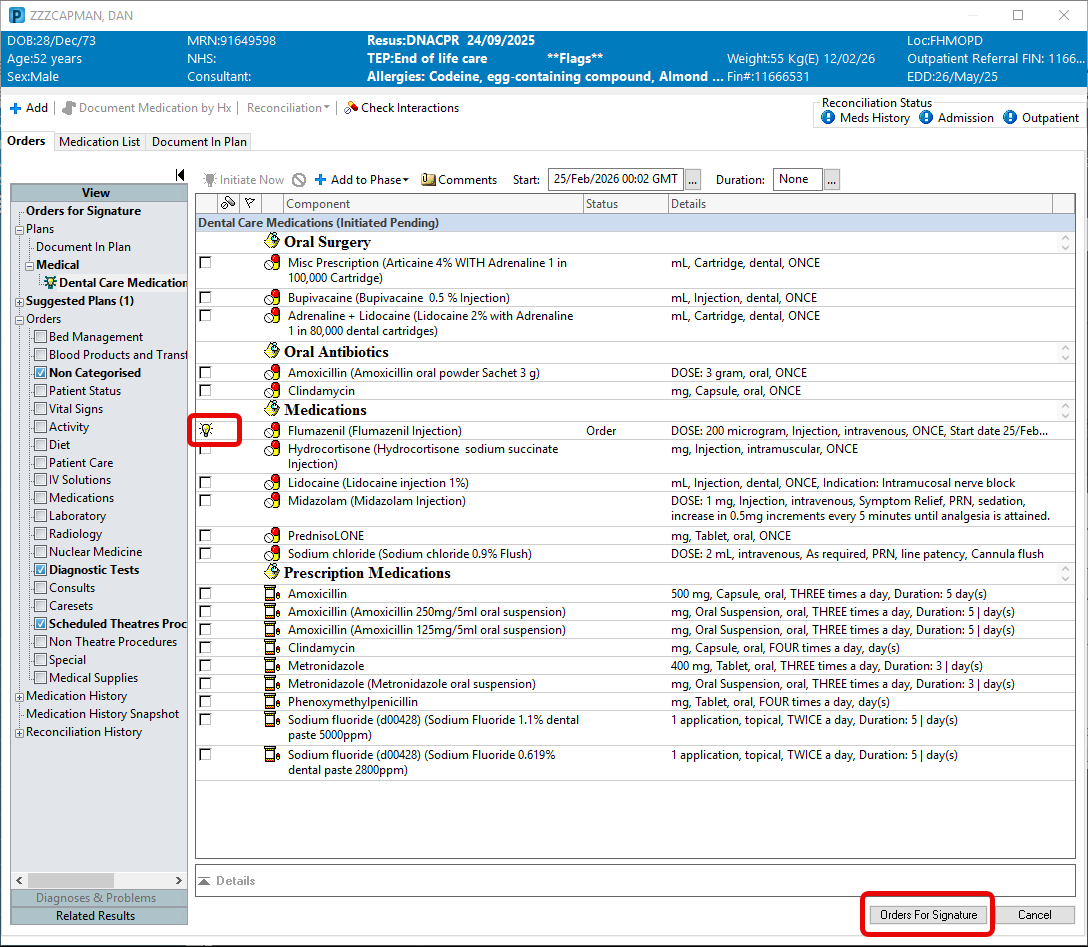
- If required, fill in details for each medication.
- Click Orders for Signature (bottom right).
- All orders can be reviewed/edited before clicking Sign (bottom right) to finalise the order.
