6. How to make and view notes
This guide shows how to make, view and delete notes added to a request in the Management Portal
Make a note
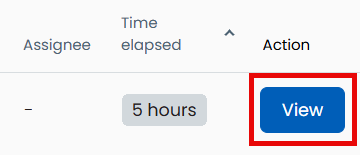
- Locate the request and click View
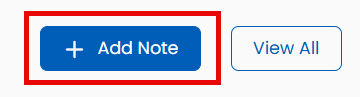
- Click the Add Note button
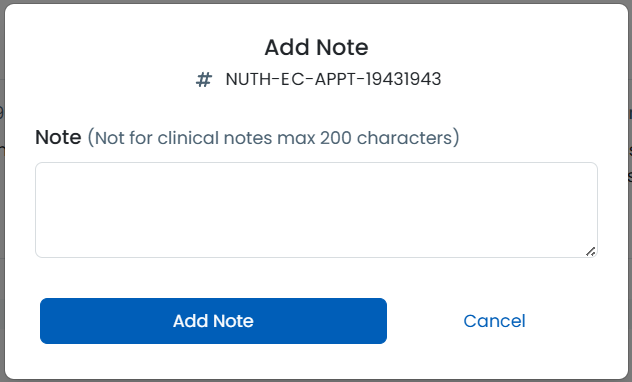
- Type the note and Add note
The note will now be displayed below. The default view shows the most recent three notes.
To view more notes click View All.

Delete a note
You can delete your own notes if you have added one in error.
- Locate the request and click View
- Locate the note that requires deletion
- Click the three dots in the corner of the note
- Select Delete

- A confirmation box will display. Click Delete Note
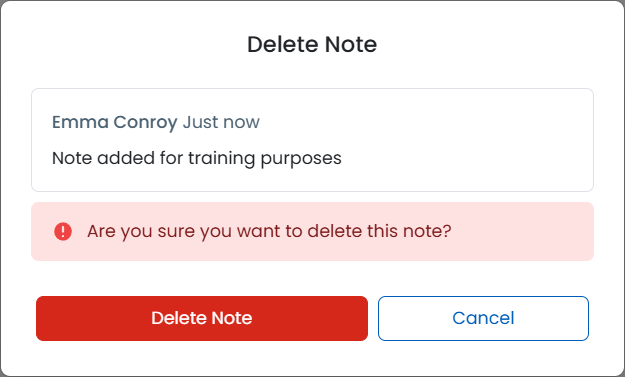
A record that a note was added then deleted will display in the audit log but the contents of the note will no longer be viewable.
Updated: 15 May 2026