Document Store Admin Portal – Creating AutoText
Open Document Store Admin Portal
- To access the Admin Portal, type documentstoreadminportal.app into your web browser and press the enter key.
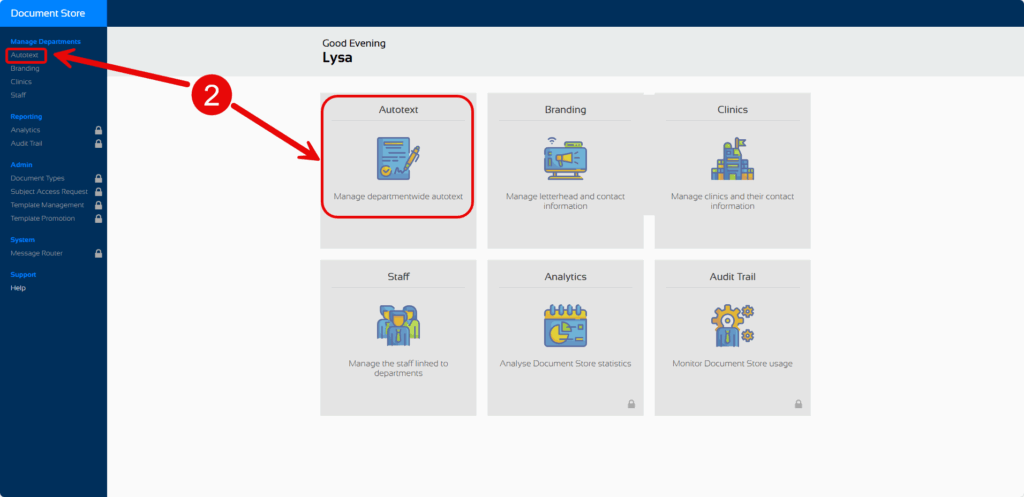
- Select Autotext from either the left side menu or the large centrally located button.
Create New Autotext
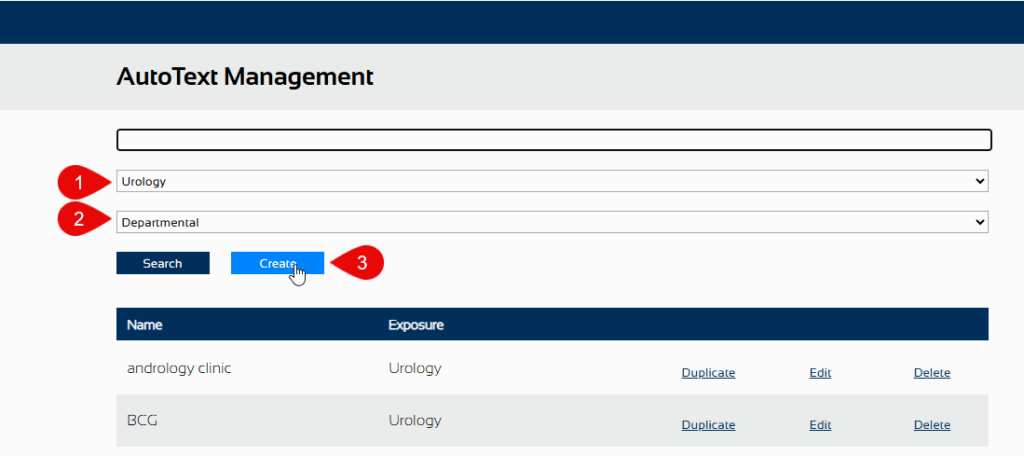
- Select your Department from the drop down list. Your department’s autotext list will be displayed.
- Ensure Departmental is chosen. The other option is personal.
- Click Create.
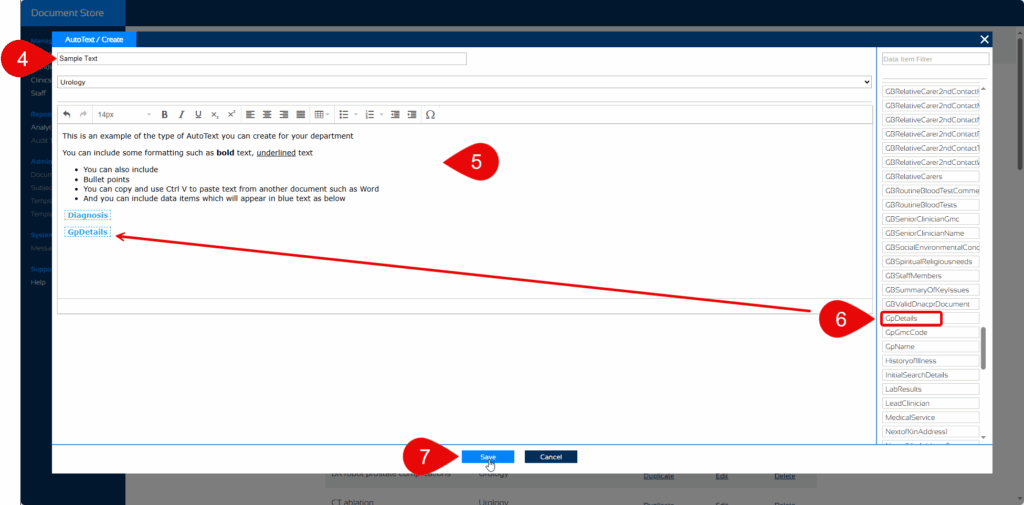
- Type a Name for the autotext. Note – each name must be unique.
- Type or copy and paste your text. Note – the right mouse facility does not provide a paste feature so remember to use the key board shortcut of Ctrl V to paste.
- Include Data Items, if required.
- Click Save.
The autotext will be listed and available to everyone in that department to use when creating a new Document.