
More results...
More results...
Students are required to have all of their clinically relevant consultations countersigned by another user.
For Students:
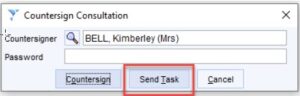
When a student saves a patient record a Countersign Consultation box will appear. The student does not need to enter any information into the boxes, they only need to select ‘Send Task’. This will send the task to the relevant user that the student has been assigned as a countersigner.
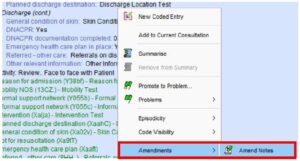
If you are asked to amend some of your documentation by the countersigner: Find your entry, right click and select Amendments then Amend Notes. You can then amend any notes that you have made. Once the record is saved again you will have the same window as above and click Send Task.
For Countersigner:
From the SystmOne home screen, click the ‘Tasks’ button 
This will show all the tasks assigned to you. Click on the ‘Countersign Consultation’ tasks, this will show any countersigning tasks you’ve been sent. Right click on the task and select ‘Action’, you’ll then see what has been entered into the record for that event.

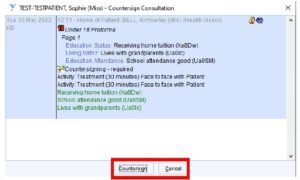
If you are happy with the documentation, click on the ‘Countersign’ button and the task will be completed and the record countersigned.
If you are not happy with the information, you should contact the student and communicate what needs changing. The student should go into the record and amend the entry. Once any amendments have been done the original task that was sent should also be countersigned, this will have been updated to show the amended information.