Information
These instructions also work with SchApptBook – when you are checking a patient in for their appointment.
This guide shows how to add a temporary address to a patient’s record in PM Office.
These details should only be changed when you are absolutely certain that you have located the correct patient.
Instructions
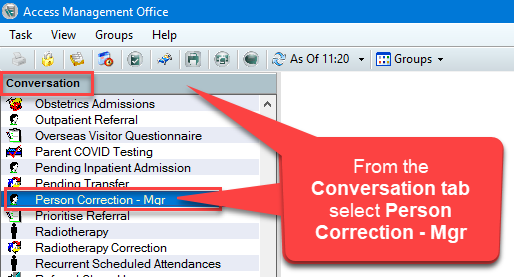
- From the Conversation tab, in PM Office, select Person Correction Manager:
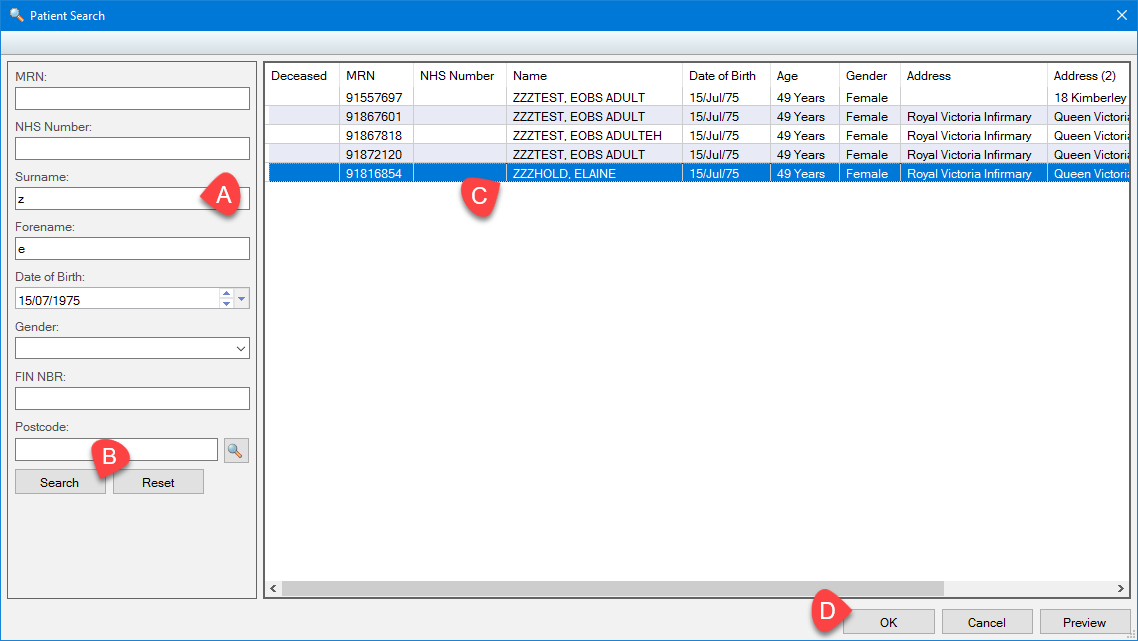
- Search for your patient:
a. Using their MRN or NHS Number (If you don’t have a number, use the patient initials and DOB)
b. Click the Search button
c. Select the correct patient
d. Click OK:
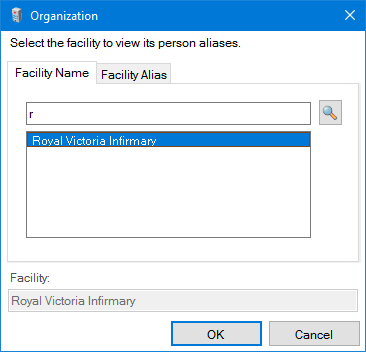
- In the Organization window, enter the first letter of the hospital site where the patient will be seen (eg. r for RVI) and click OK:
- Update demographics such as name, telephone number or an incorrect date of birth by over-typing the existing information.
To add a Temporary Address
- Select the Temporary item in the Address Organizer field, followed by +Add Additional Temporary:

- Select Residence (eg UK Residence) from the dropdown Address Type list, click Address Search:
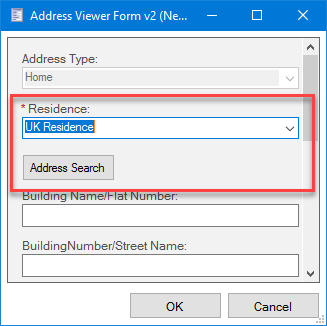
- Type the patients temporary Postcode and press the Select button:
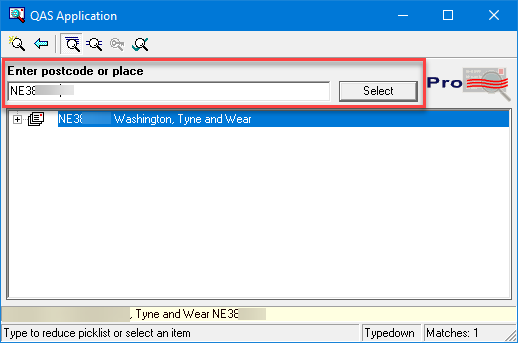
- A list of addresses will display with a range of house numbers (check the street name). Highlight the relevant house range then press Select to open up a list of house numbers, Select the correct address.
- Press Accept – DO NOT CLICK OK AT THIS POINT:
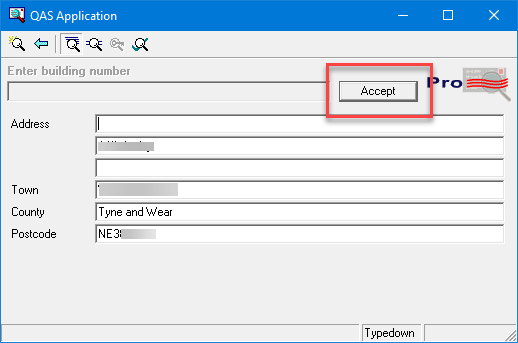
- Scroll to the Begin Effective and End Effective Date fields. Temporary addresses should have an end date added so that correspondence will revert to their permanent address.
- Click OK:

- Click OK to save the changes to the patient record.
- The Temporary address displays under the Home Address until it reaches it’s End Effective Date, following which it can be located under “Previous“:

