Ordering from Requests/Care Plans
Scenario
This guide will show you how to place an order from the Requests/Care Plans section of Powerchart.
Instructions
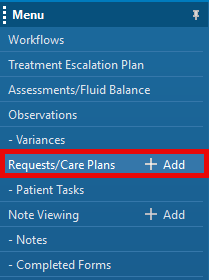
- Select Requests/Care Plans from the blue menu on the left side of the patient record.
- Click on the +Add button and a new window will open:
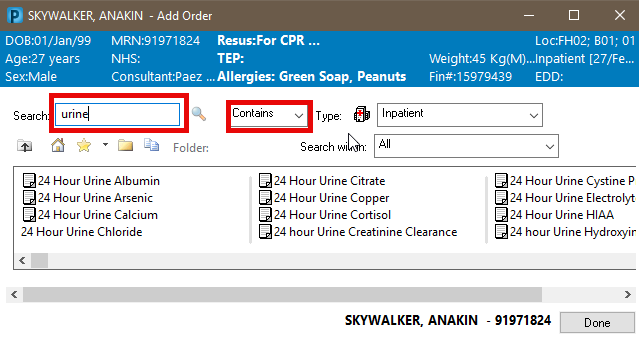
- Ensure filter is set to ‘Contains’ for all searches except x-rays (XR) and scans (CT, US), in which case, you must set filter to ‘Starts With’ or no results will be found.
- In the search box, type the name or abbreviated name of the order you wish to find:
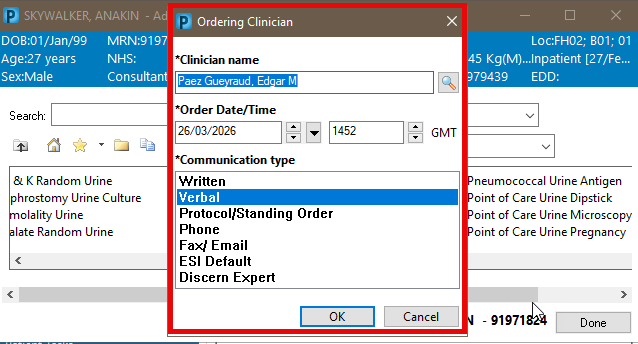
- Click the relevant order in search results. The Ordering Clinician window pops up for non-clinicians.
- Ensure you search for and select the correct Ordering Clinician, then select the appropriate Communication type and click OK:
- Click Done in bottom right corner of window.
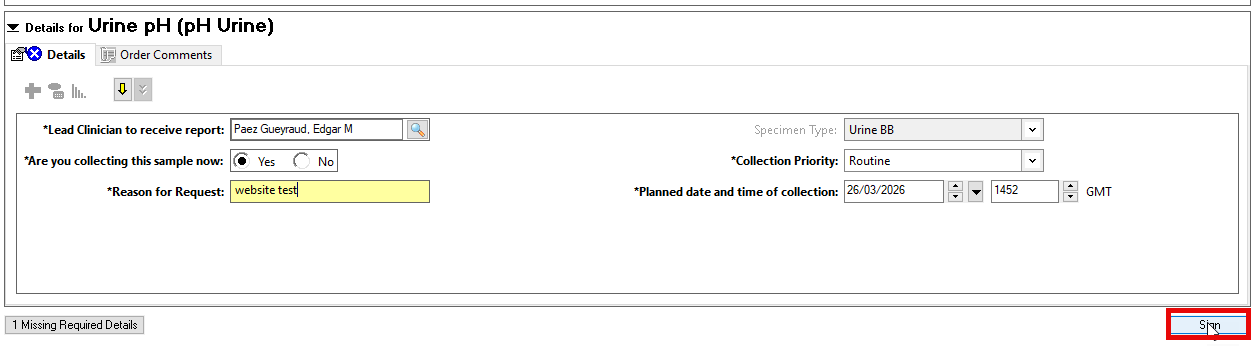
- Fill in all relevant details.
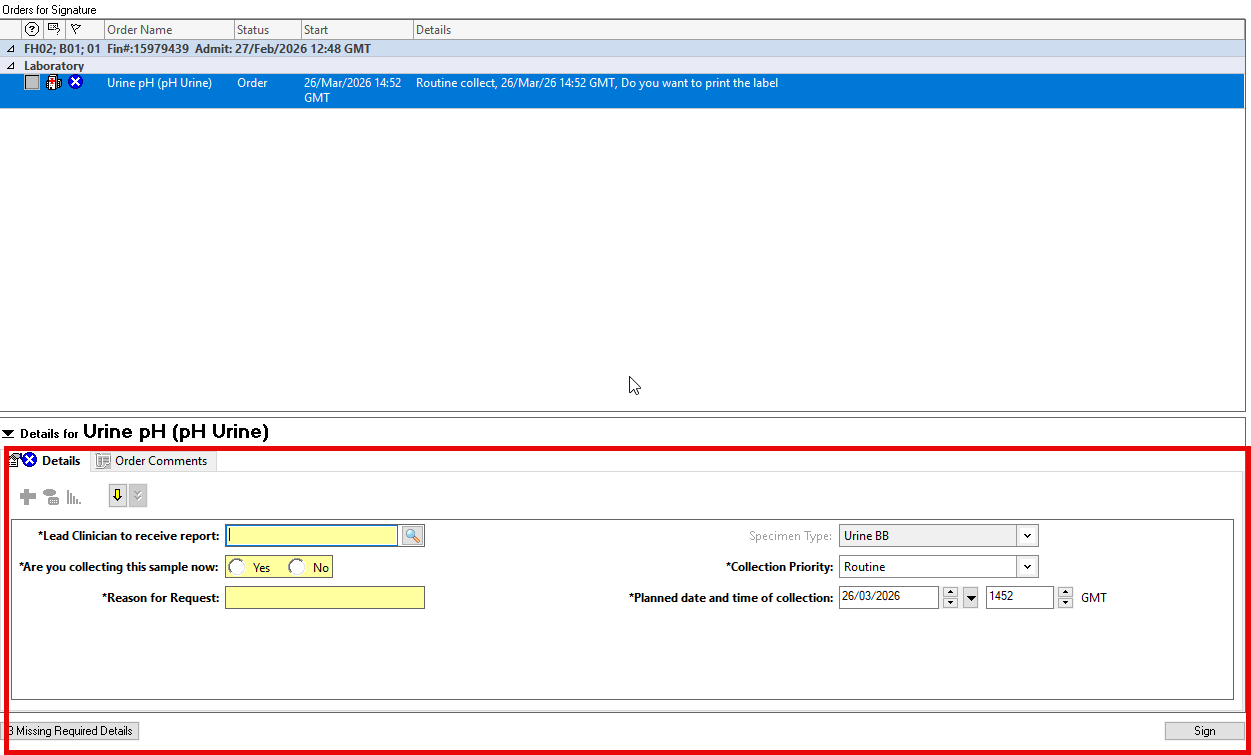
You must complete the mandatory fields (in yellow) to place the order.
- Click Sign: